


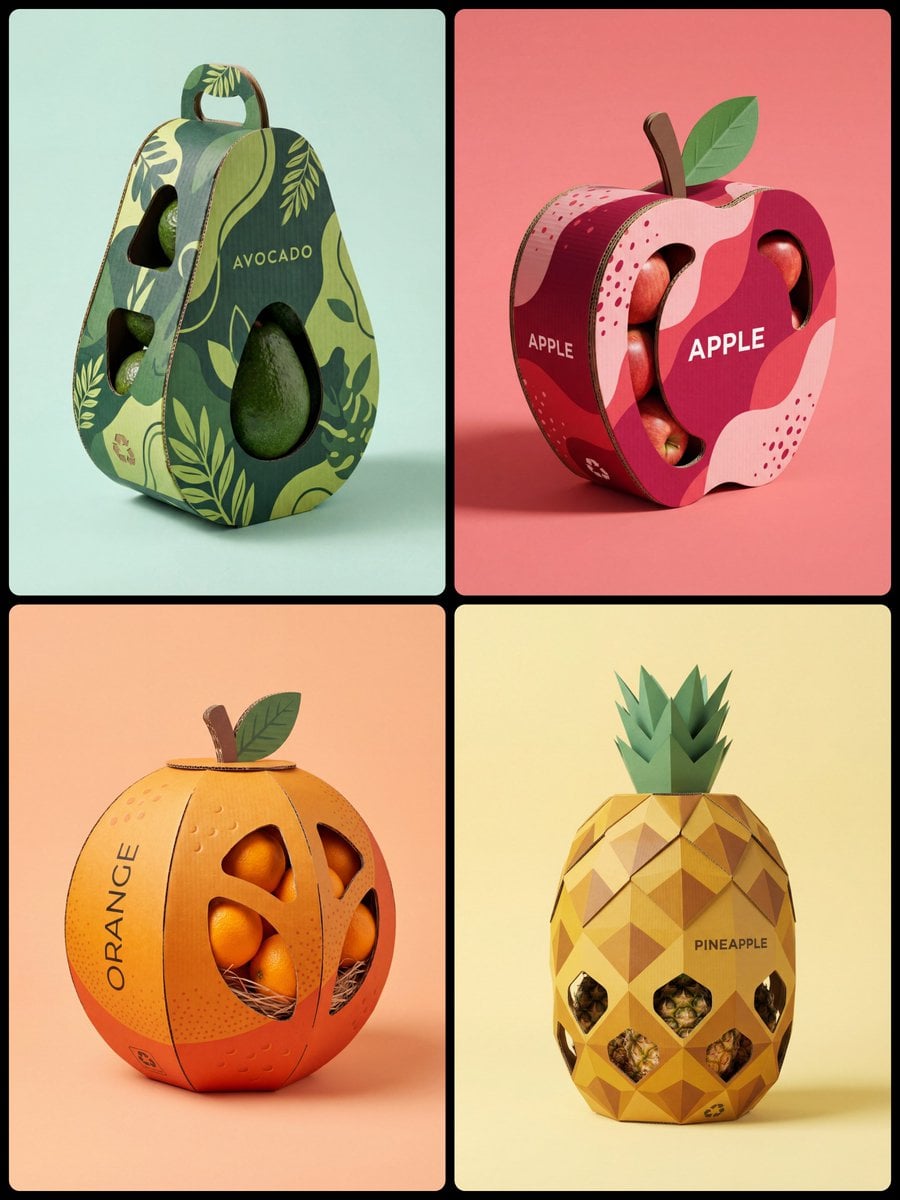
Google image model on Bimg

Imagen 4.0 AI Image Generator

Create polished 1K images from detailed written briefs with Imagen 4.0 on Bimg. The text-to-image workflow is built for photoreal scenes, natural texture, controlled editorial composition, and deliberate art direction.

Text to imageImage to image where supportedSingle and batch workflows
Imagen 4.0 image generator overview
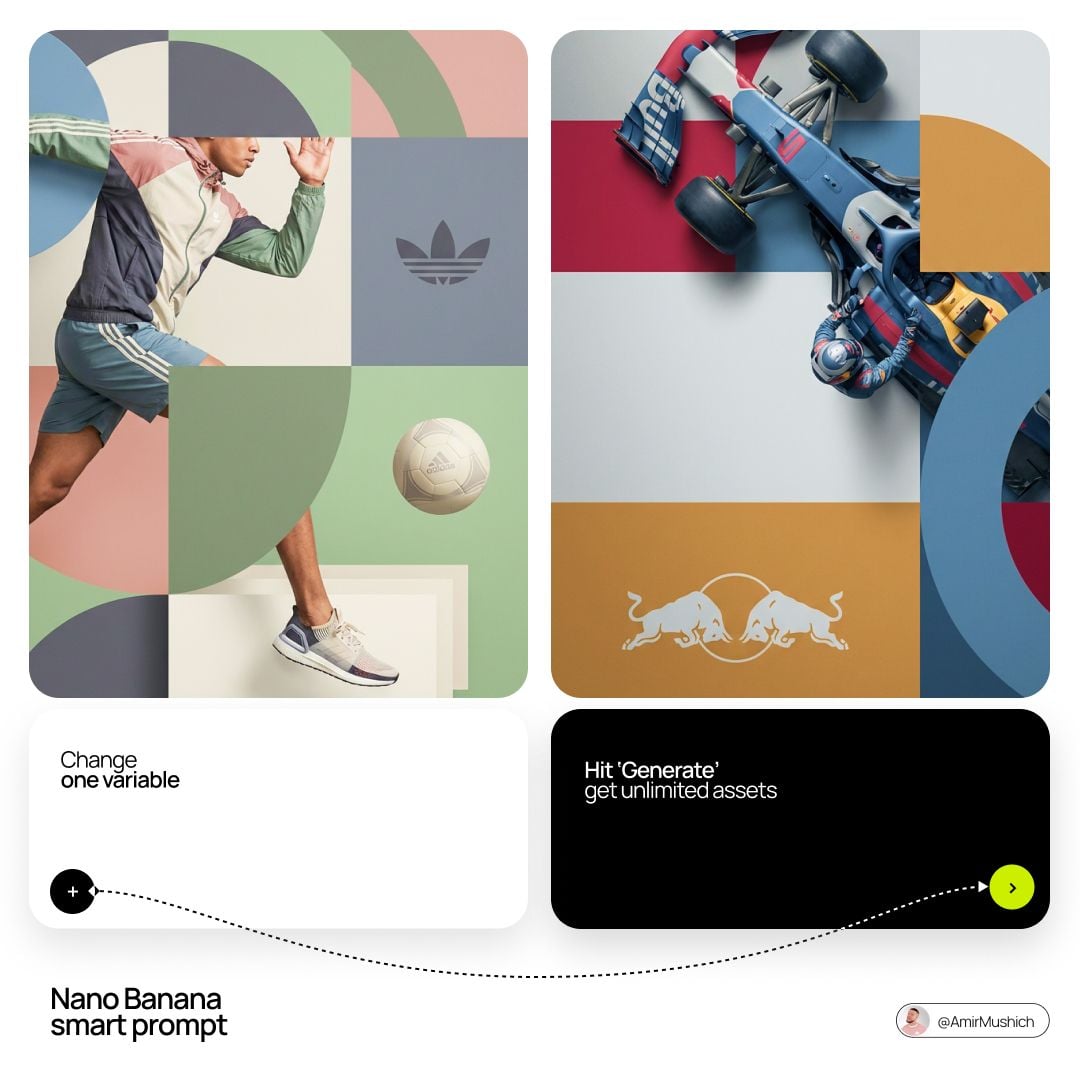
Curated visual for the Imagen 4.0 workflow on Bimg.

Create with Imagen 4.0

Imagen 4.0 is selected by default. Create one image from a prompt and optional references here, or open the batch workspace when you need Variations, CSV, or Products.

Loading the image generator…
Quick facts

Imagen 4.0 quick facts

The settings below reflect the capabilities currently exposed in Bimg, so the generator and this guide stay aligned.

Developer
Google
Best for
Photoreal detail and polished editorial frames
Generation modes
Text to image
Reference images
Text-to-image only
Output resolution
1K
Credits per image
25

Bimg is an independent platform and is not affiliated with, sponsored by, or endorsed by Google. Model names are used for identification purposes only.

Capabilities

Imagen 4.0 capabilities in Bimg

Bimg exposes the controls needed for repeatable production while keeping model-specific limits visible.

Photoreal detail

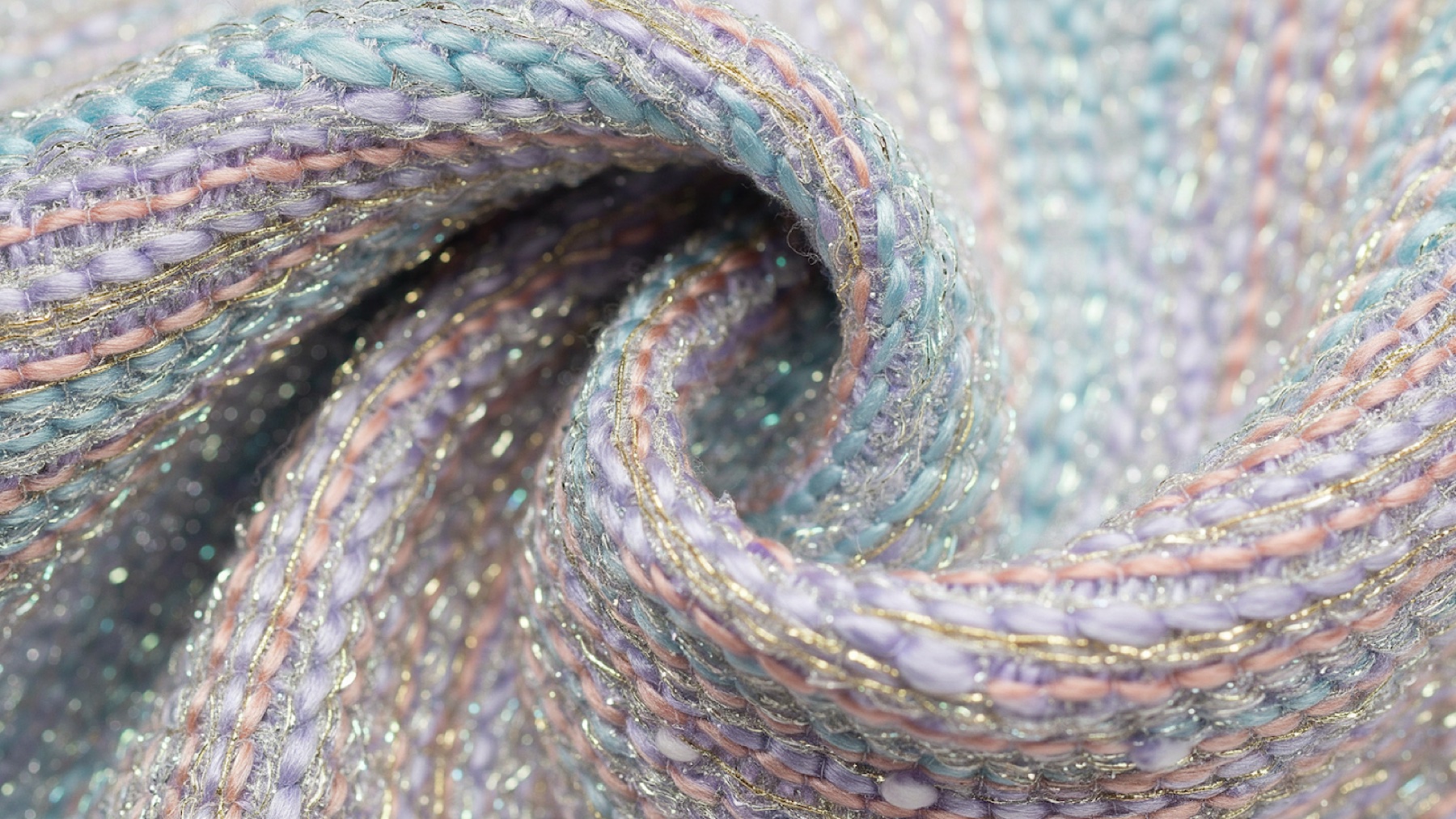
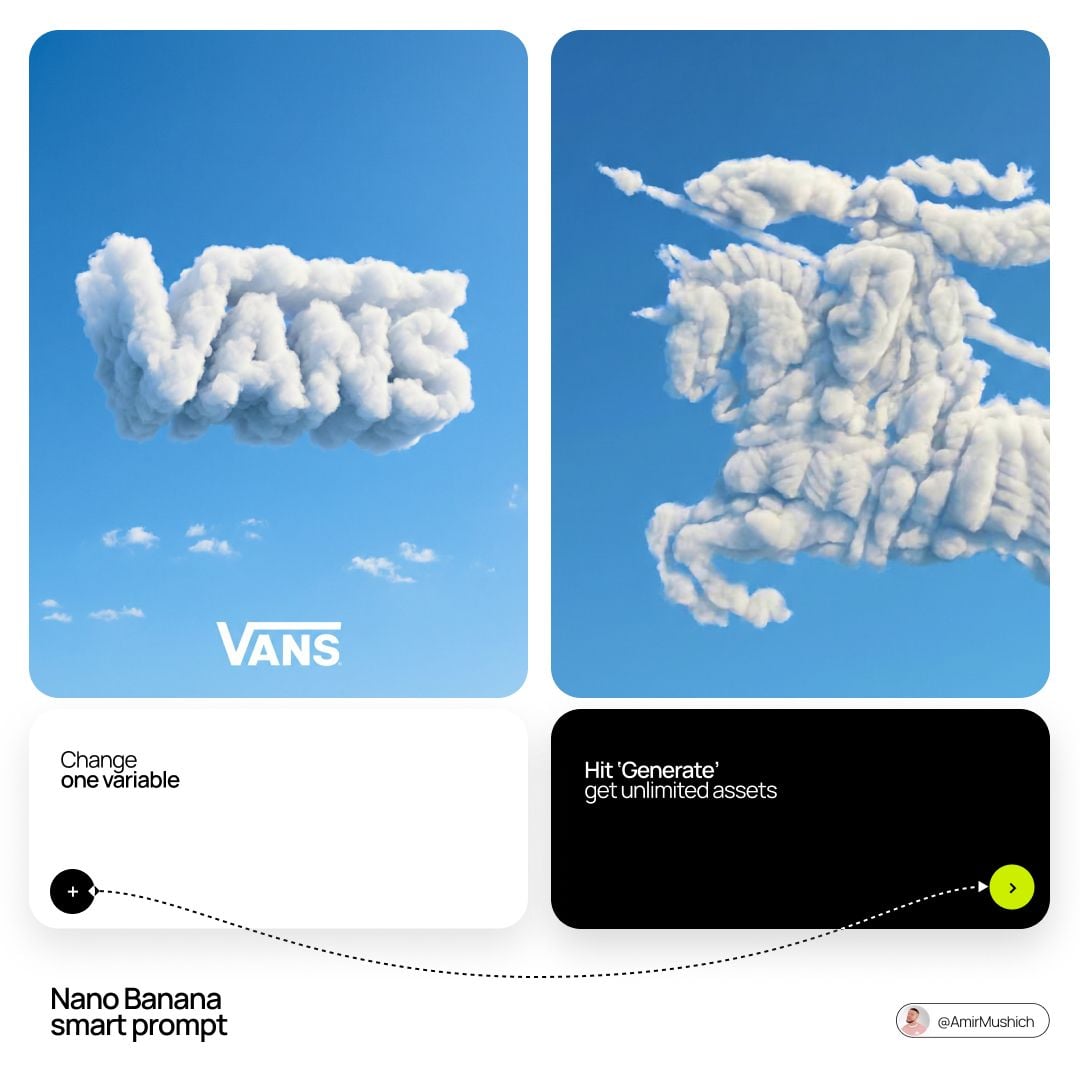
Describe the optical and tactile cues

Believability comes from surface, lens, and light instructions. Name fine texture, depth of field, and the environment around the subject.

In Bimg, name the optical cues — depth of field, reflections, micro-texture — so Imagen renders believable detail.

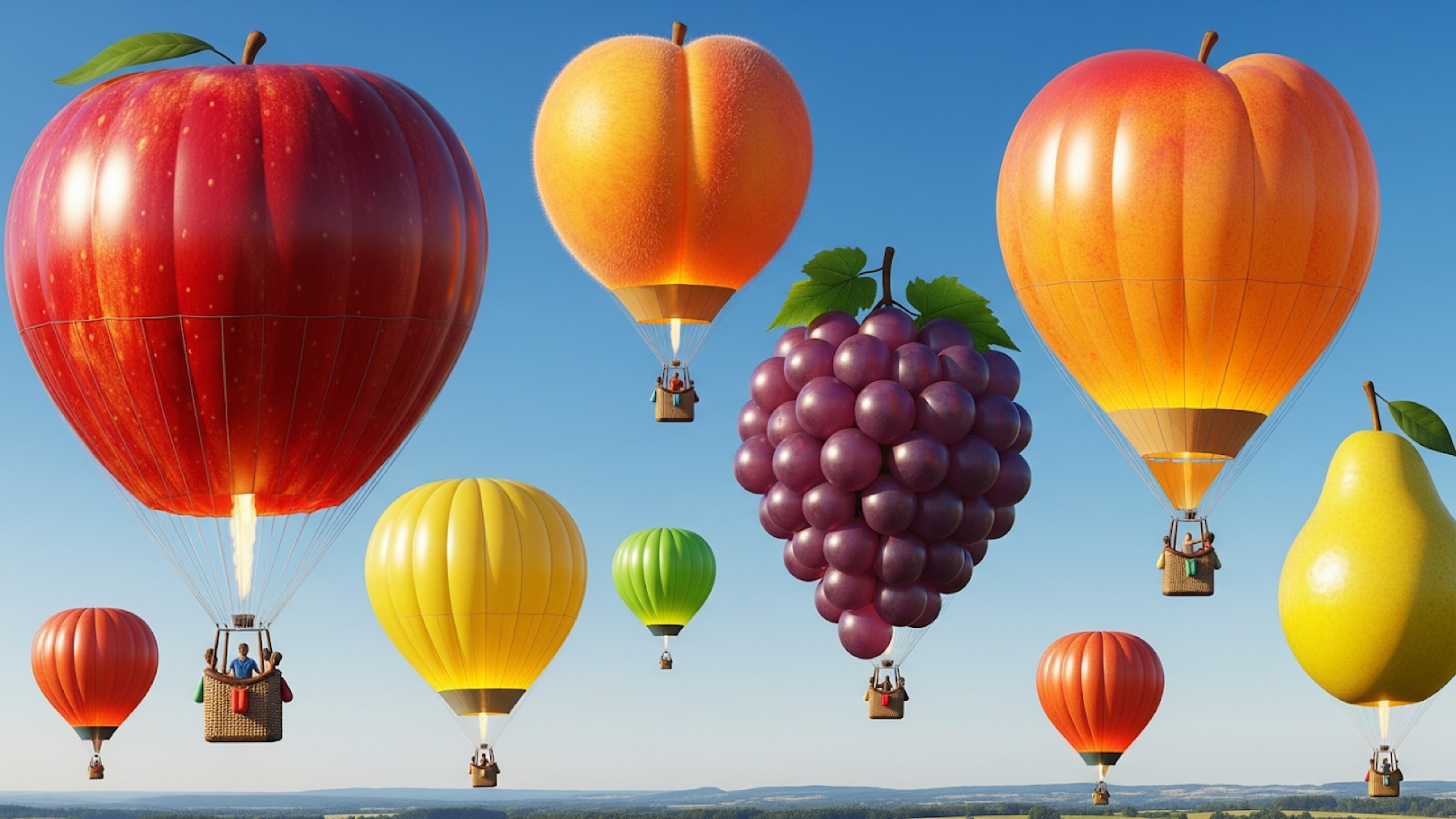
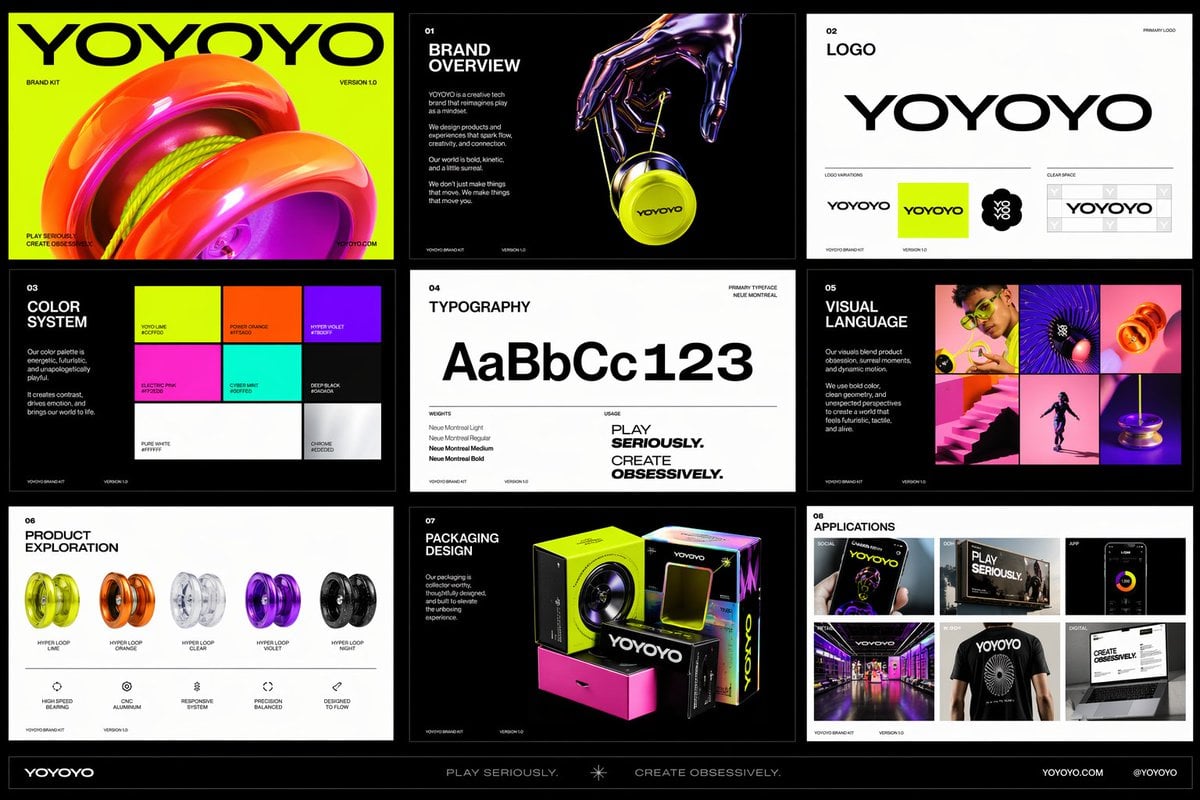
Imagen 4.0 image generation example 1
Natural texture

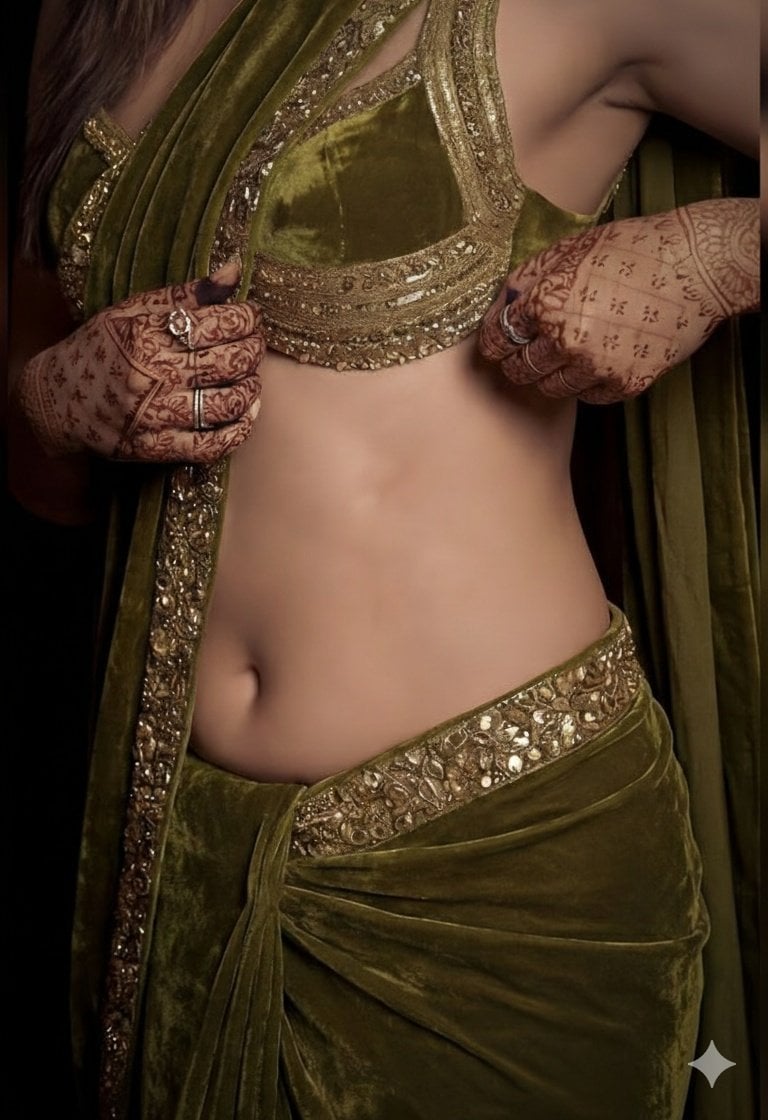
Let material behavior drive the image

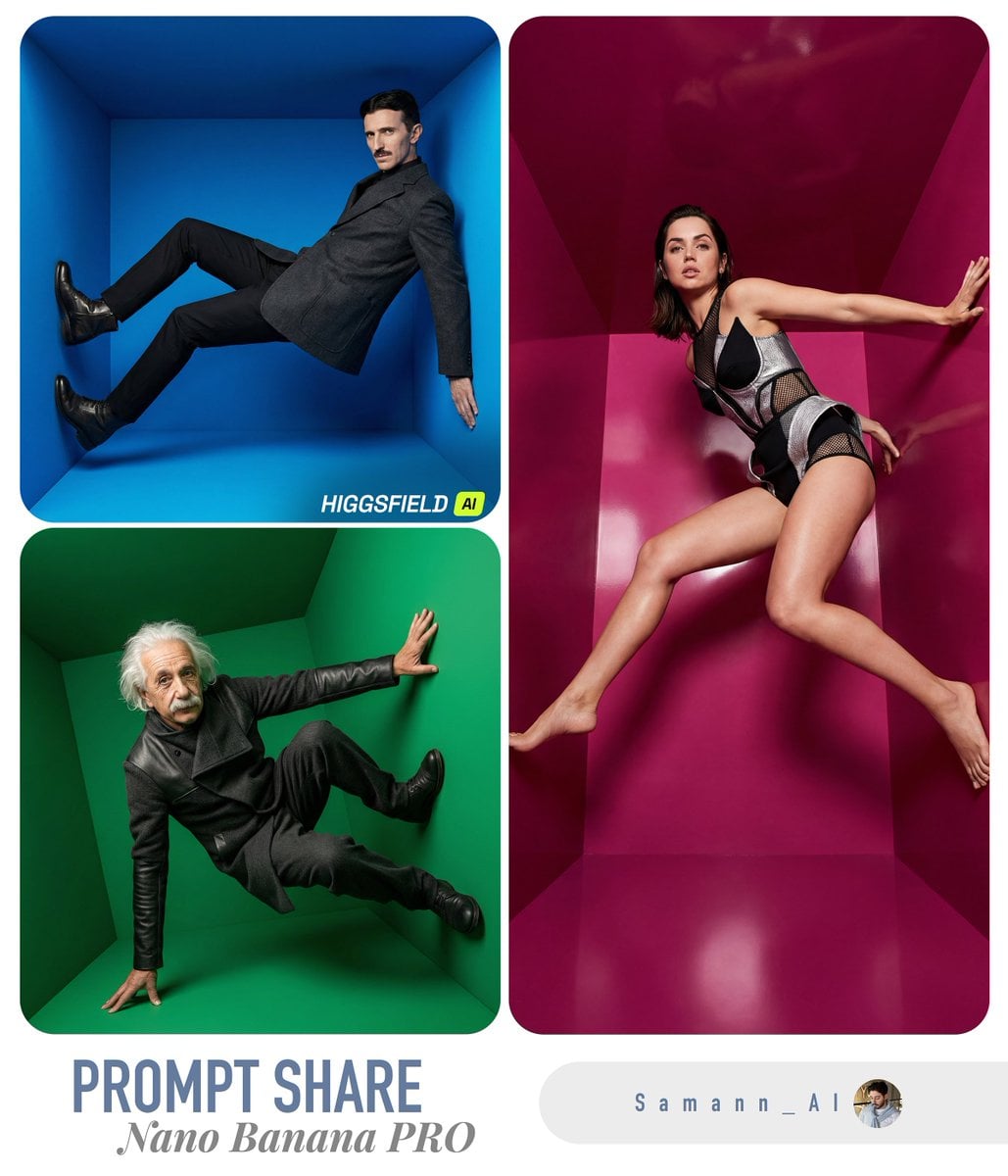
A strong texture prompt explains how light interacts with skin, glass, fabric, or organic surfaces instead of only naming a style.

Describe how the material behaves under light in Bimg rather than just naming it, so texture reads as real.

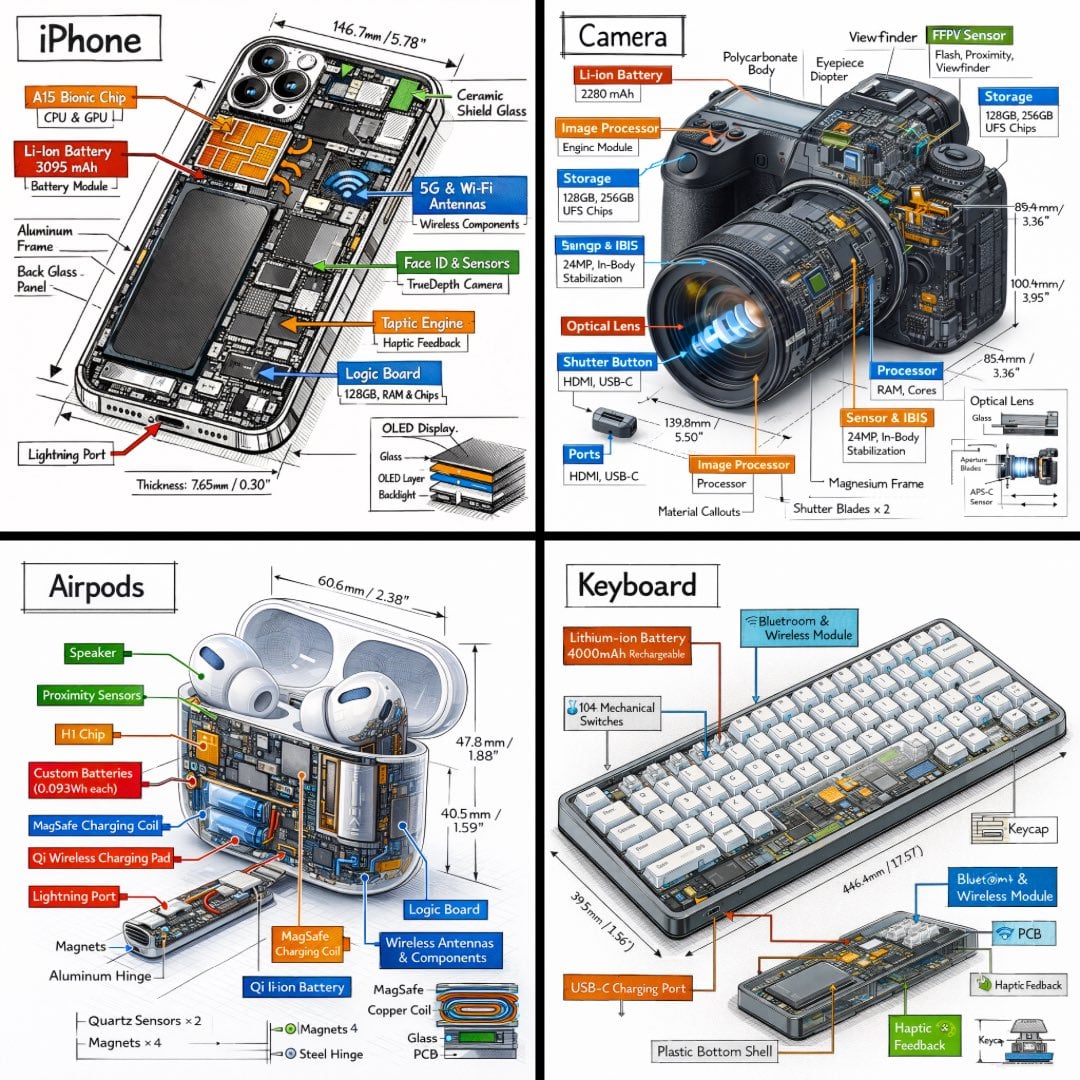
Imagen 4.0 image generation example 2
Editorial composition

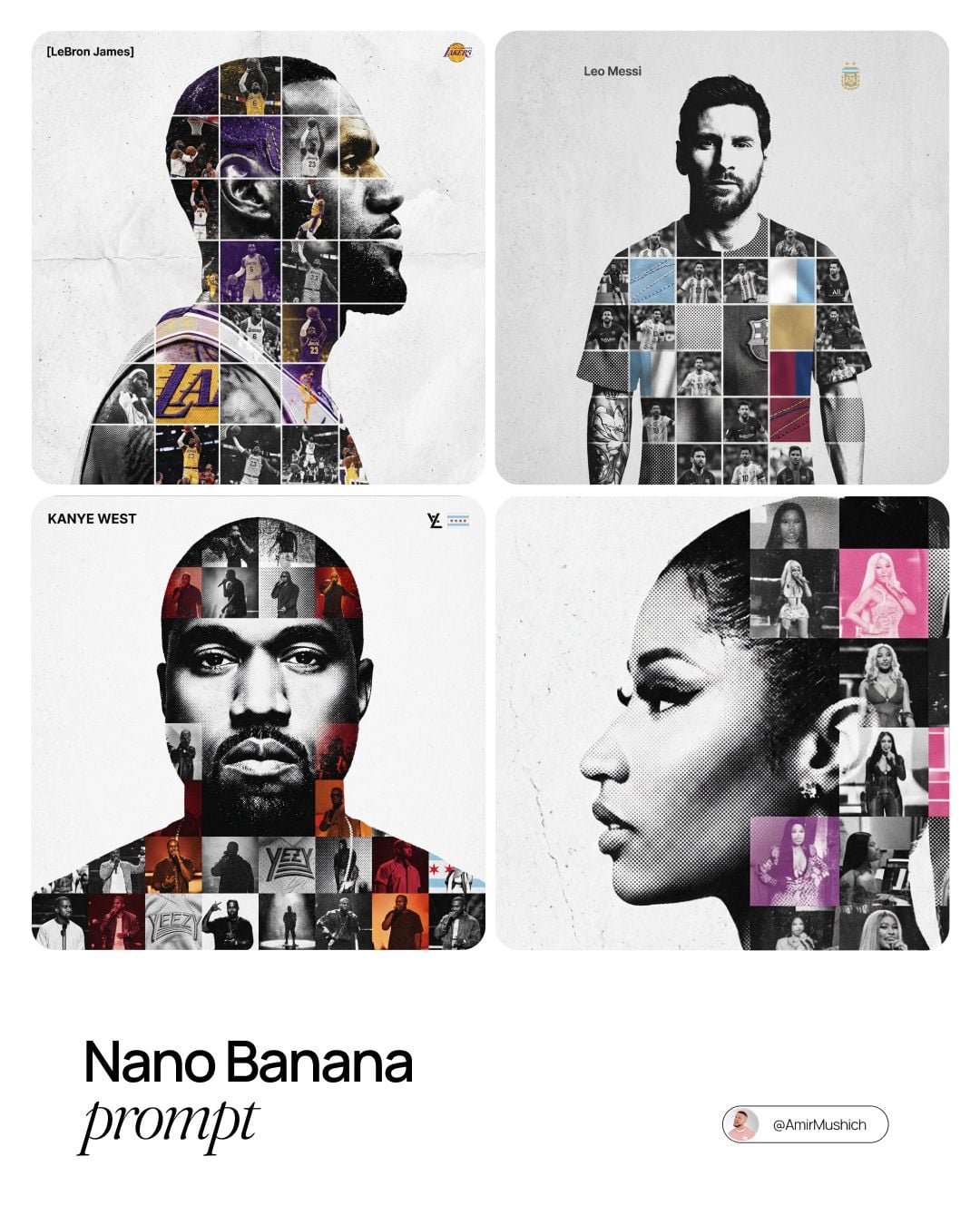
Build a frame with hierarchy

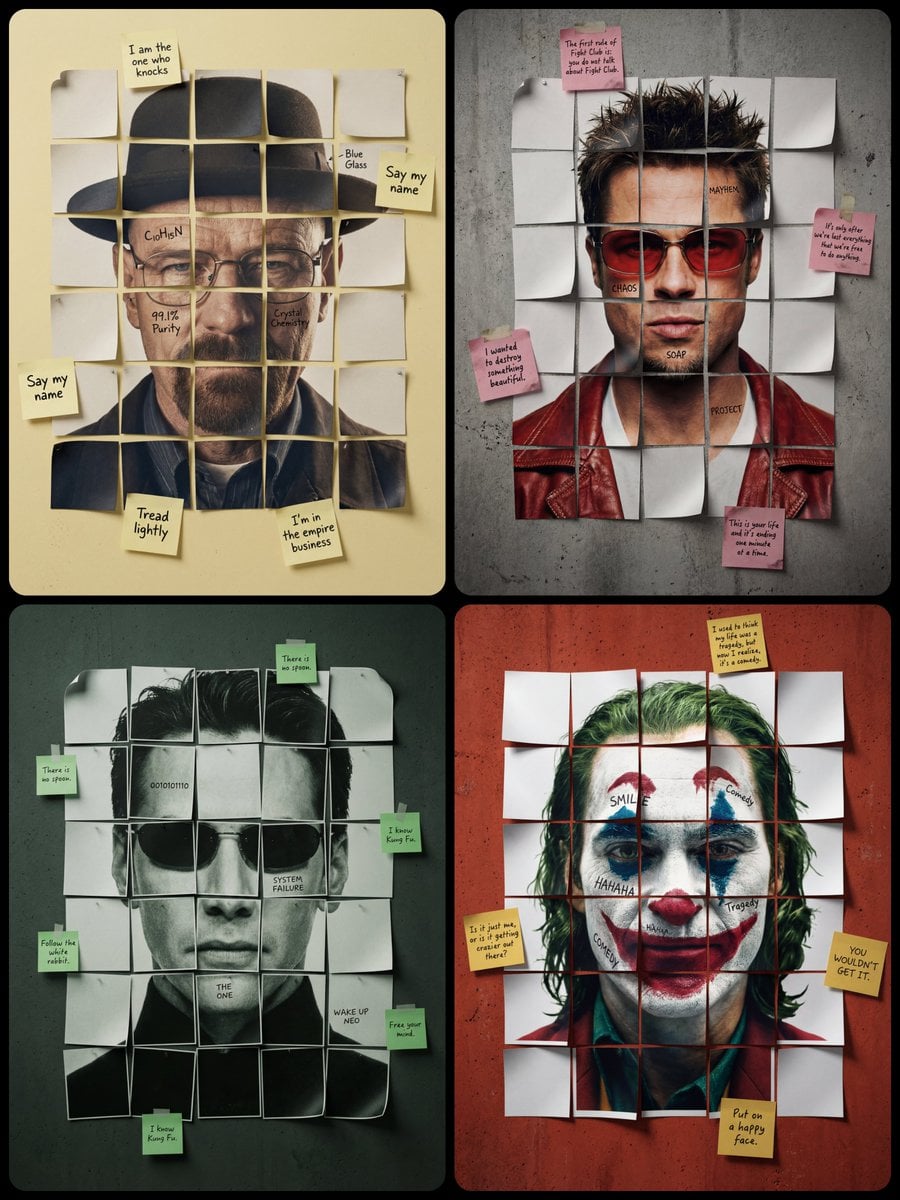
State where the subject sits, how much negative space the layout needs, and what the viewer should notice first.

Set a clear focal point and supporting elements in Bimg to build an editorial frame with hierarchy.

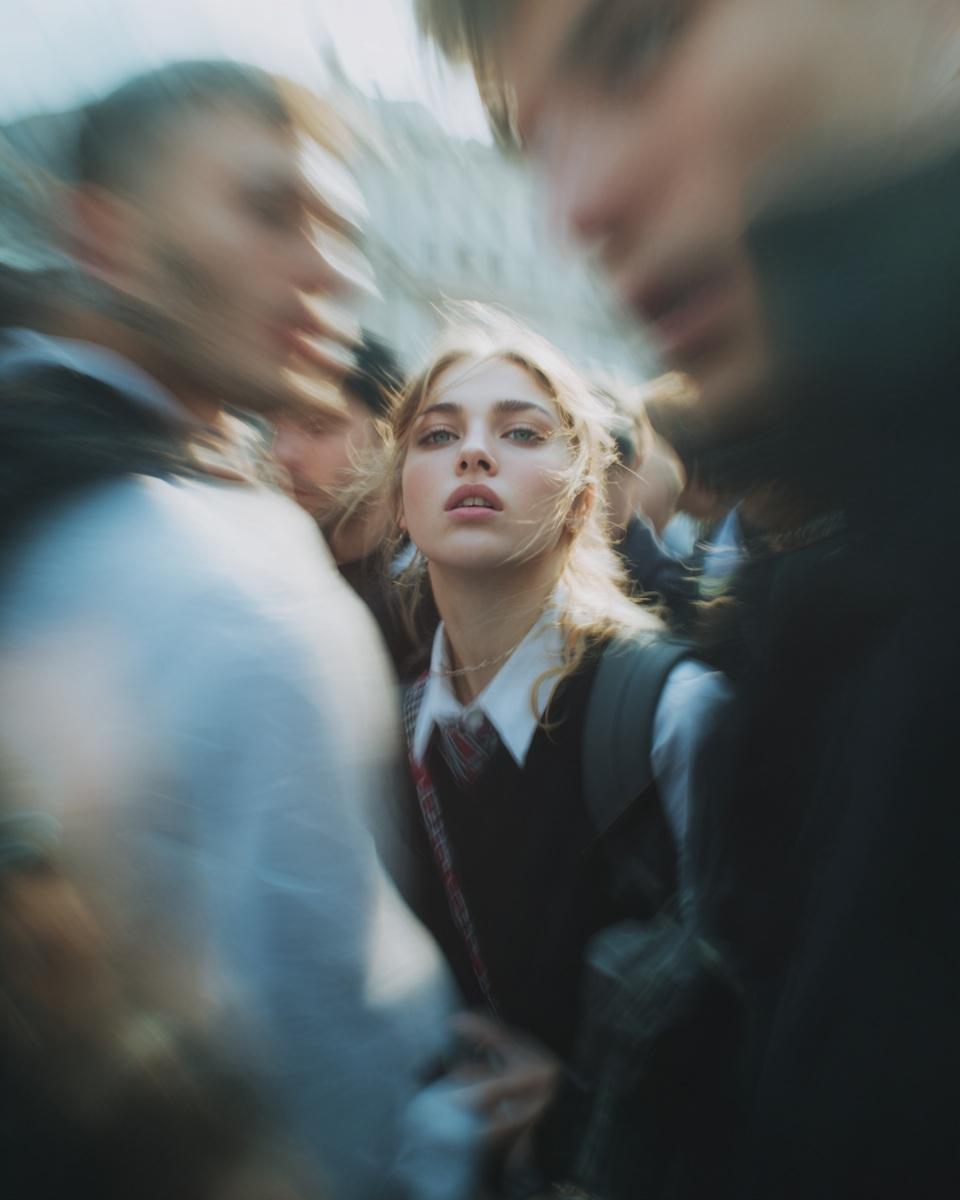
Imagen 4.0 image generation example 3
Generation modes

Text to image with Imagen 4.0

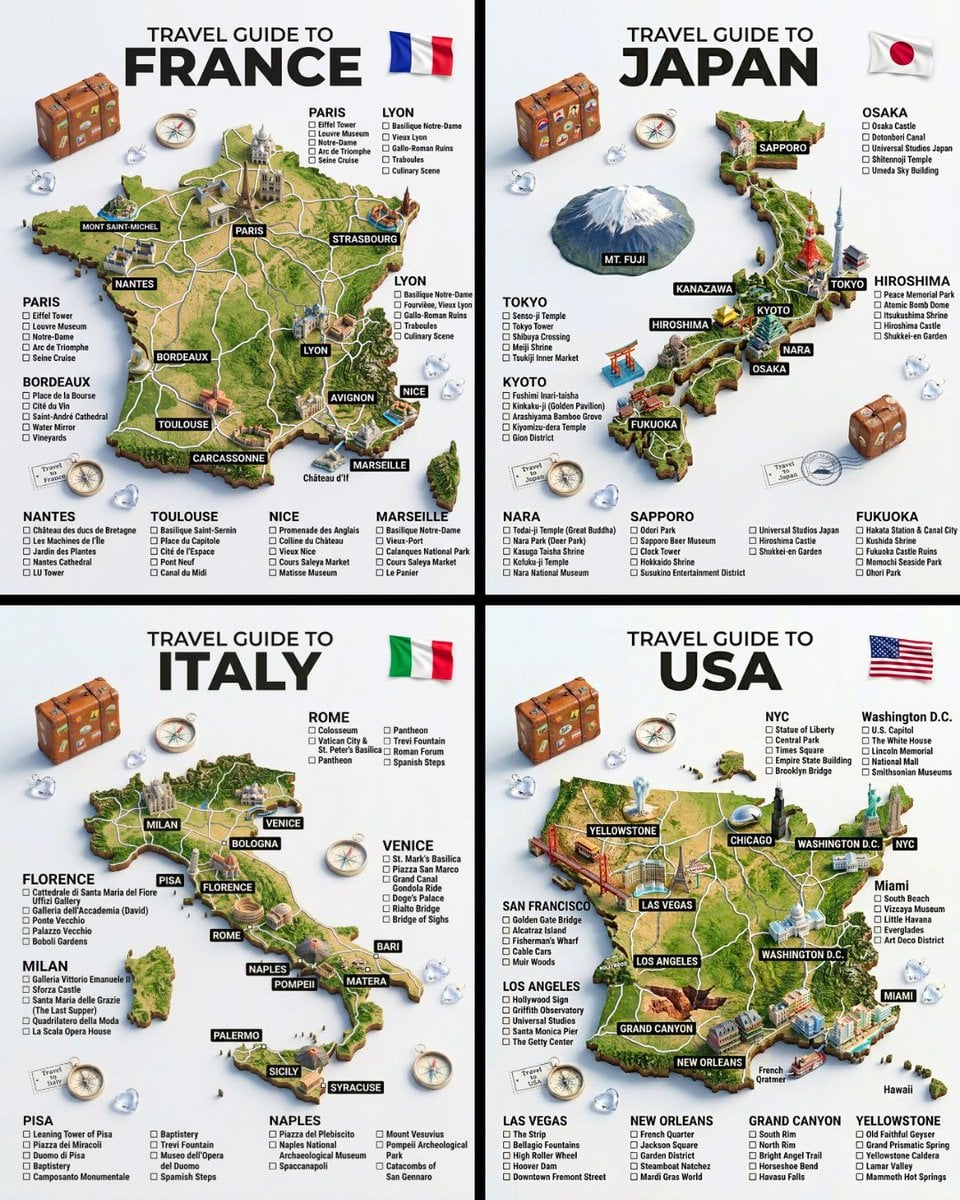
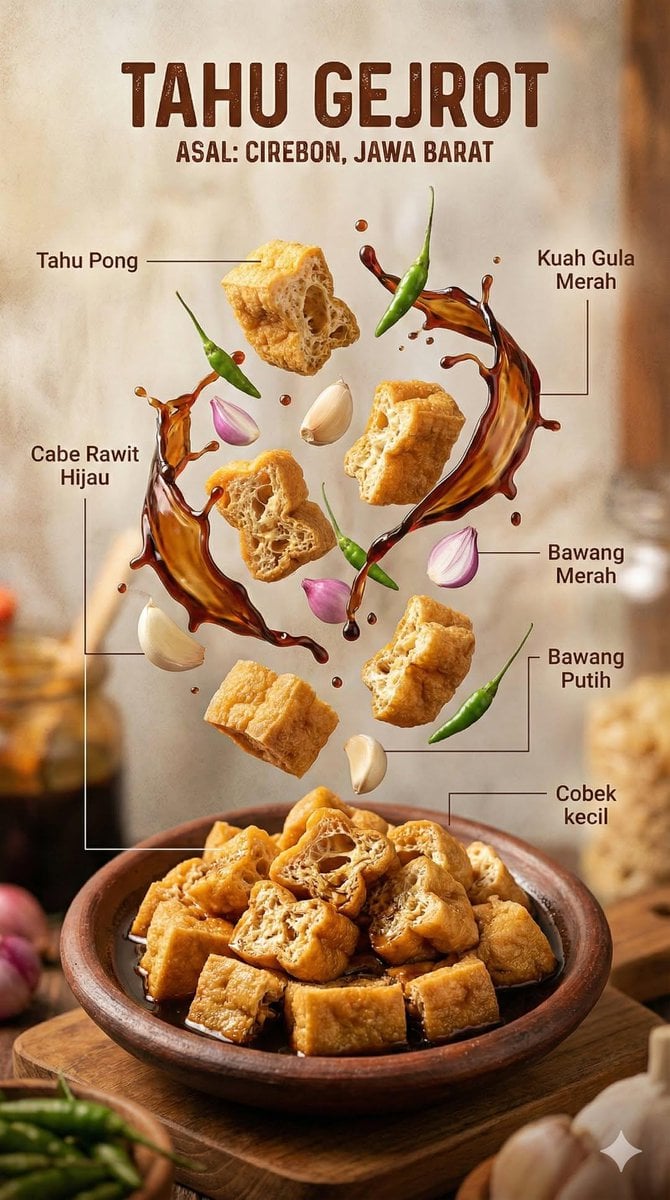
Turn a written brief into a finished visual with Imagen 4.0. Your prompt goes straight to the generator above.

Imagen 4.0 image generation example 1

Imagen 4.0 text to image

Write the prompt like a compact photography or art-direction brief. Include subject, setting, lens, framing, light, materials, palette, and output ratio.

Prompt guide

How to write better Imagen 4.0 prompts

A strong prompt reads like a compact creative brief: concrete enough to guide the model, but organized enough to edit.

Subject + optical and material cues + lighting + lens and framing + mood

Write camera language

Add viewpoint, focal length character, crop, depth of field, and subject scale when the target should feel photographic.

Extreme close-up of a blue morpho butterfly resting on a rain-dark leaf, visible wing scales and water droplets, shallow macro depth of field, soft cloud light, natural forest color, documentary photography, 4:3.

Explain material response

Describe translucency, roughness, reflection, weave, grain, moisture, or patina so light has something concrete to reveal.

A green chameleon crossing a pale limestone branch, fine skin texture and subtle color variation, side light revealing surface detail, quiet warm background, wildlife editorial photograph, full animal visible, 3:2.

Reserve layout space

For covers and ads, state where negative space belongs and keep the subject away from the future headline area.

Contemporary fashion portrait in a minimal concrete courtyard, subject on the right third, large clean negative space on the left for a magazine cover, soft overcast light, restrained cobalt accent, realistic editorial photography, 4:3.

How it works

How to use the Imagen 4.0 image generator

The same three-step workflow works for one-off ideas and structured batch production.

1

Start with this model

Imagen 4.0 is selected when the page loads. Write one prompt, add supported reference images when needed, or open the batch workspace for larger jobs.

2

Write the brief and set output controls

Describe the subject, context, composition, style, and constraints. Then choose the supported ratio and resolution for Imagen 4.0, adding reference images only when the model allows them.

3

Generate, review, and refine

Submit the job, compare the Imagen 4.0 results, and regenerate with targeted prompt changes. Completed work is available in history for later review and download.

Compare

Imagen 4.0 compared with related models

Use credits, output tiers, and creative strengths as practical selection signals. The best model depends on the job, not one universal ranking.

ModelBest-fit strengthOutput tiersCredits / image
Imagen 4.0high-detail final output1K25
Nano Bananabalanced quality and speed1K8
Nano Banana 2 Litefast creative iteration1K20
Seedream 5.0 Litefast creative iteration2K / 3K17
FAQ

Imagen 4.0 image generator FAQ

Practical answers about access, credits, inputs, output controls, batch workflows, and responsible review.

What is Imagen 4.0 best for?

Imagen 4.0 is a strong fit for text-led photoreal scenes, nature and material studies, product concepts, editorial imagery, and atmospheric visual storytelling.

Does Imagen 4.0 support image to image on Bimg?

No. The current Bimg integration is text to image only, so reference uploads are disabled on this model page.

How do I make Imagen 4.0 results look more photographic?

Describe camera position, lens character, subject scale, depth of field, light source, surface texture, and realistic environmental detail instead of simply adding “photorealistic.”

Can Imagen 4.0 make product images?

Yes, especially for unbranded product concepts. Define the object geometry, material, studio setup, plinth, lens, shadow, background, and final crop.

Can I use Imagen 4.0 for posters with text?

You can explore poster imagery, but any visible wording should be checked carefully. Use a text-focused model when exact typography is the primary requirement.

Which model should I use if I need to preserve an uploaded subject?

Choose a reference-capable option such as Nano Banana, GPT Image 2, Seedream, Qwen Image, Grok Imagine, or Wan, then state which source details must remain unchanged.

How many Bimg credits does Imagen 4.0 use?

Imagen 4.0 currently uses 25 Bimg credits per image, depending on the available output or quality setting. The generator shows the exact estimate before you submit, and normal Bimg refund handling applies to failed jobs.

What output sizes can I create with Imagen 4.0?

The current Bimg integration exposes 1K output. Available aspect ratios are shown beside the generator and update automatically when you change the model or workflow.

Can I use reference images with Imagen 4.0?

Imagen 4.0 is currently exposed as text to image in Bimg, so reference uploads are disabled for this model. Choose a reference-capable model from the comparison section when image to image is required.

Is Bimg the official Imagen 4.0 website?

No. Bimg is an independent image-generation platform and is not affiliated with, sponsored by, or endorsed by Google. The model name is used only to identify the generation option available in the Bimg workspace.

Start creating with Imagen 4.0

Open the generator above with Imagen 4.0 already selected, write your brief, choose the delivery format, and move from one idea to a reviewable result in the same workspace.

Generate with this model