
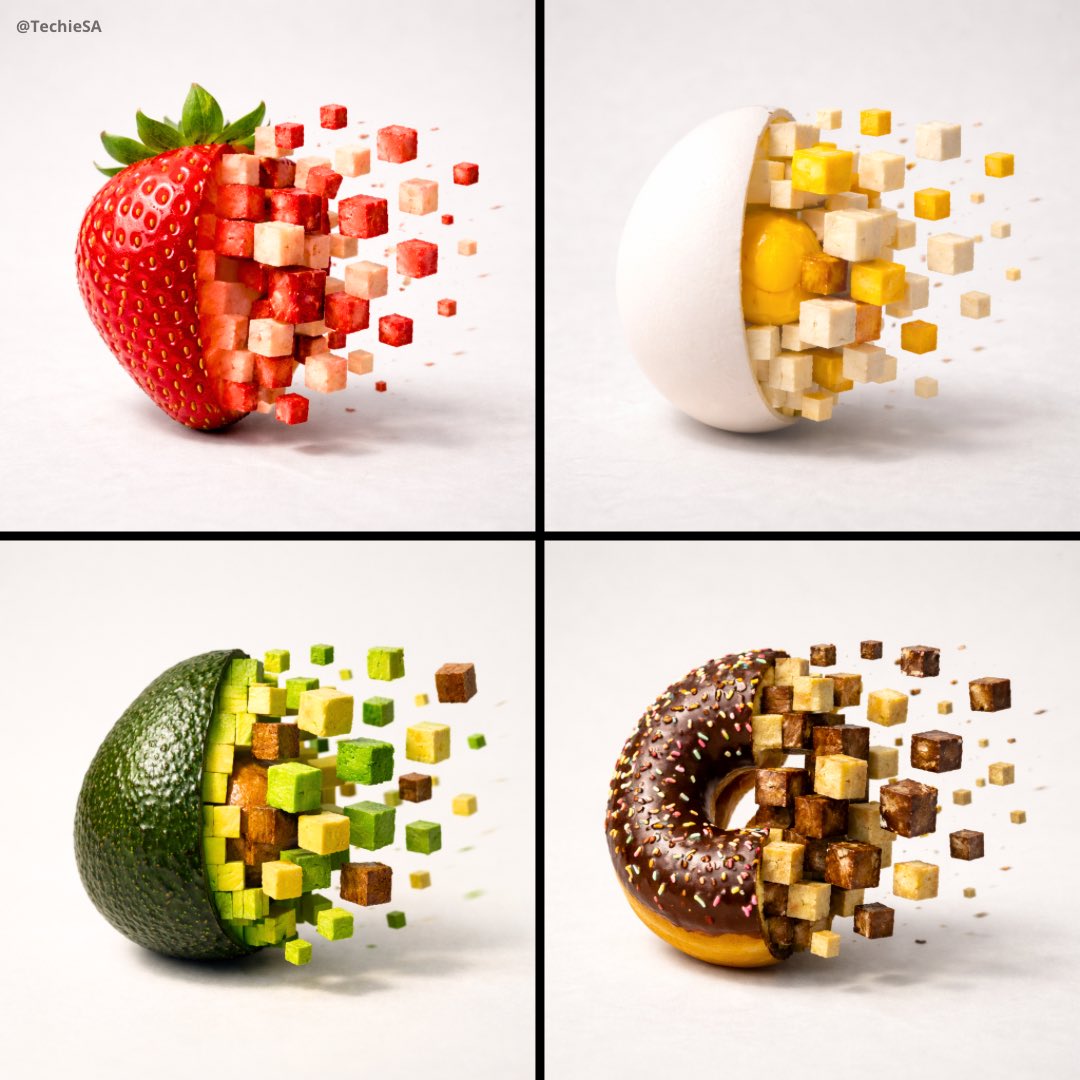
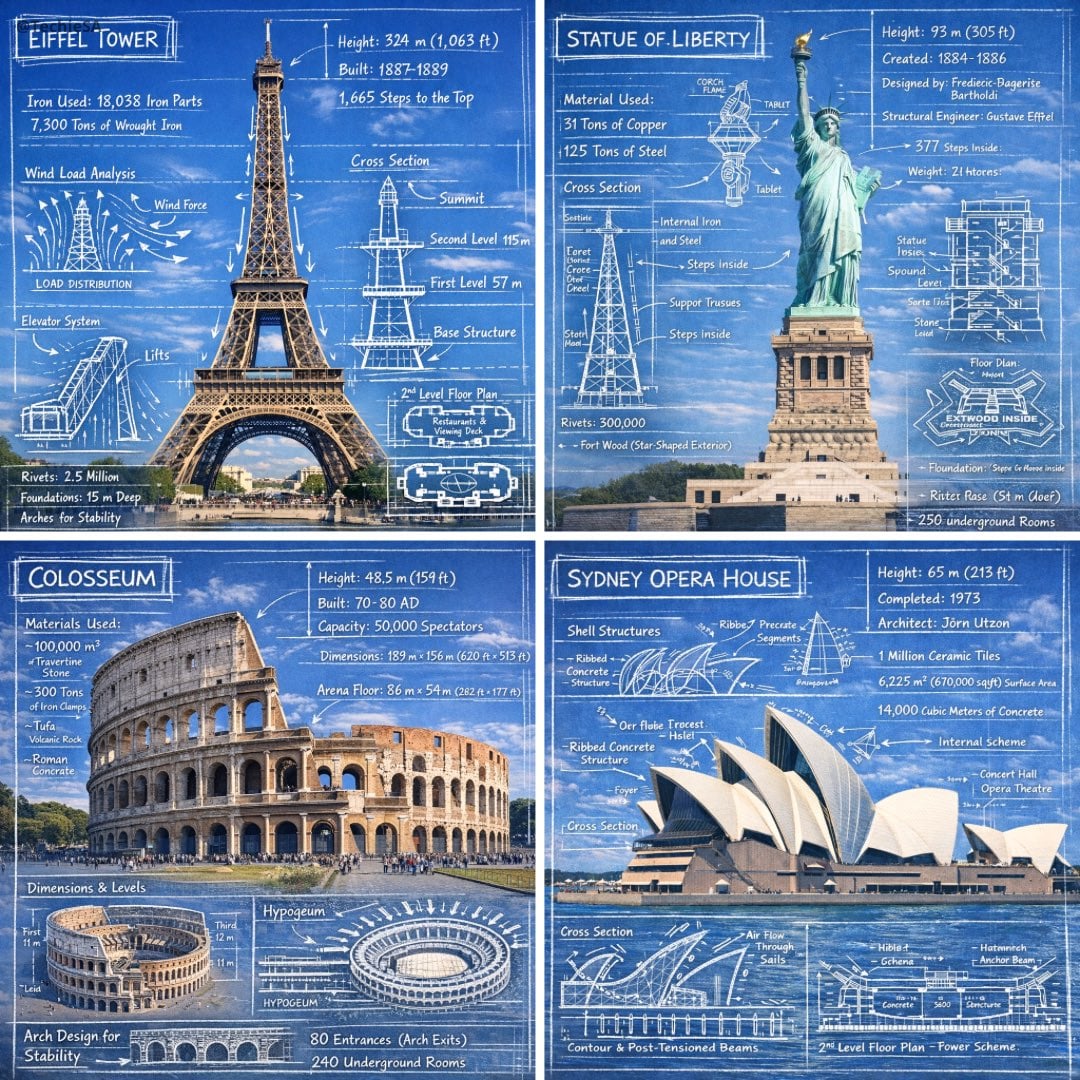
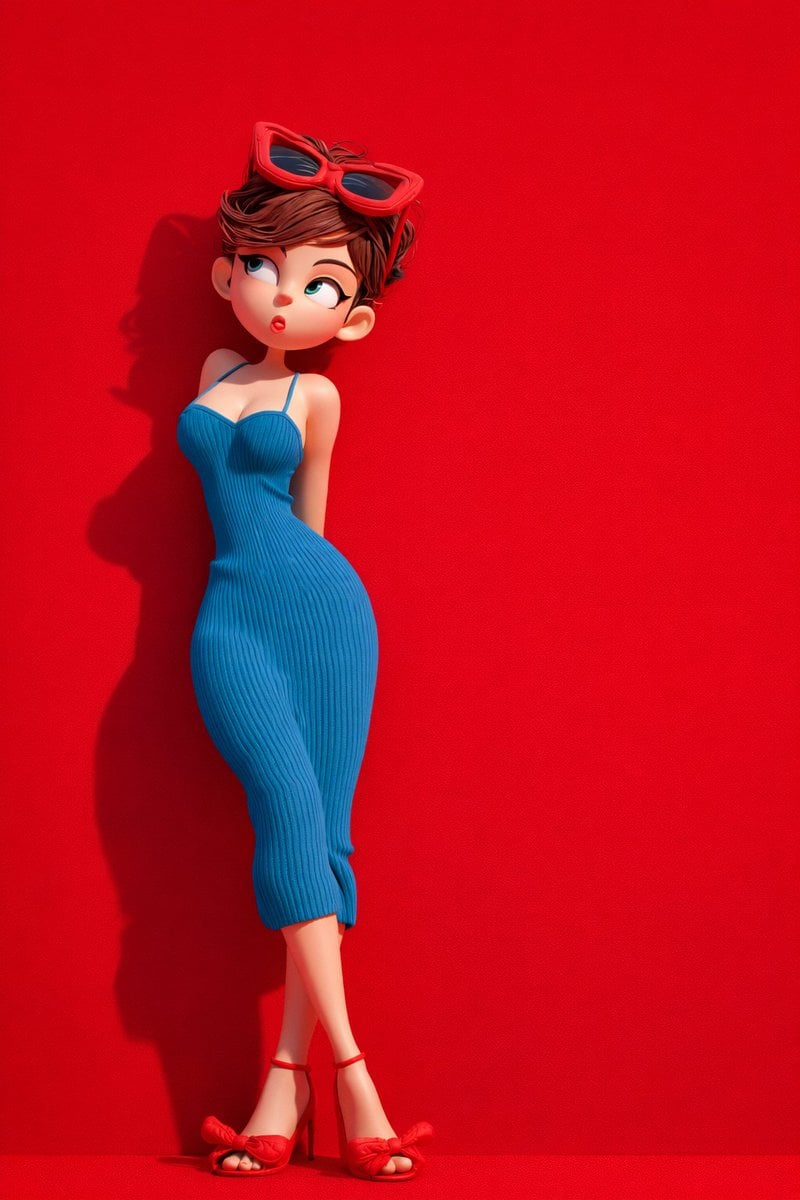
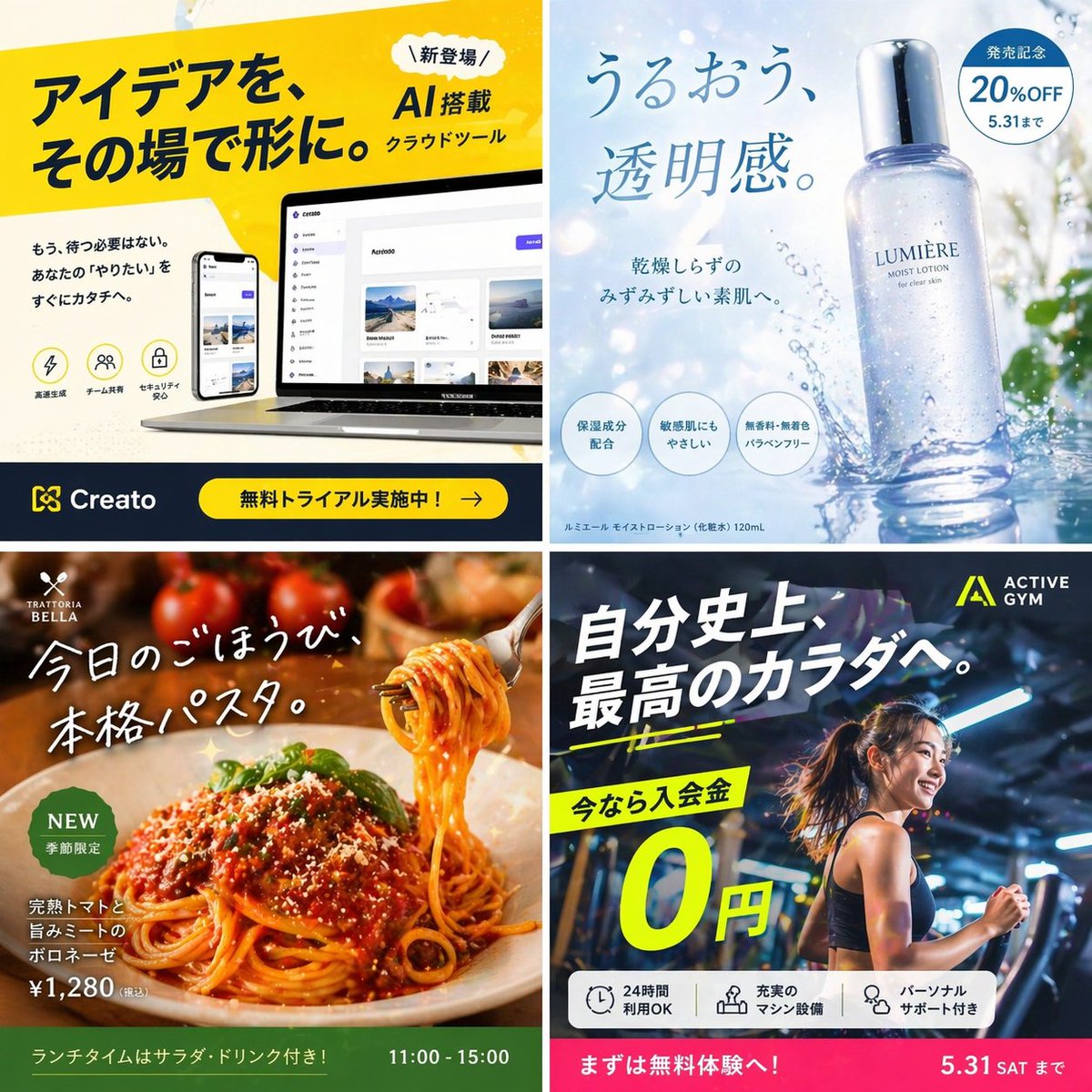
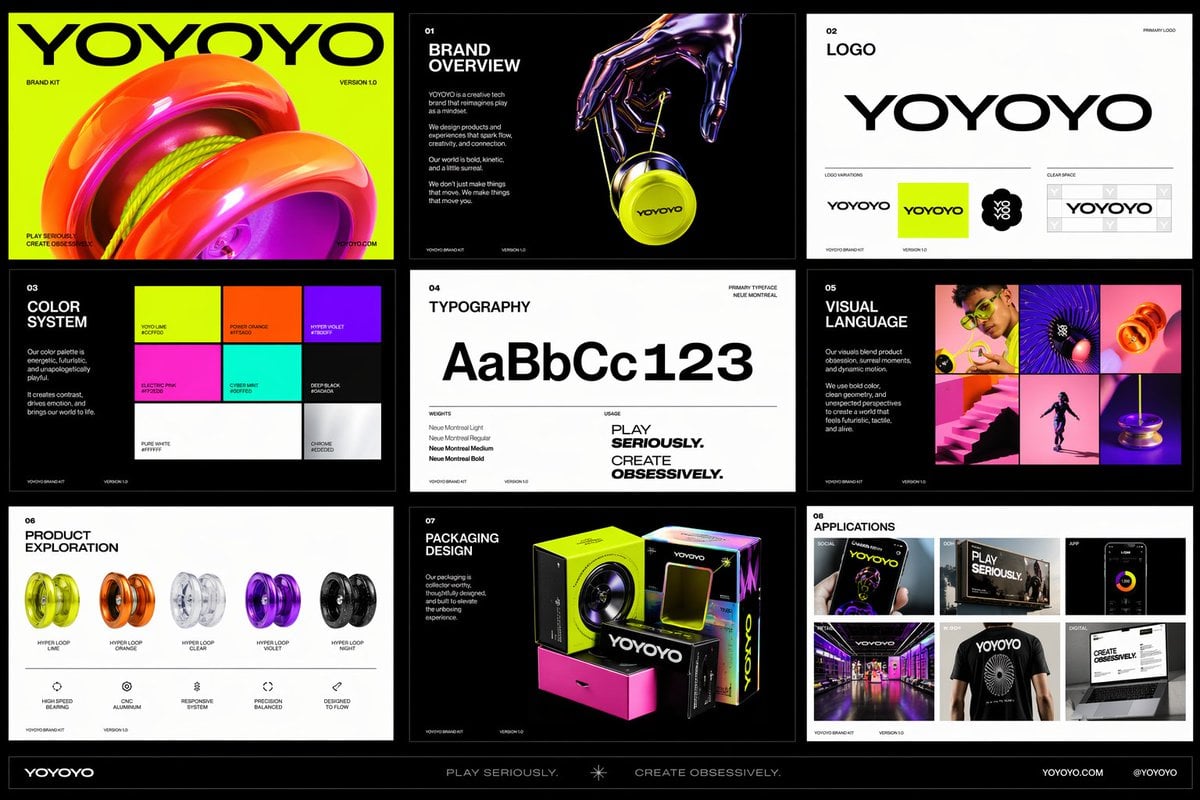
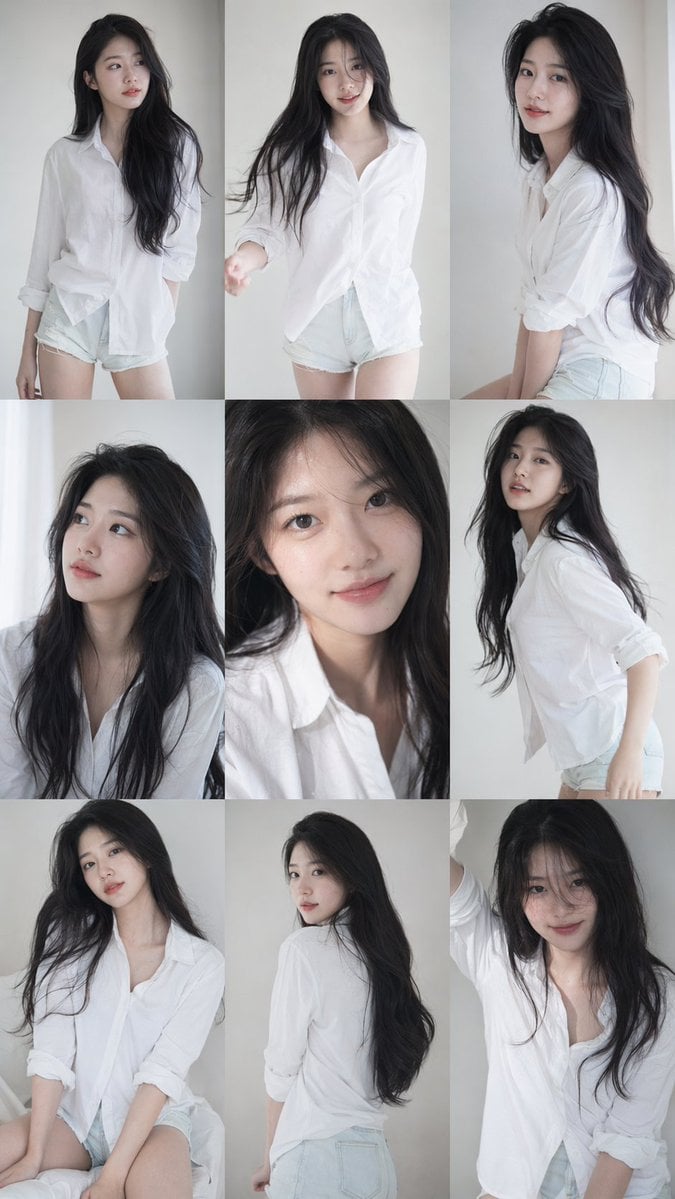
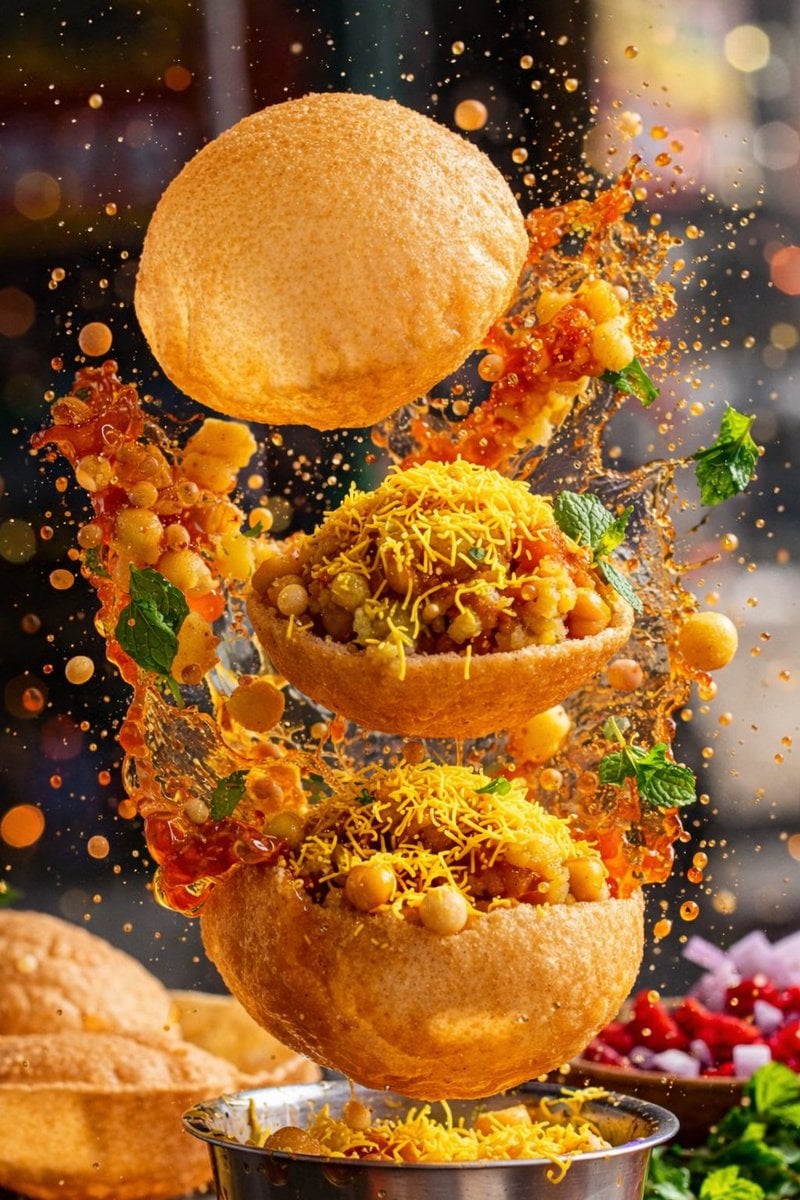
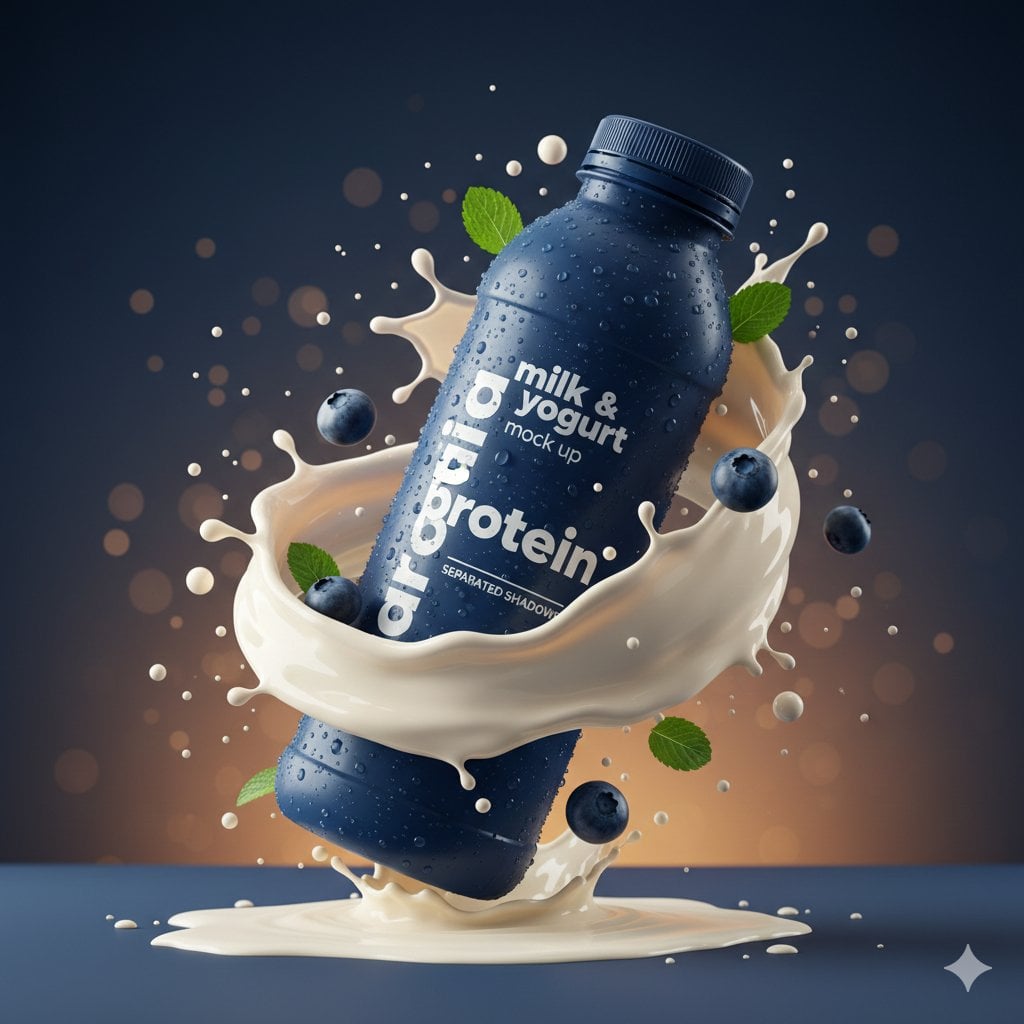
OpenAI image model on Bimg

GPT Image 2 AI Image Generator

Create detailed images from text or up to five references with GPT Image 2 on Bimg. Choose 1K, 2K, or 4K and match standard, medium, or high quality to product photography, typography, portraits, and final campaign work.

Text to imageImage to image where supportedSingle and batch workflows
GPT Image 2 image generator overview
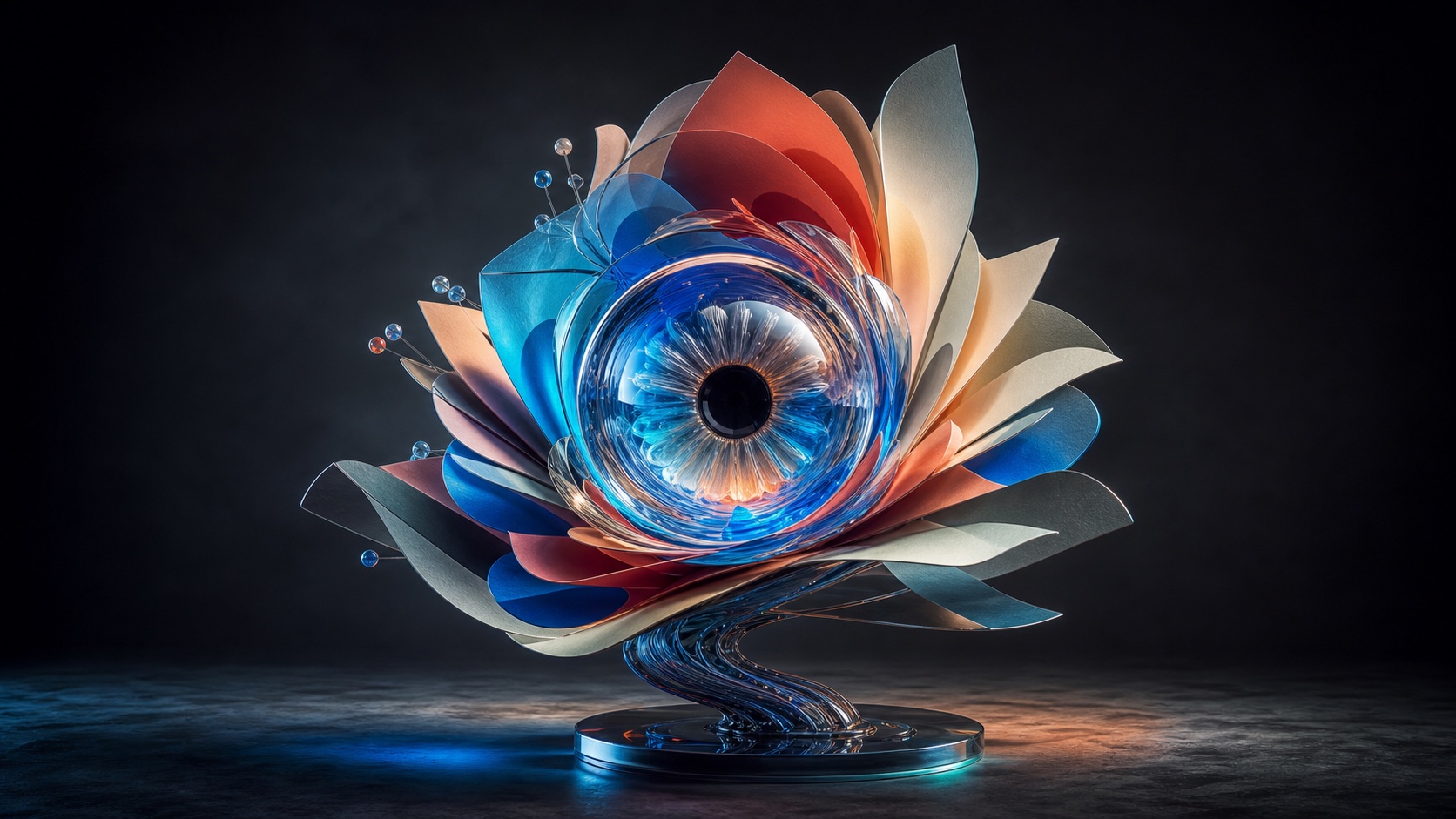
Curated visual for the GPT Image 2 workflow on Bimg.

Create with GPT Image 2

GPT Image 2 is selected by default. Create one image from a prompt and optional references here, or open the batch workspace when you need Variations, CSV, or Products.

Loading the image generator…
Quick facts

GPT Image 2 quick facts

The settings below reflect the capabilities currently exposed in Bimg, so the generator and this guide stay aligned.

Developer
OpenAI
Best for
Studio product shots, typography, and photoreal portraits
Generation modes
Text to image · Image to image
Reference images
Supported, up to 5
Output resolution
1K / 2K / 4K
Credits per image
2–80

Bimg is an independent platform and is not affiliated with, sponsored by, or endorsed by OpenAI. Model names are used for identification purposes only.

Capabilities

GPT Image 2 capabilities in Bimg

Bimg exposes the controls needed for repeatable production while keeping model-specific limits visible.

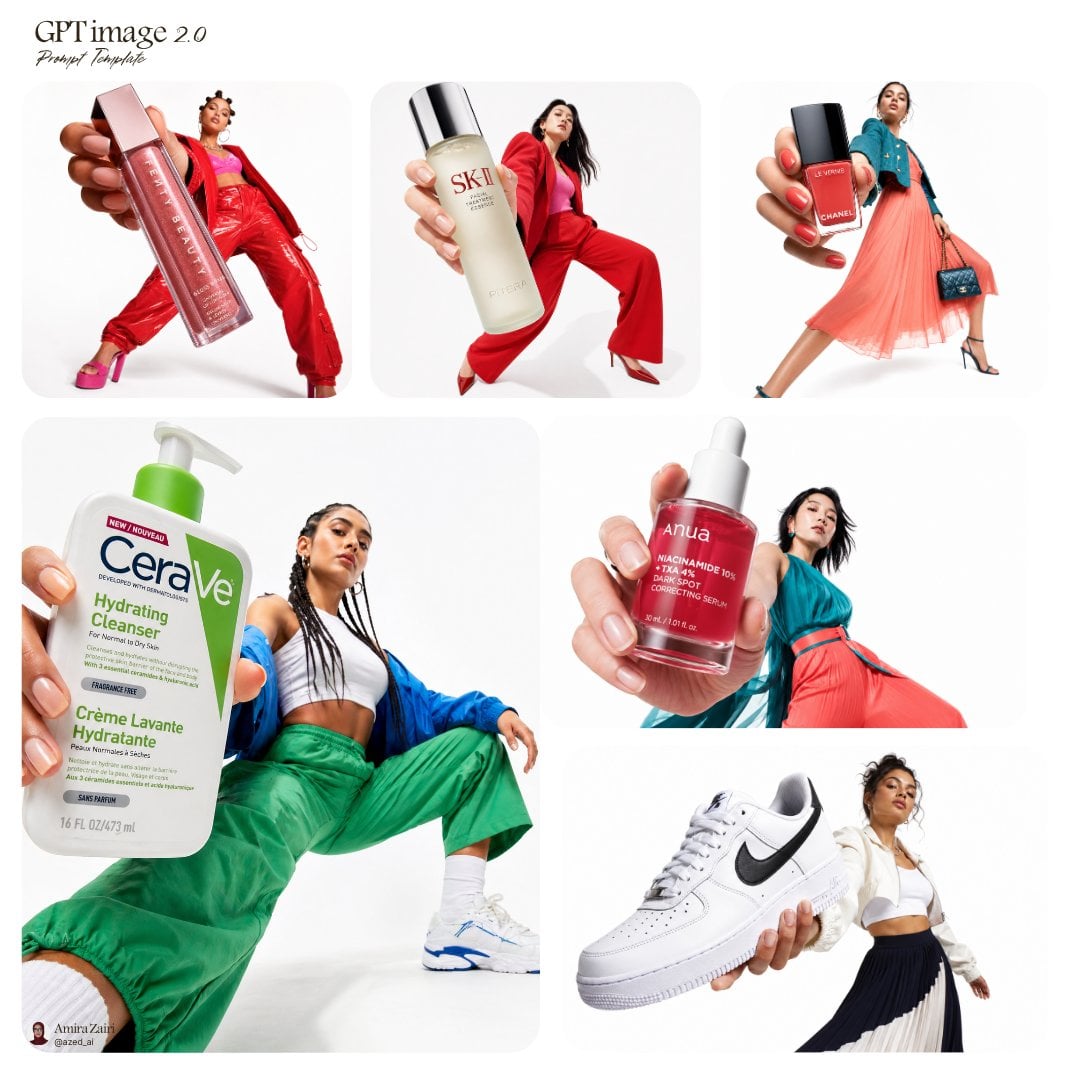
Product campaign

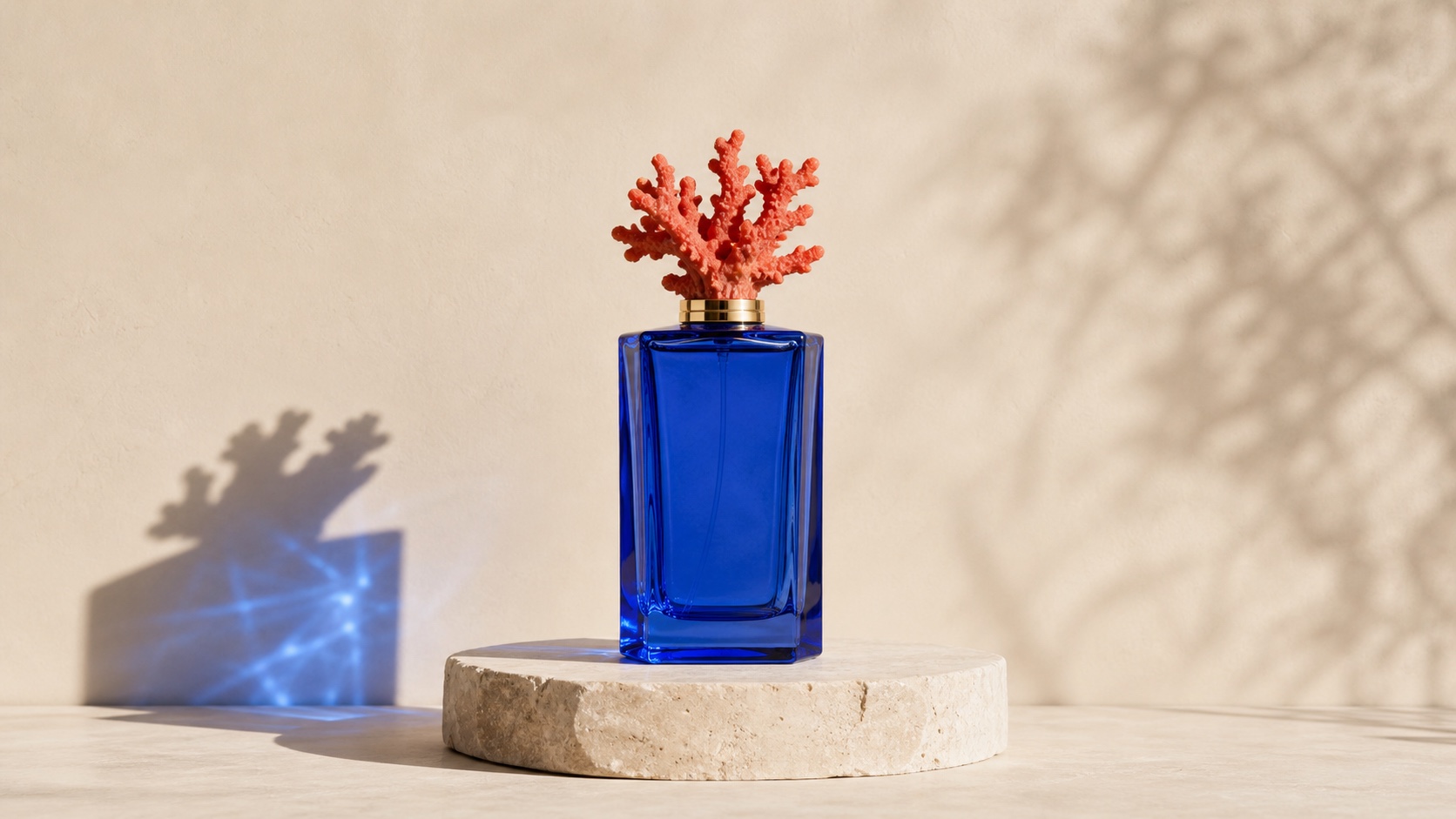
Control glass, color, and studio light

Product prompts should define geometry and material before atmosphere. The object must stay complete and believable while light reveals its surface.

In Bimg, specify the surface, key light direction, and background so product renders read like studio photography.
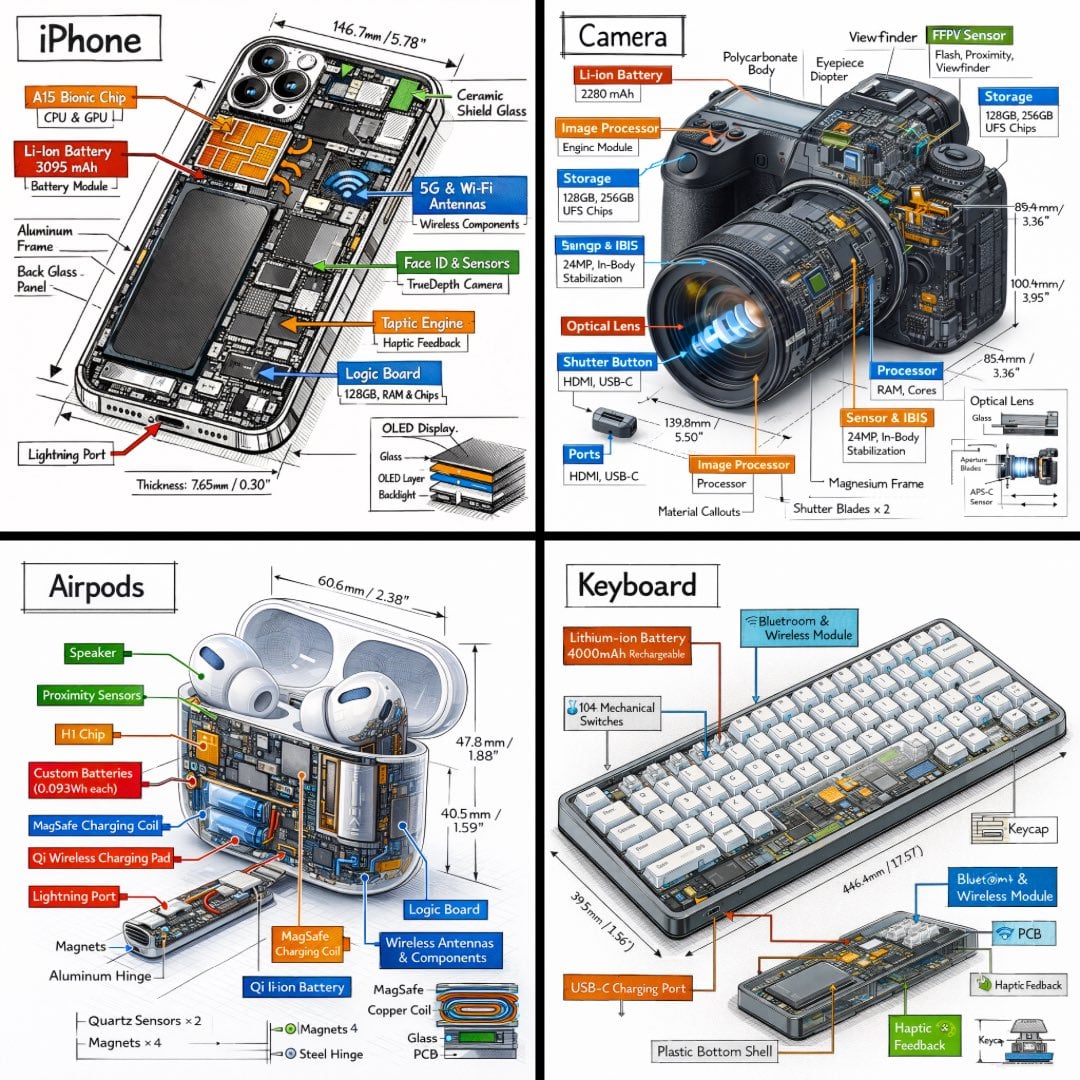
GPT Image 2 image generation example 1
Typography system

Treat words as designed content

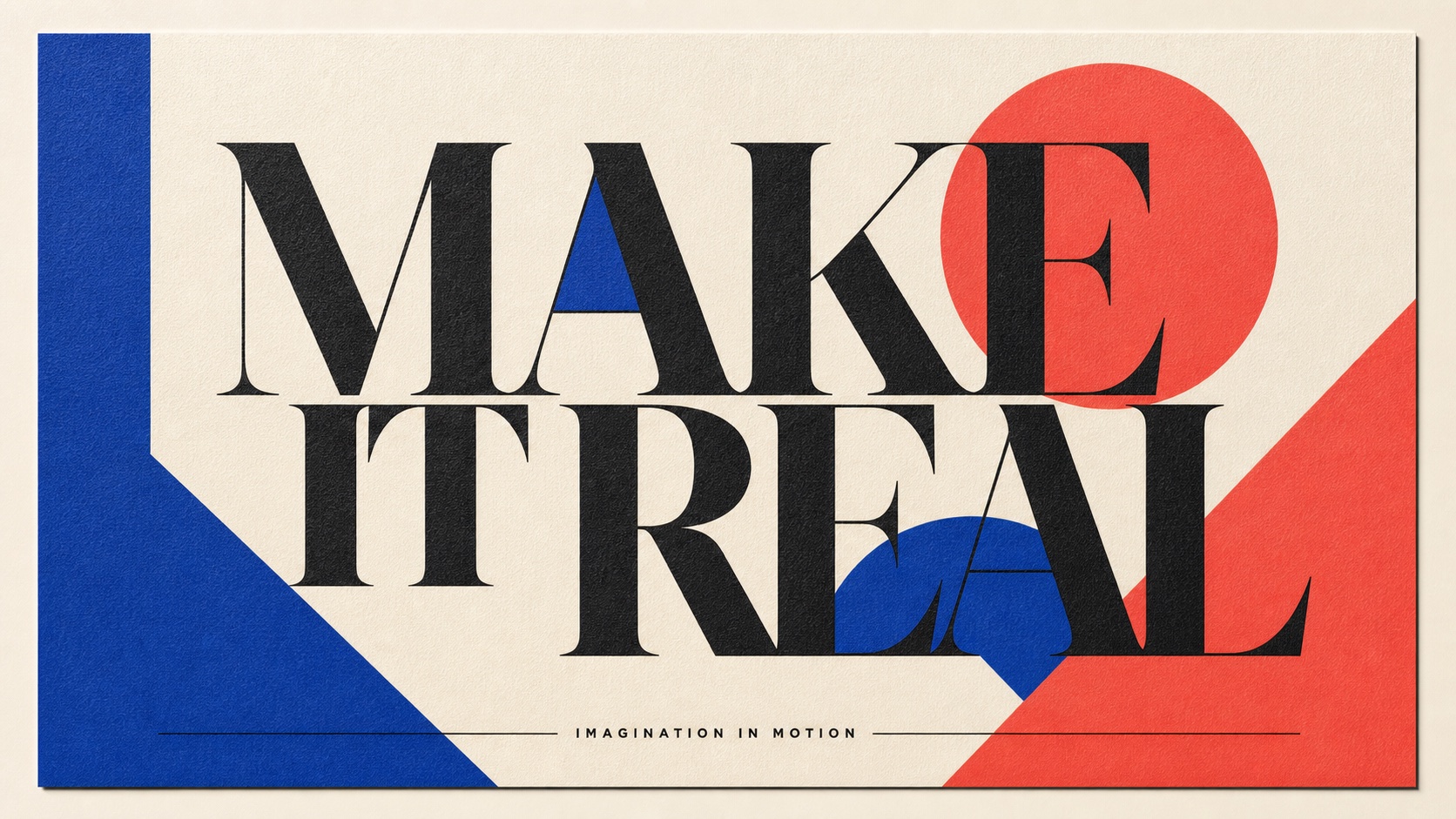
Quote the exact copy, limit extra text, and describe hierarchy, type character, alignment, color, and margin.

Quote the exact words in Bimg and describe weight, spacing, and placement so type is treated as design, not caption.

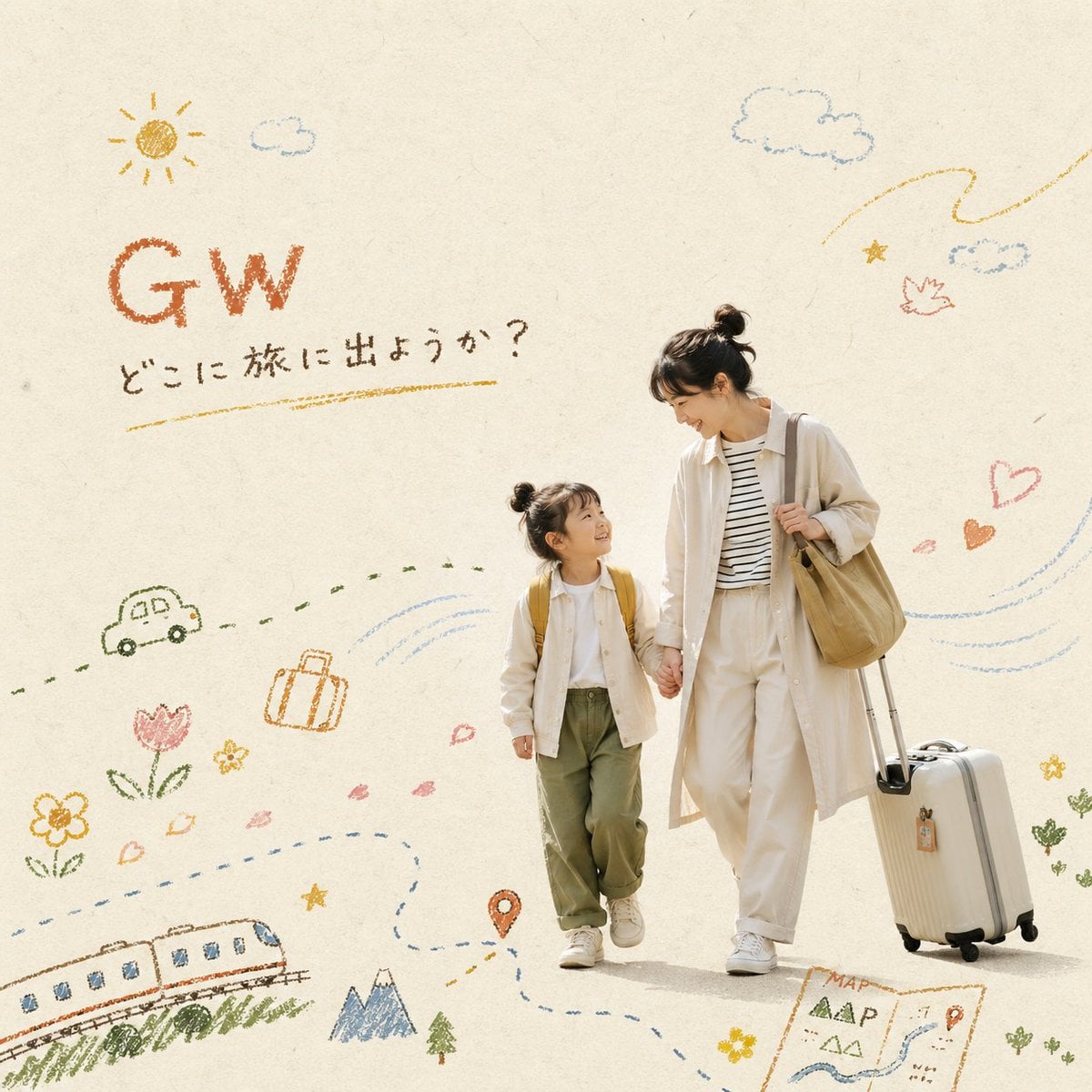
GPT Image 2 image generation example 2
Editorial portrait

Build realism through context

A believable portrait includes environment, gesture, clothing, lens, and light—not just a face and a style label.

Describe wardrobe, setting, and lighting in Bimg to ground the portrait in a believable context.

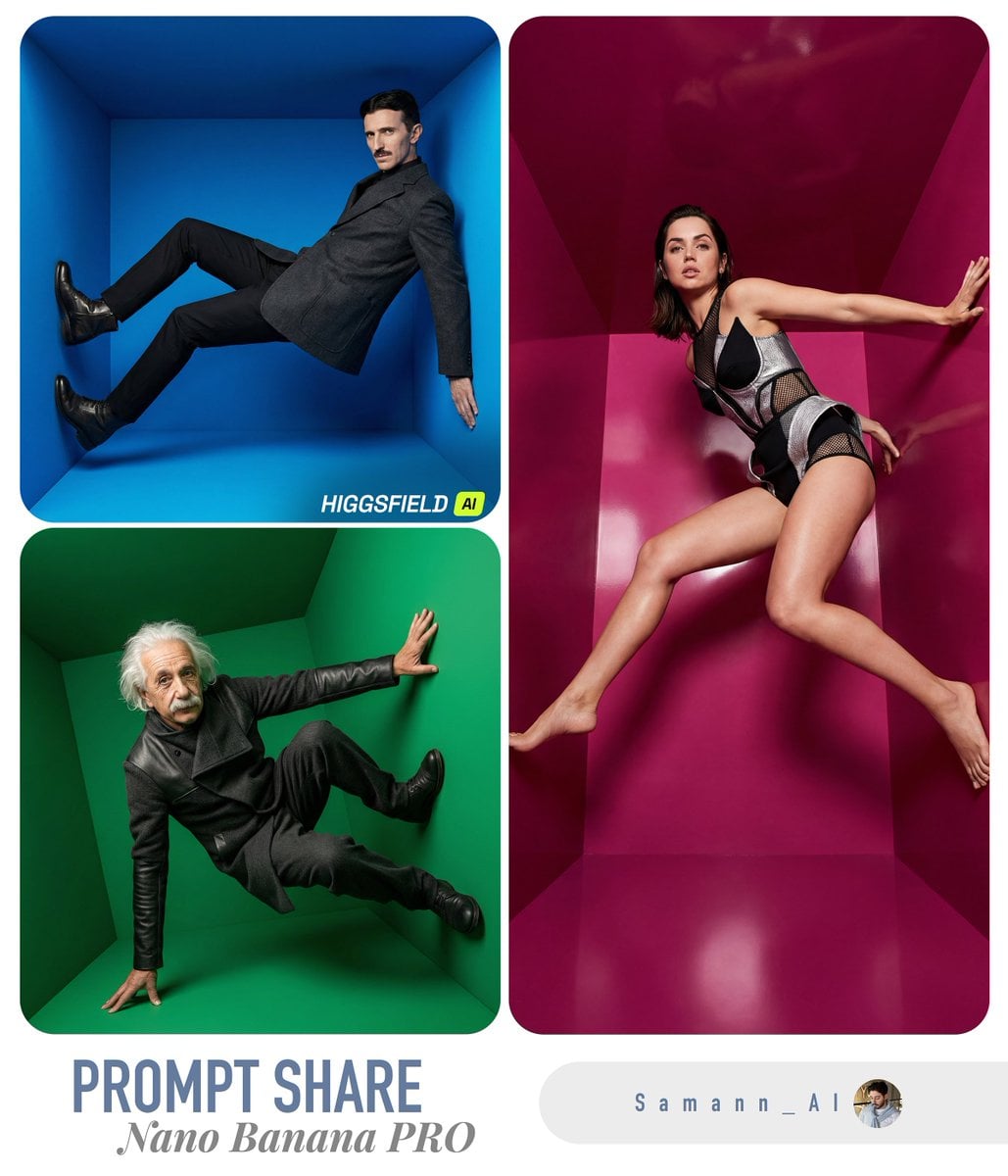
GPT Image 2 image generation example 3
Generation modes

Text to image and image to image with GPT Image 2

Move from a written brief to a new visual, or use references when GPT Image 2 supports them. Both workflows send a working prompt directly to the generator above.

GPT Image 2 image generation example 1

GPT Image 2 text to image

Use a full production brief and choose quality according to the decision stage. Explore composition at a lower setting, then increase output only for the approved direction.

GPT Image 2 image generation example 2

GPT Image 2 image to image

Upload up to five references and explain what each controls. Protect identity, geometry, camera, or layout before requesting a new setting, styling, or art direction.

Upload up to five reference images when GPT Image 2 needs an existing subject, palette, or layout to guide the edit.

Prompt guide

How to write better GPT Image 2 prompts

A strong prompt reads like a compact creative brief: concrete enough to guide the model, but organized enough to edit.

Subject + material and light control + exact text + composition + output resolution

Match quality to the decision

Do not spend high-quality 4K credits while the composition is still uncertain. Approve the frame at a lower setting first.

Premium product photograph of a rectangular cobalt glass perfume bottle with a sculptural coral cap on a pale limestone plinth, warm ivory studio, crisp directional sunlight, realistic glass caustics, full object visible, 16:9, no logo.

Quote exact typography

Put required text in quotation marks, limit additional copy, and describe hierarchy, position, alignment, and type character.

Create a complete Swiss-inspired poster with the exact headline “MAKE IT REAL” and the exact footer “IMAGINATION IN MOTION”, warm ivory paper, cobalt and coral geometric forms, bold high-contrast serif type, clean margins, no other words, 16:9.

Lock reference invariants

Name identity, product geometry, camera angle, label placement, and crop as protected before describing the edit.

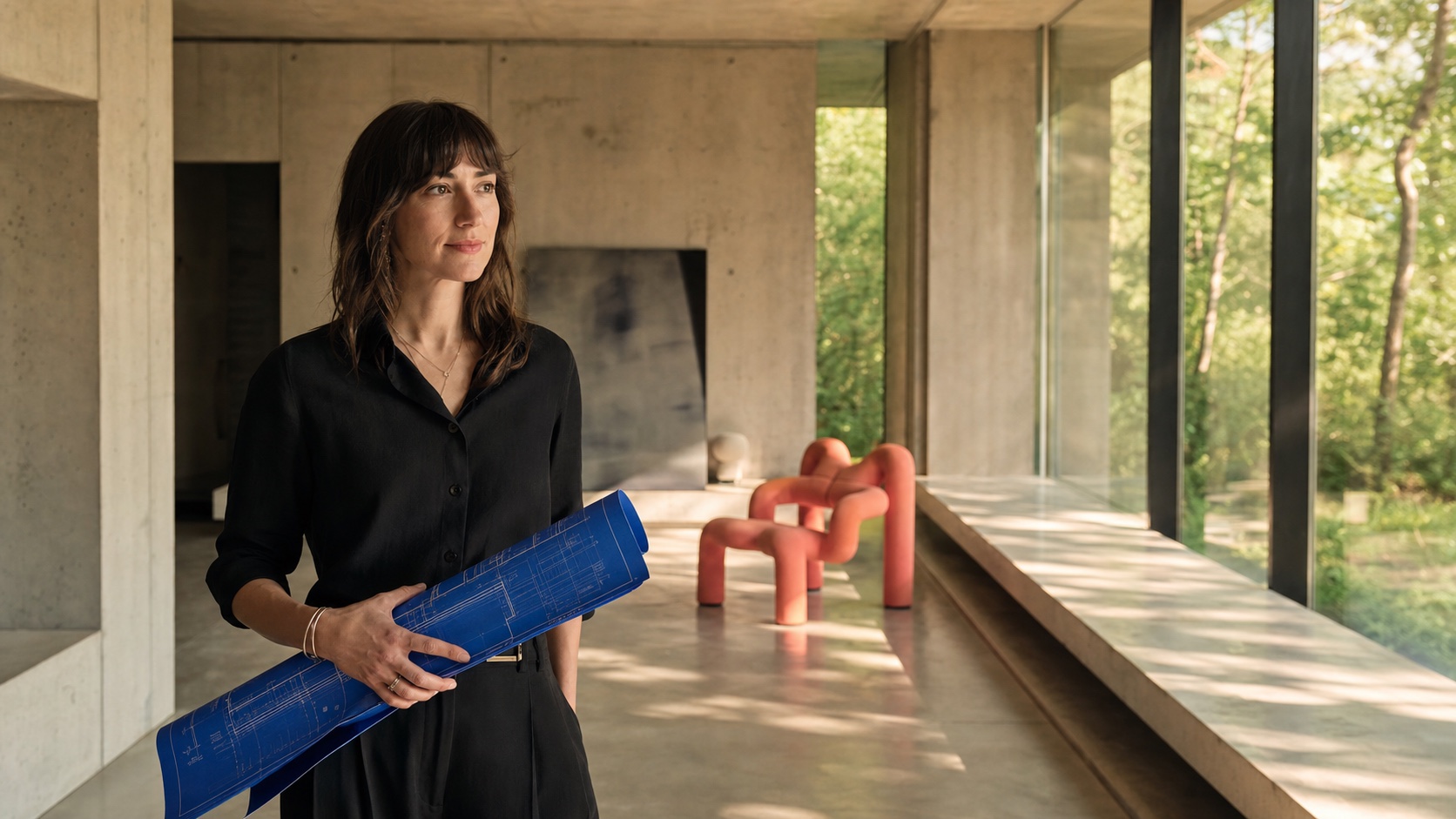
Cinematic editorial portrait of a female architect in a sunlit concrete gallery holding a rolled cobalt blueprint, understated black clothing, coral sculptural chair in the background, natural skin texture, late-afternoon window light, 16:9.

How it works

How to use the GPT Image 2 image generator

The same three-step workflow works for one-off ideas and structured batch production.

1

Start with this model

GPT Image 2 is selected when the page loads. Write one prompt, add supported reference images when needed, or open the batch workspace for larger jobs.

2

Write the brief and set output controls

Describe the subject, context, composition, style, and constraints. Then choose the supported ratio and resolution for GPT Image 2, adding reference images only when the model allows them.

3

Generate, review, and refine

Submit the job, compare the GPT Image 2 results, and regenerate with targeted prompt changes. Completed work is available in history for later review and download.

Compare

GPT Image 2 compared with related models

Use credits, output tiers, and creative strengths as practical selection signals. The best model depends on the job, not one universal ranking.

ModelBest-fit strengthOutput tiersCredits / image
GPT Image 2high-detail final output1K / 2K / 4K2–80
Nano Bananabalanced quality and speed1K8
Nano Banana 2 Litefast creative iteration1K20
Imagen 4.0high-detail final output1K25
FAQ

GPT Image 2 image generator FAQ

Practical answers about access, credits, inputs, output controls, batch workflows, and responsible review.

What is GPT Image 2 best used for?

GPT Image 2 is suited to detailed product photography, typography, realistic portraits, campaign art, high-resolution output, and reference-guided editing.

Which GPT Image 2 quality should I choose?

Use standard for exploration, medium for closer review, and high for approved final artwork. The exact cost changes with resolution and appears before generation.

Can GPT Image 2 create readable text?

It can be used for text-rich layouts. Quote exact copy, describe hierarchy and placement, and always review spelling and letterforms before publishing.

Does GPT Image 2 support image editing?

Yes. Upload up to five references and tell the model what must remain unchanged and what should be replaced, restyled, or recomposed.

When should I use 4K output?

Use 4K after the composition, wording, and art direction are approved and the final delivery genuinely needs the larger file. It is the most expensive configuration.

Are the examples on this page verified GPT Image 2 outputs?

The static examples and gallery are presented as visual and prompt inspiration for the workflow. They are not claimed as independently verified outputs from a specific model version.

How many Bimg credits does GPT Image 2 use?

GPT Image 2 currently uses 2–80 Bimg credits per image, depending on the available output or quality setting. The generator shows the exact estimate before you submit, and normal Bimg refund handling applies to failed jobs.

What output sizes can I create with GPT Image 2?

The current Bimg integration exposes 1K, 2K, and 4K output with standard, medium, and high quality options. Available aspect ratios are shown beside the generator and update automatically when you change the model or workflow.

Can I use reference images with GPT Image 2?

Yes. Bimg accepts up to 5 reference images for GPT Image 2. State what must remain consistent and what should change so the references act as clear constraints rather than vague inspiration.

Is Bimg the official GPT Image 2 website?

No. Bimg is an independent image-generation platform and is not affiliated with, sponsored by, or endorsed by OpenAI. The model name is used only to identify the generation option available in the Bimg workspace.

Start creating with GPT Image 2

Open the generator above with GPT Image 2 already selected, write your brief, choose the delivery format, and move from one idea to a reviewable result in the same workspace.

Generate with this model