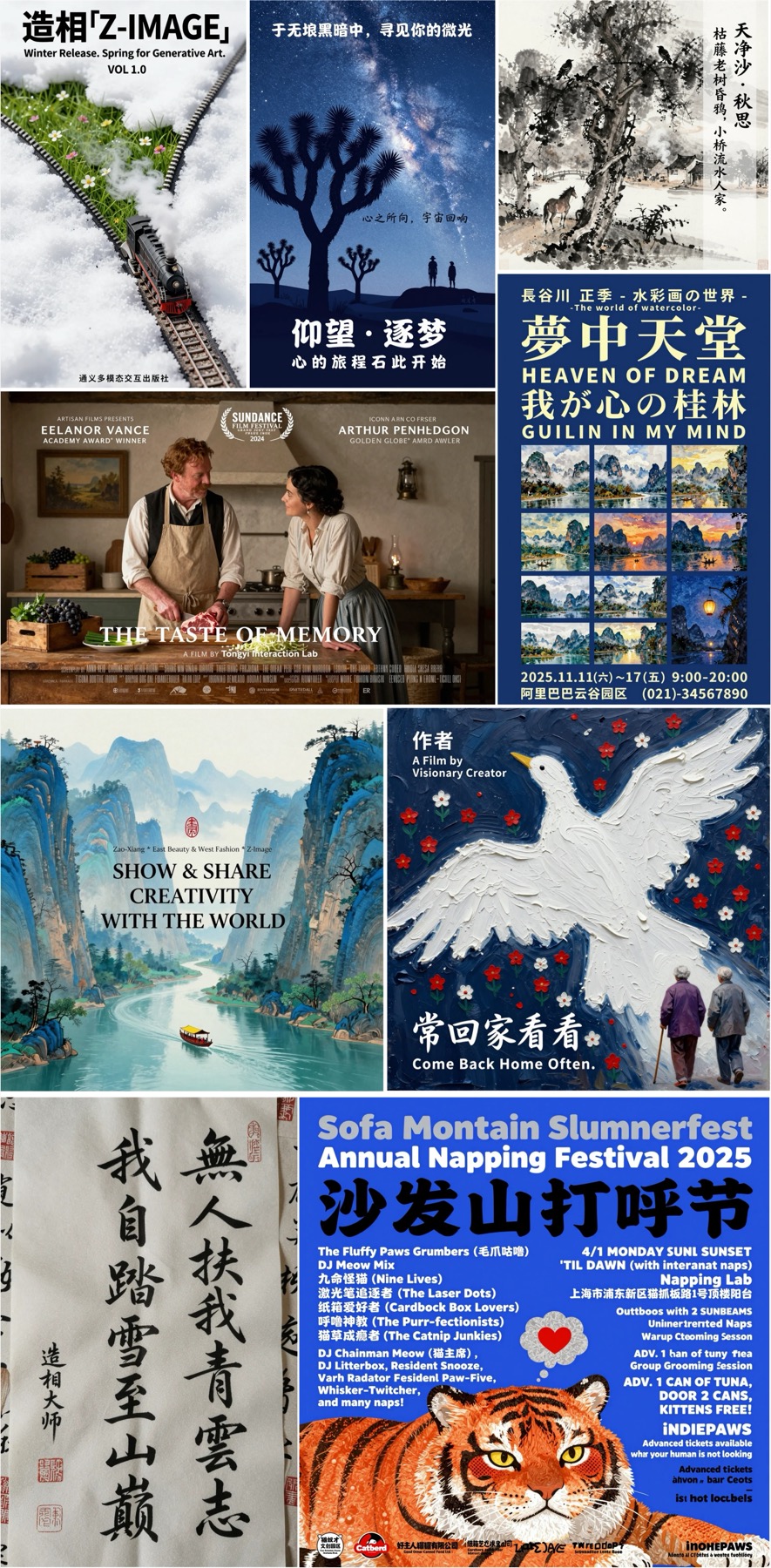


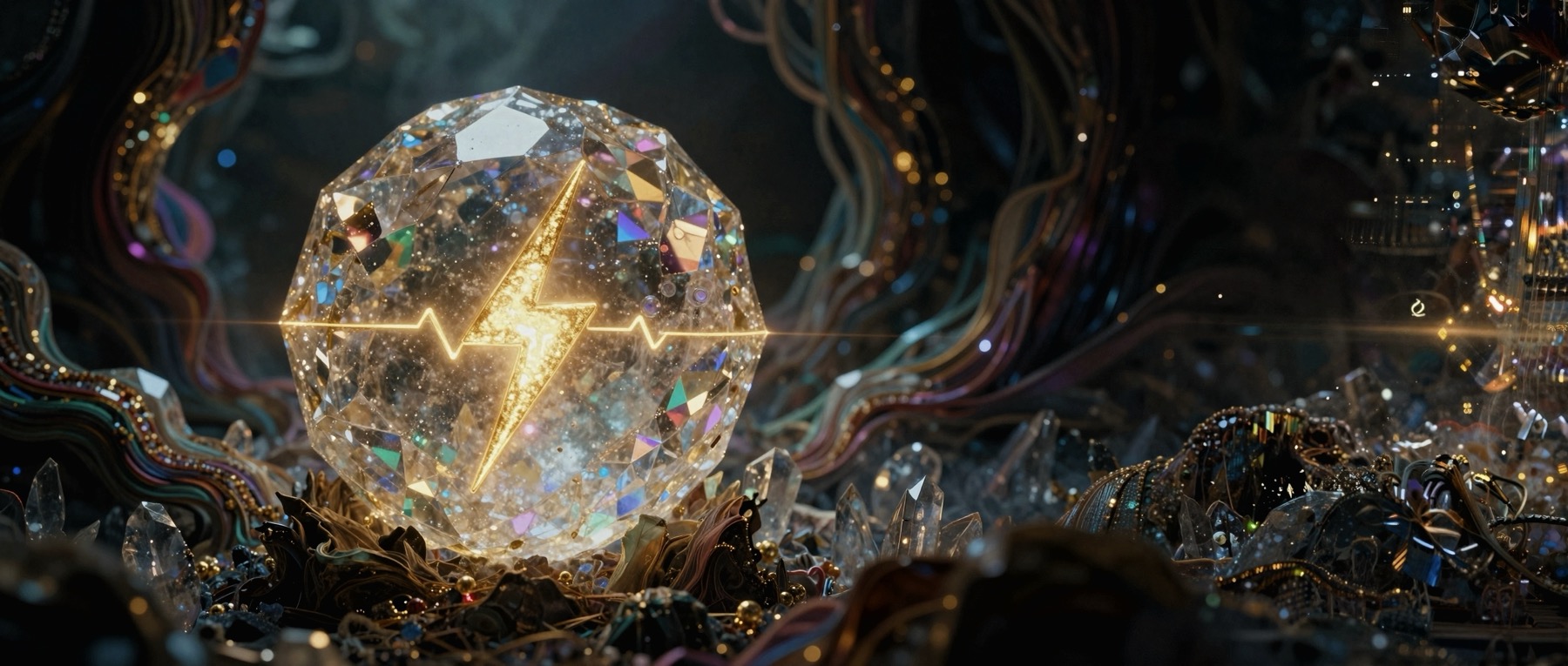
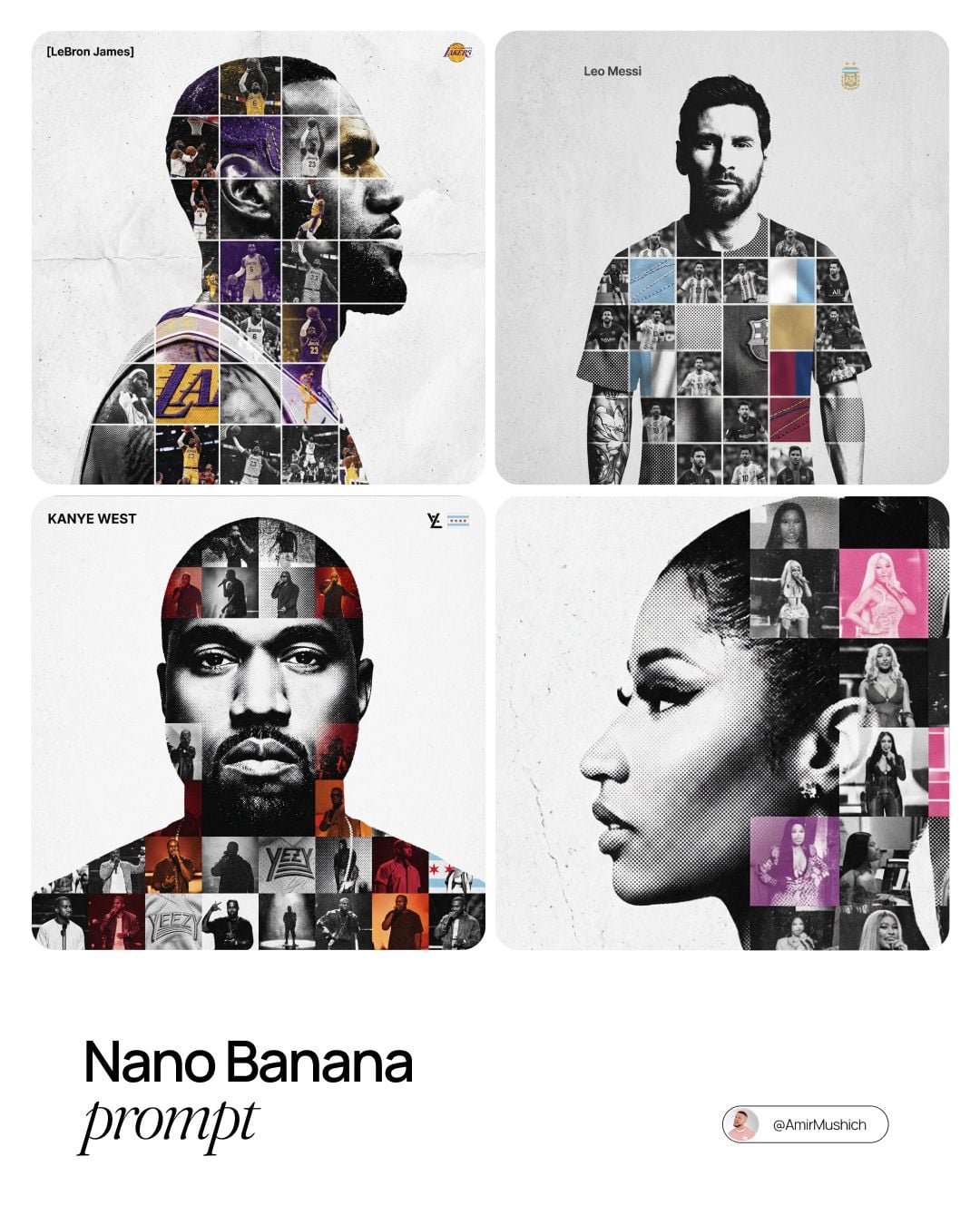
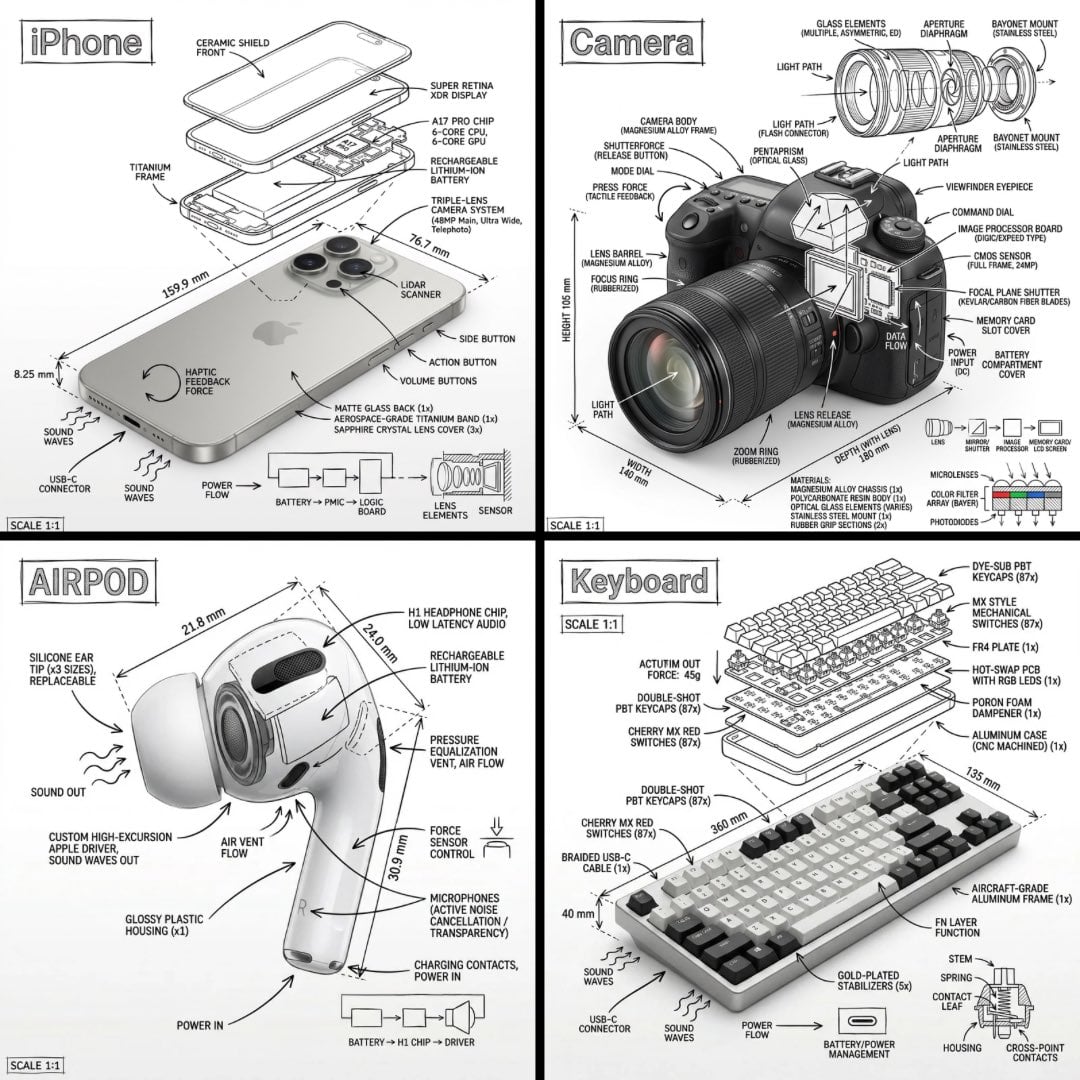
Alibaba image model on Bimg

Z-Image-Turbo AI Image Generator

Generate fast 1K and 2K visuals from text with Z-Image-Turbo on Bimg. Its low-credit workflow is suited to rapid portrait, scene, bilingual design, and concept exploration before a team commits to slower premium production.

Text to imageImage to image where supportedSingle and batch workflows
Z-Image-Turbo image generator overview
Curated visual for the Z-Image-Turbo workflow on Bimg.

Create with Z-Image-Turbo

Z-Image-Turbo is selected by default. Create one image from a prompt and optional references here, or open the batch workspace when you need Variations, CSV, or Products.

Loading the image generator…
Quick facts

Z-Image-Turbo quick facts

The settings below reflect the capabilities currently exposed in Bimg, so the generator and this guide stay aligned.

Developer
Tongyi-MAI
Best for
Fast, low-credit drafts and bilingual text
Generation modes
Text to image
Reference images
Text-to-image only
Output resolution
1K / 2K
Credits per image
7

Bimg is an independent platform and is not affiliated with, sponsored by, or endorsed by Alibaba. Model names are used for identification purposes only.

Capabilities

Z-Image-Turbo capabilities in Bimg

Bimg exposes the controls needed for repeatable production while keeping model-specific limits visible.

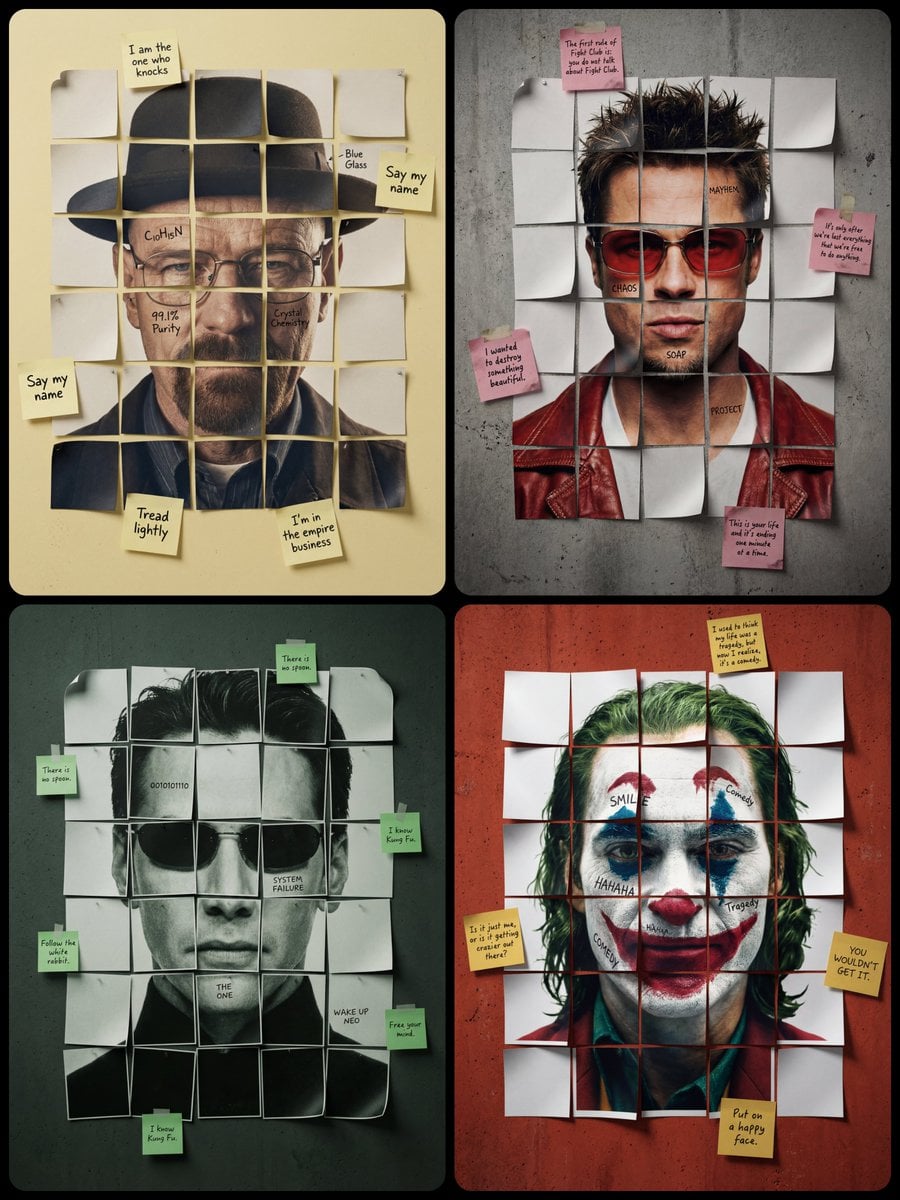
Portrait range

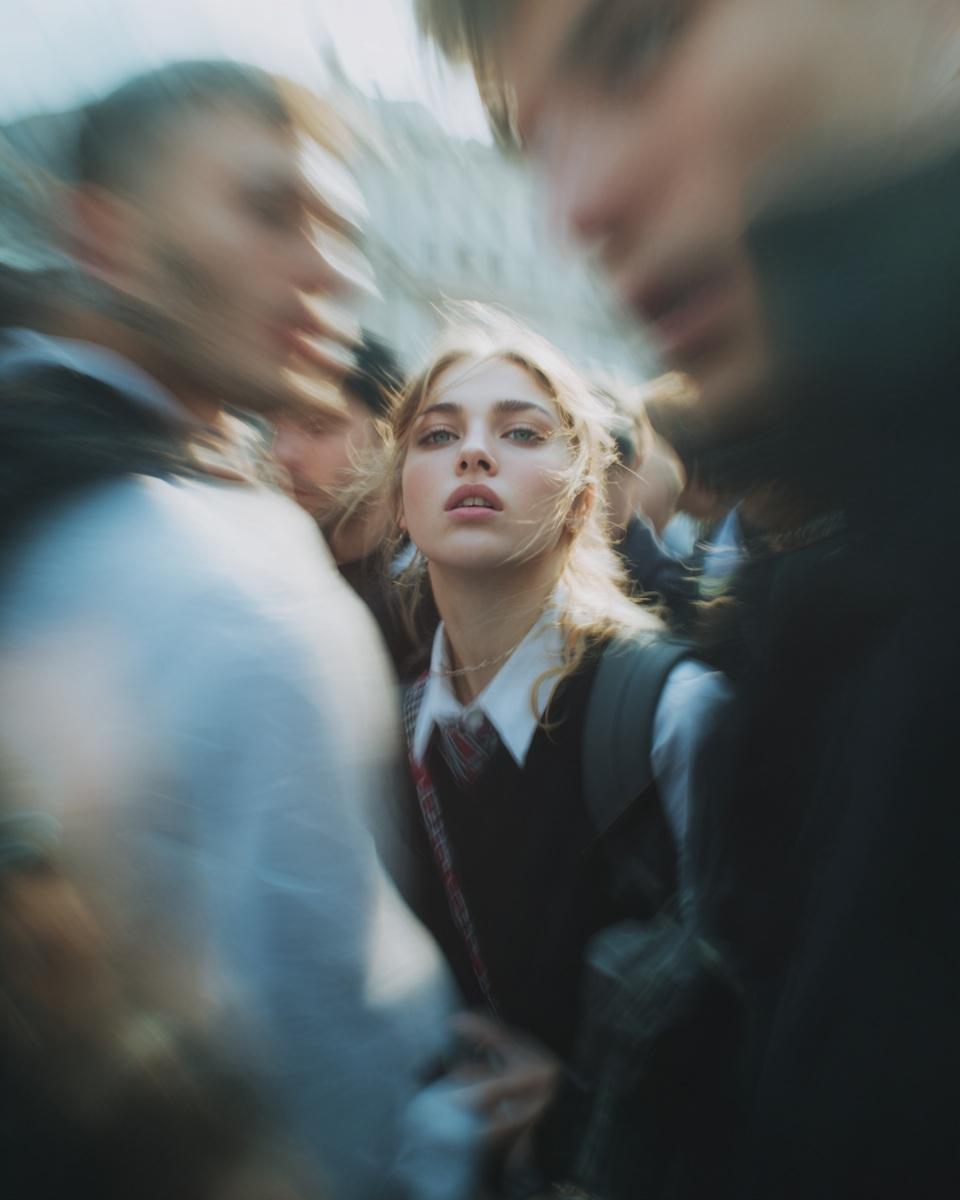
Define character through light and framing

A fast portrait prompt should emphasize one clear subject, a readable pose, and a limited lighting and color system.

In Bimg, define character through light and framing before styling to get a strong fast portrait.
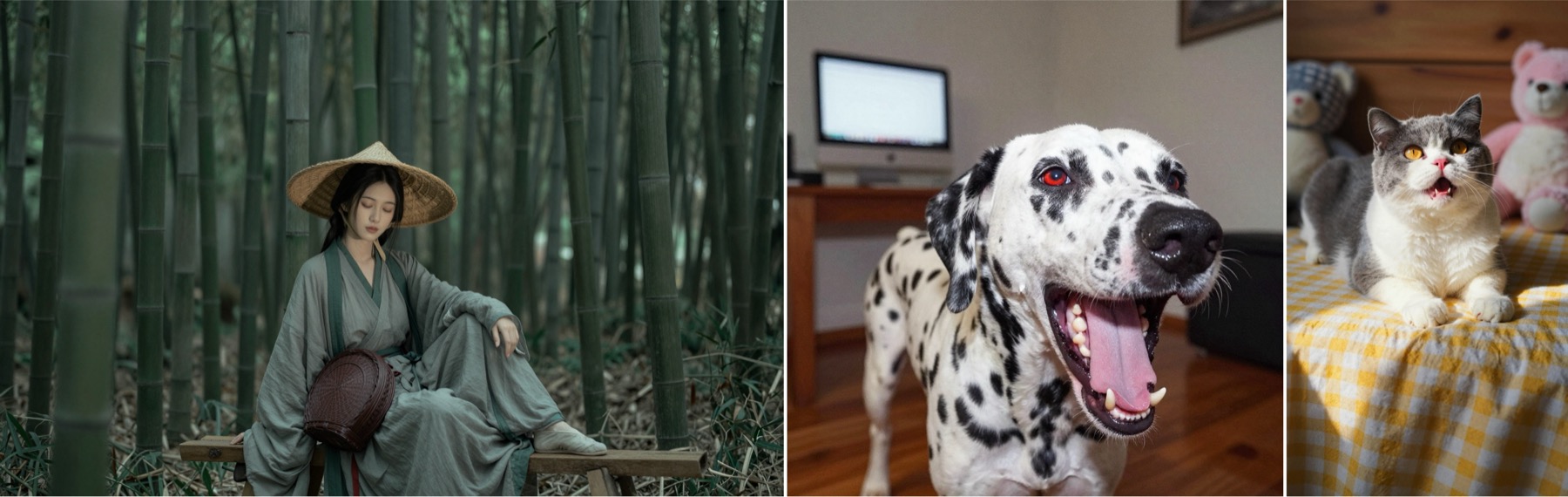
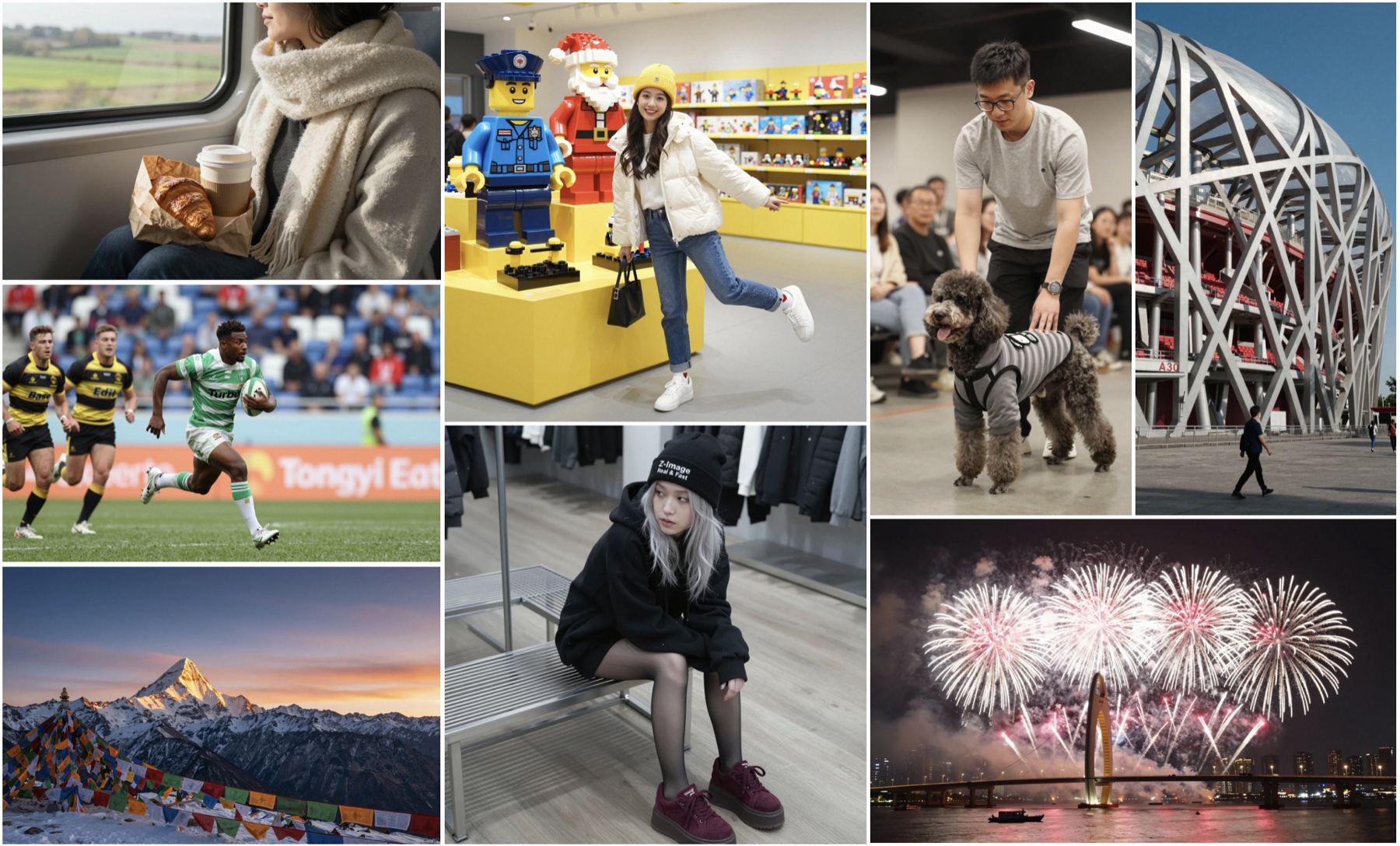
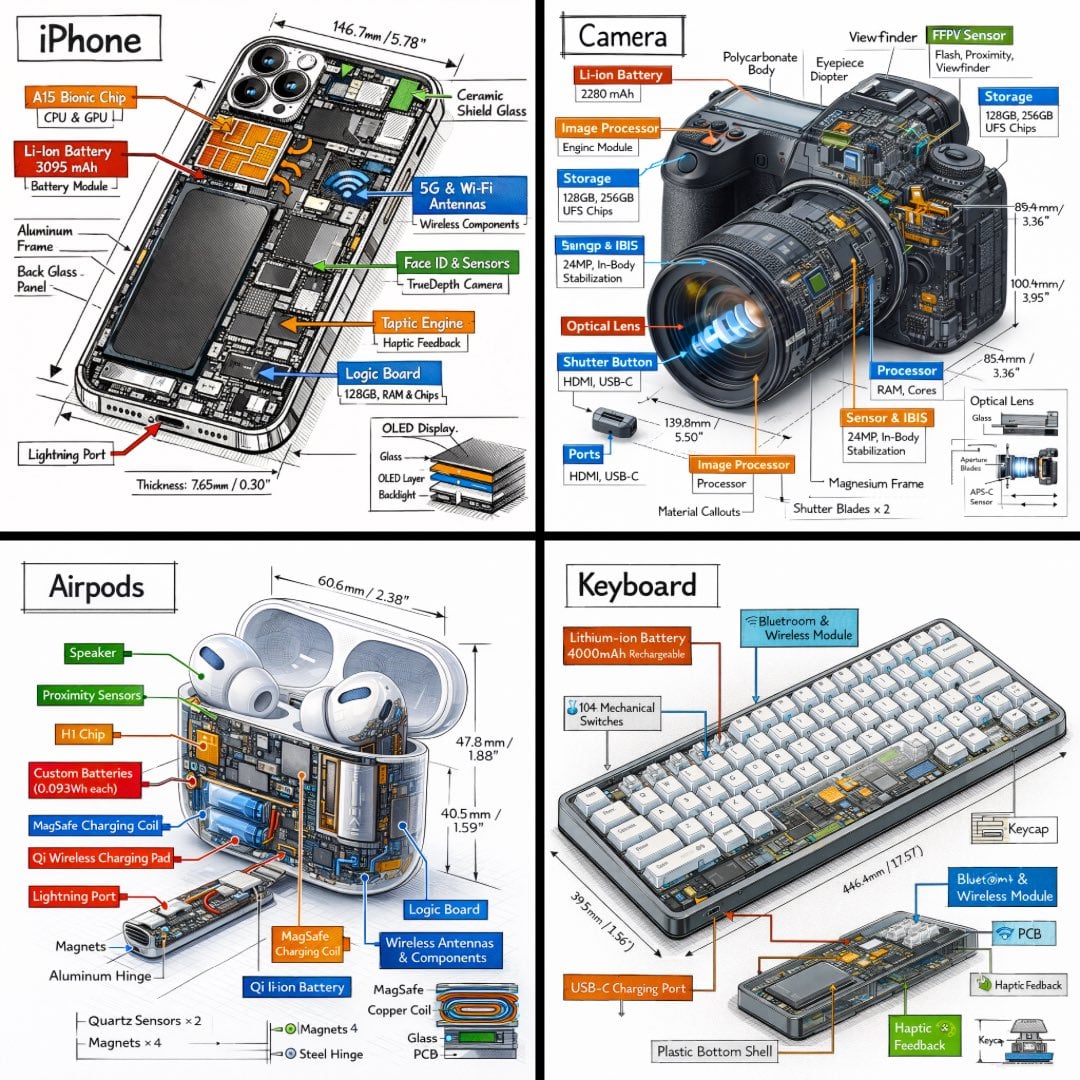
Z-Image-Turbo image generation example 1
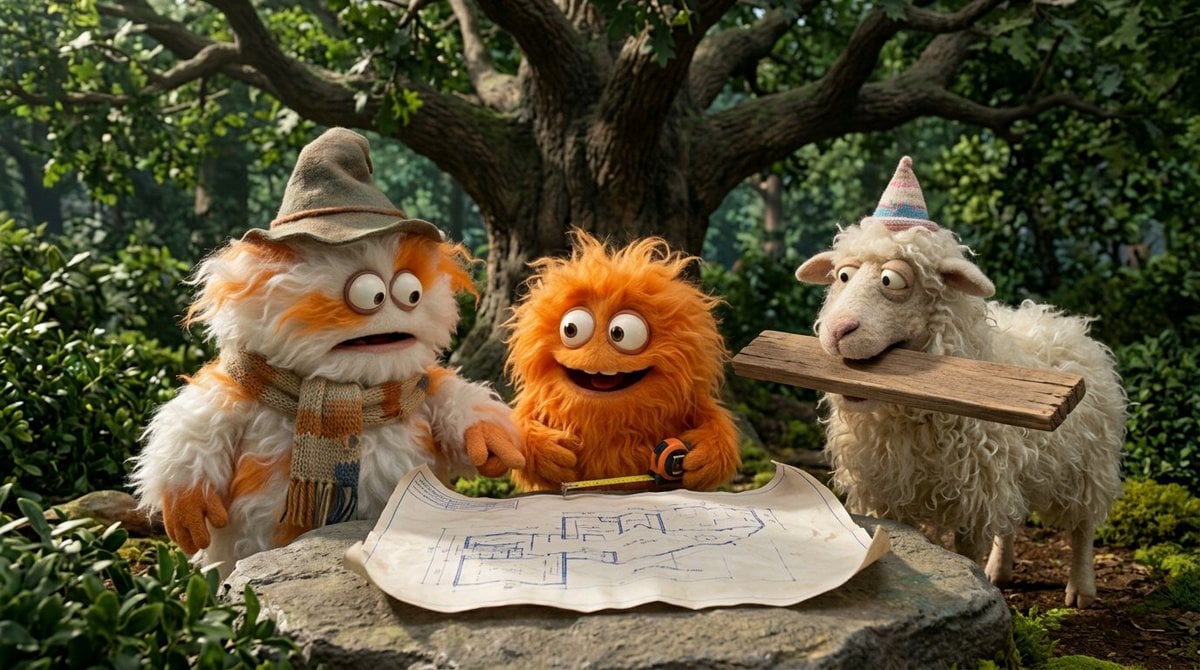
Creative scene

Keep a rapid scene visually simple

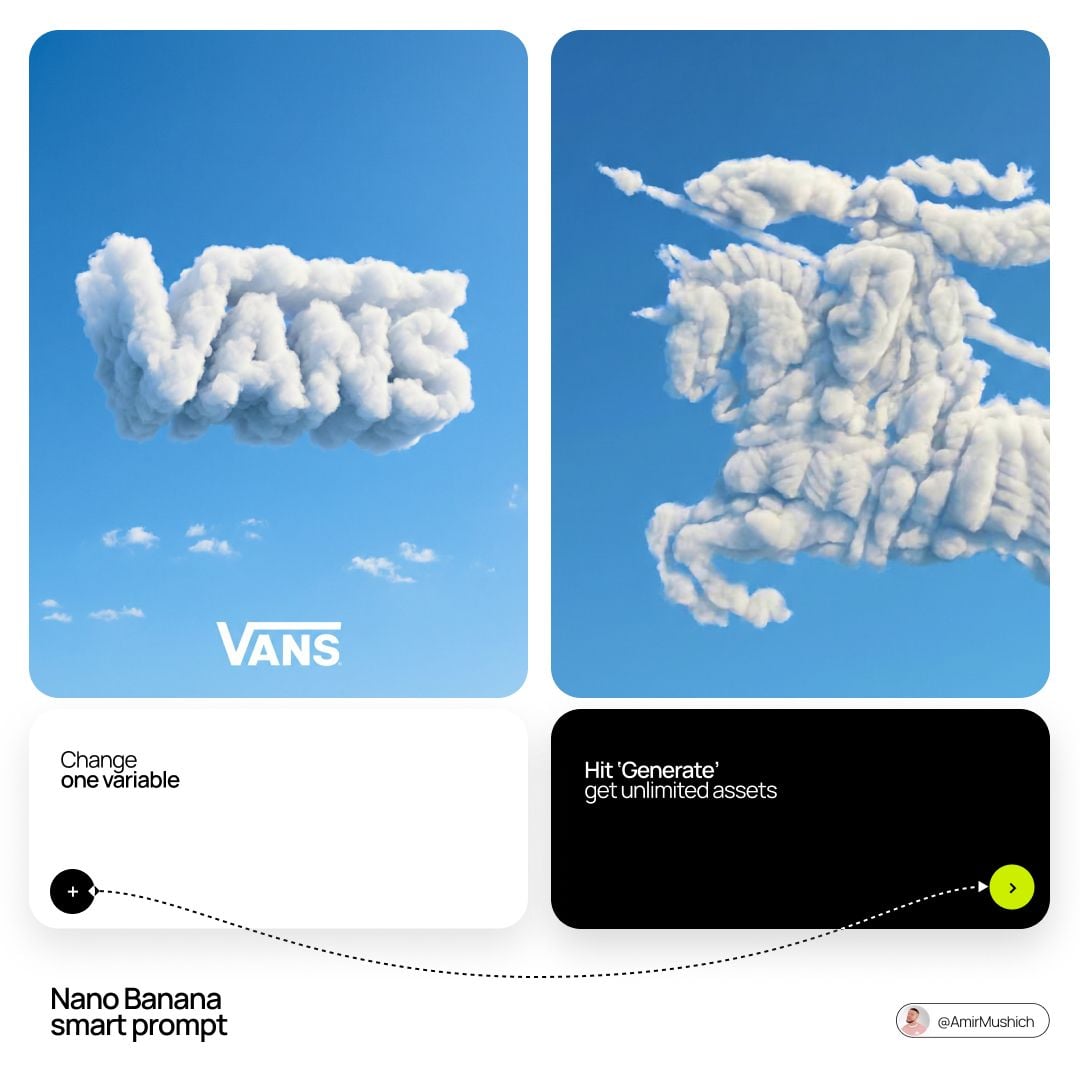
Choose one main action, one focal subject, and one atmospheric idea so speed does not turn into visual clutter.

Keep the scene to one clear idea in Bimg so rapid low-credit drafts stay clean.

Z-Image-Turbo image generation example 2
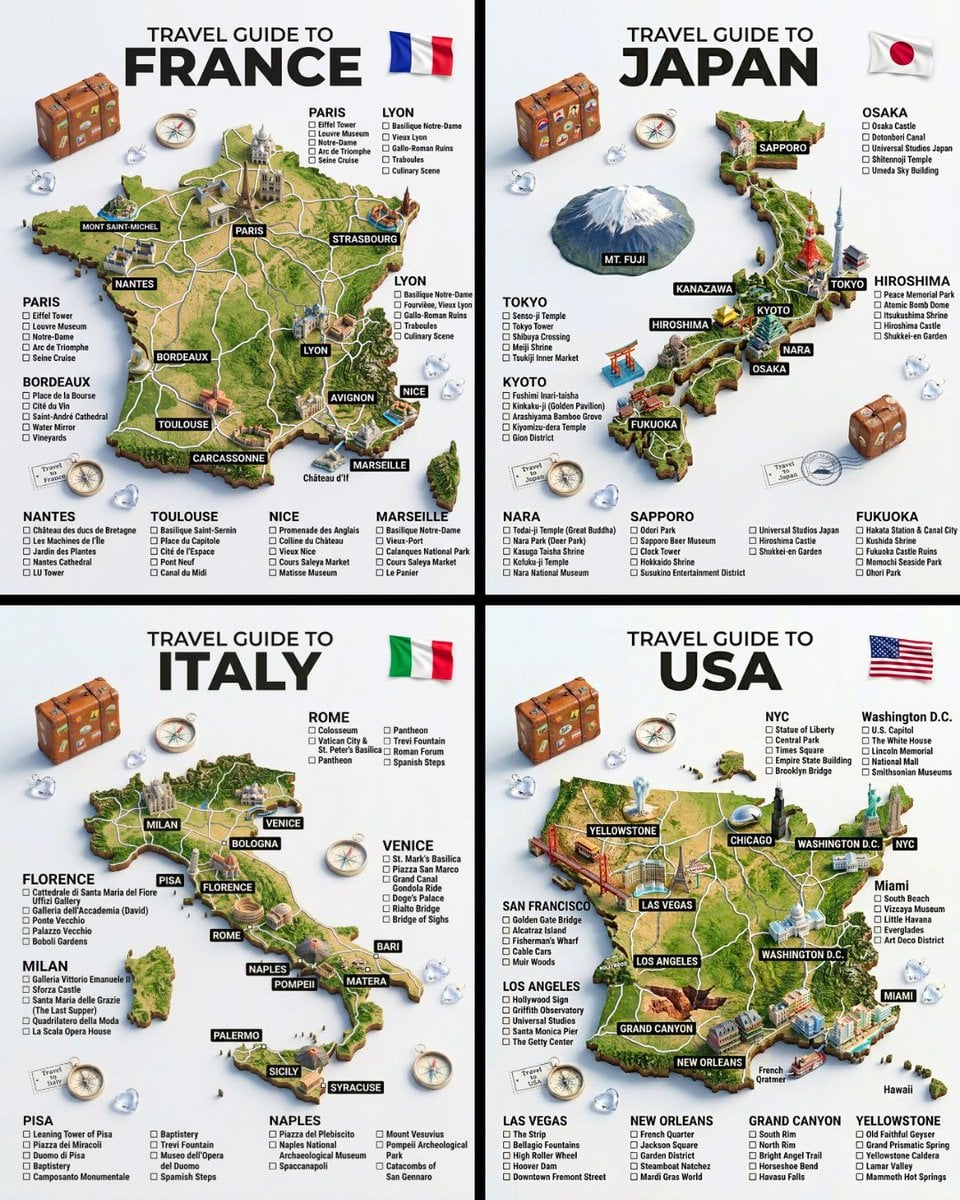
Bilingual text

Use short exact copy

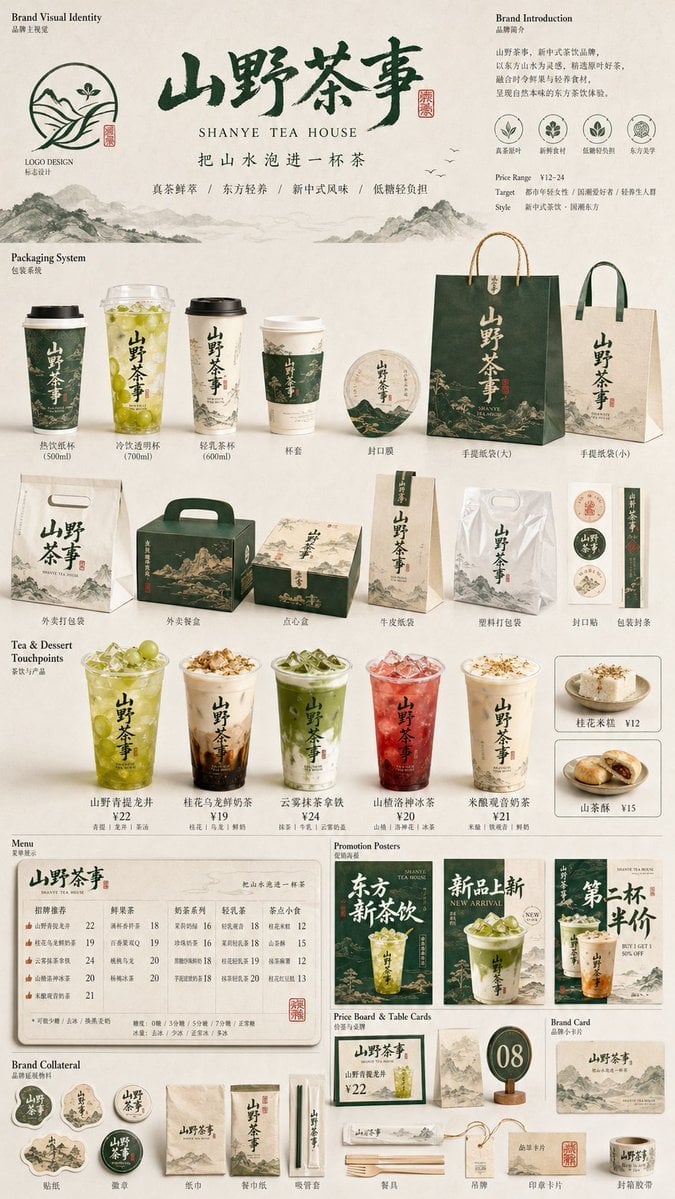
Bilingual concepts work best with very limited wording, clear separation between languages, and an explicit hierarchy.

Provide short, exact strings in Bimg and keep the layout simple so bilingual text renders reliably.

Z-Image-Turbo image generation example 3
Generation modes

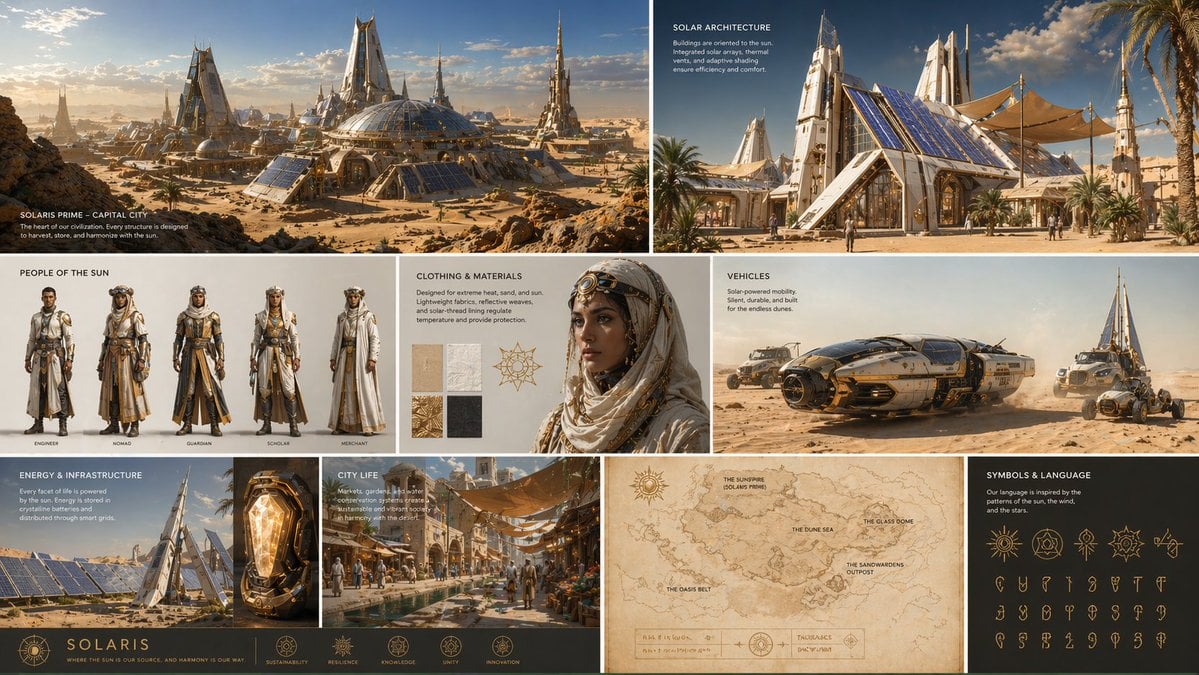
Text to image with Z-Image-Turbo

Turn a written brief into a finished visual with Z-Image-Turbo. Your prompt goes straight to the generator above.

Z-Image-Turbo image generation example 1

Z-Image-Turbo text to image

Keep the brief direct and visual. Name one focal subject, environment, composition, light, palette, and exact short copy if needed.

Prompt guide

How to write better Z-Image-Turbo prompts

A strong prompt reads like a compact creative brief: concrete enough to guide the model, but organized enough to edit.

Subject + light and framing + short exact text + simple scene + mood

Use one visual idea

Speed-focused generation is easier to judge when the prompt has one focal subject and a restrained supporting environment.

Editorial portrait of a young ceramic artist in a cobalt work jacket, warm ivory studio, coral clay vessel in hand, soft side light, natural skin texture, medium close-up, 4:3, no text.

Keep bilingual copy short

Quote exact English and Chinese wording, separate the language blocks, and avoid adding unnecessary supporting text.

Lone cyclist crossing a pale concrete bridge at blue hour, coral rear light, cobalt sky, thin mist, long horizontal composition, cinematic realistic photography, one clear subject, 16:9.

Draft at 1K first

Use 1K to compare direction and 2K only after the composition or poster hierarchy is working.

Graphic poster with exact English headline “NEW ENERGY” and exact Chinese headline “新能量”, both large and clearly separated, cobalt and coral geometry on warm ivory, bold modern type, no other text, 3:4.

How it works

How to use the Z-Image-Turbo image generator

The same three-step workflow works for one-off ideas and structured batch production.

1

Start with this model

Z-Image-Turbo is selected when the page loads. Write one prompt, add supported reference images when needed, or open the batch workspace for larger jobs.

2

Write the brief and set output controls

Describe the subject, context, composition, style, and constraints. Then choose the supported ratio and resolution for Z-Image-Turbo, adding reference images only when the model allows them.

3

Generate, review, and refine

Submit the job, compare the Z-Image-Turbo results, and regenerate with targeted prompt changes. Completed work is available in history for later review and download.

Compare

Z-Image-Turbo compared with related models

Use credits, output tiers, and creative strengths as practical selection signals. The best model depends on the job, not one universal ranking.

ModelBest-fit strengthOutput tiersCredits / image
Z-Image-Turbofast creative iteration1K / 2K7
Qwen Image 2.0balanced quality and speed1K / 2K13
Qwen Image 2.0 Protext-rich and refined visuals1K / 2K31
Wan 2.7 Imagebalanced quality and speed1K / 2K13
FAQ

Z-Image-Turbo image generator FAQ

Practical answers about access, credits, inputs, output controls, batch workflows, and responsible review.

What is Z-Image-Turbo best for?

It is best suited to fast, low-cost text-to-image drafts, portraits, stylized scenes, bilingual poster concepts, and batch ideation.

Does Z-Image-Turbo support image editing?

No. The current Bimg integration is text to image only, so reference uploads are disabled.

Can Z-Image-Turbo create Chinese and English text?

It can be used to explore bilingual designs. Keep wording short and exact, separate language blocks clearly, and review every character.

Should I use 1K or 2K with Z-Image-Turbo?

Use 1K for rapid drafts and 2K for closer review or stronger digital delivery after the composition is approved.

Why choose Z-Image-Turbo instead of a premium model?

Choose it when you need more affordable exploration and faster iteration. Move only the strongest direction to a higher-cost model.

Can I batch generate Z-Image-Turbo concepts?

Yes. Test one prompt first, then open Variations or CSV mode when the direction is stable enough to scale.

How many Bimg credits does Z-Image-Turbo use?

Z-Image-Turbo currently uses 7 Bimg credits per image, depending on the available output or quality setting. The generator shows the exact estimate before you submit, and normal Bimg refund handling applies to failed jobs.

What output sizes can I create with Z-Image-Turbo?

The current Bimg integration exposes 1K and 2K output. Available aspect ratios are shown beside the generator and update automatically when you change the model or workflow.

Can I use reference images with Z-Image-Turbo?

Z-Image-Turbo is currently exposed as text to image in Bimg, so reference uploads are disabled for this model. Choose a reference-capable model from the comparison section when image to image is required.

Is Bimg the official Z-Image-Turbo website?

No. Bimg is an independent image-generation platform and is not affiliated with, sponsored by, or endorsed by Alibaba. The model name is used only to identify the generation option available in the Bimg workspace.

Start creating with Z-Image-Turbo

Open the generator above with Z-Image-Turbo already selected, write your brief, choose the delivery format, and move from one idea to a reviewable result in the same workspace.

Generate with this model