


ByteDance image model on Bimg

Seedream 5.0 Pro AI Image Generator

Create text-to-image concepts and image-to-image edits with Seedream 5.0 Pro on Bimg. Build product campaigns, information-rich graphics, multilingual layouts, and realistic scenes with prompt controls, up to five references, and 1K or 2K output.

Text to imageImage to image where supportedSingle and batch workflows
Seedream 5.0 Pro image generator overview
Curated visual for the Seedream 5.0 Pro workflow on Bimg.

Create with Seedream 5.0 Pro

Seedream 5.0 Pro is selected by default. Create one image from a prompt and optional references here, or open the batch workspace when you need Variations, CSV, or Products.

Loading the image generator…
Quick facts

Seedream 5.0 Pro quick facts

The settings below reflect the capabilities currently exposed in Bimg, so the generator and this guide stay aligned.

Developer
ByteDance Seed
Best for
Design, editing, and text-rich visuals
Generation modes
Text to image · Image to image
Reference images
Supported, up to 5
Output resolution
1K / 2K
Credits per image
22–44

Bimg is an independent platform and is not affiliated with, sponsored by, or endorsed by ByteDance. Model names are used for identification purposes only.

Capabilities

Seedream 5.0 Pro capabilities in Bimg

Bimg exposes the controls needed for repeatable production while keeping model-specific limits visible.

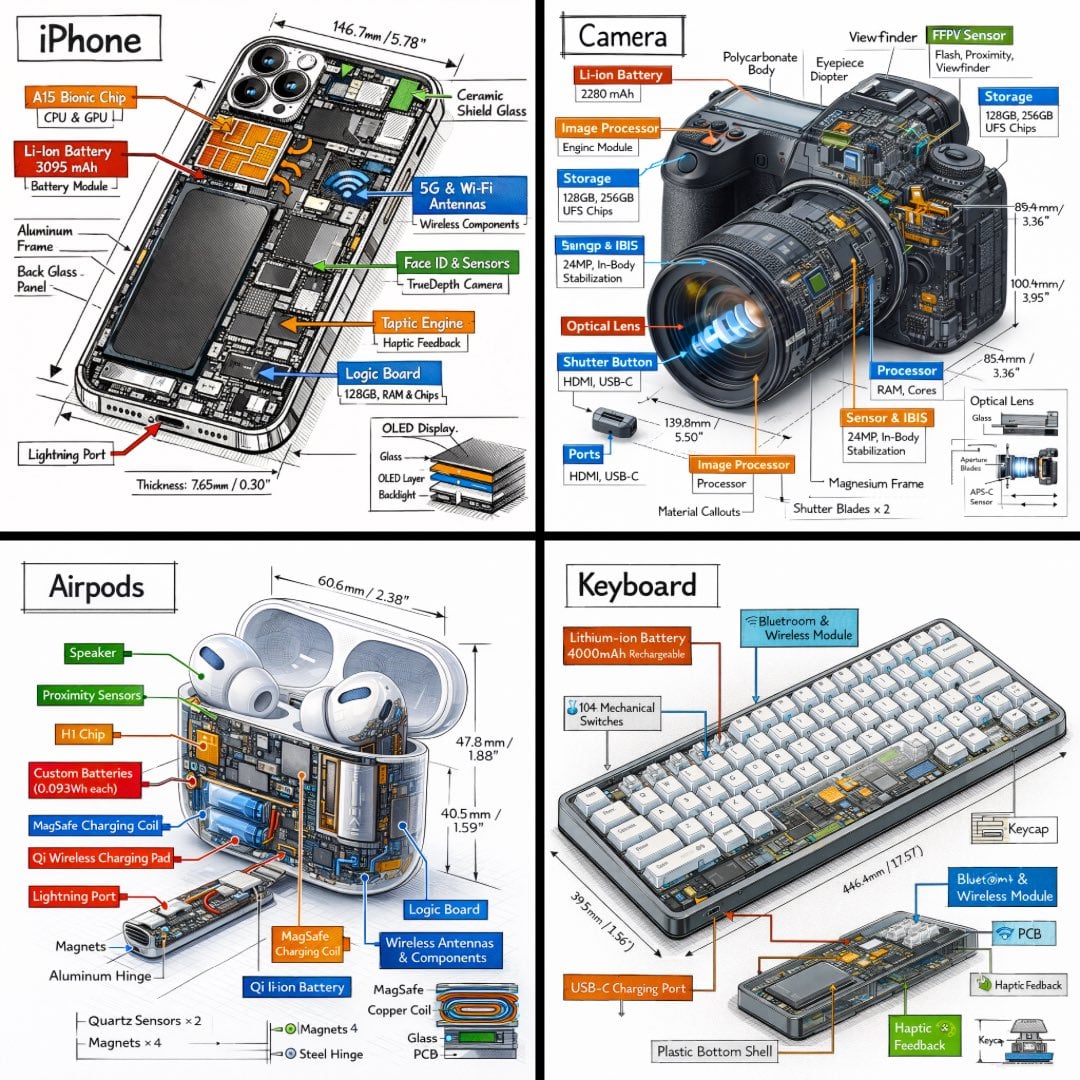
Information design

Turn complex ideas into structured visuals

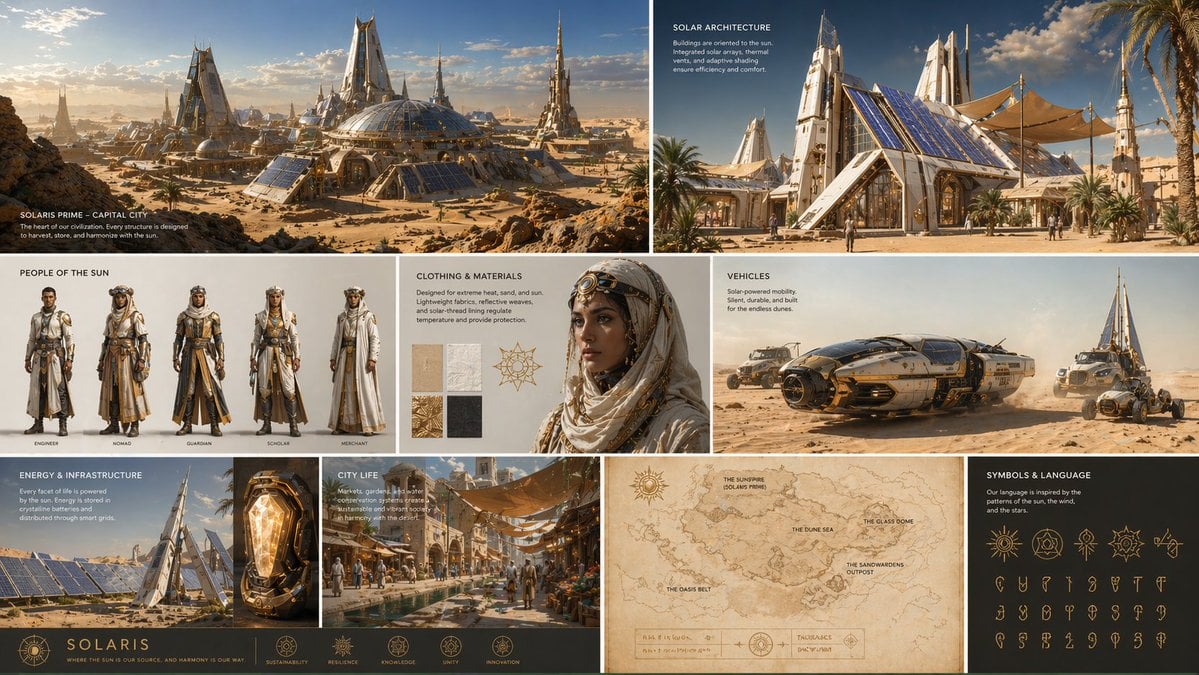
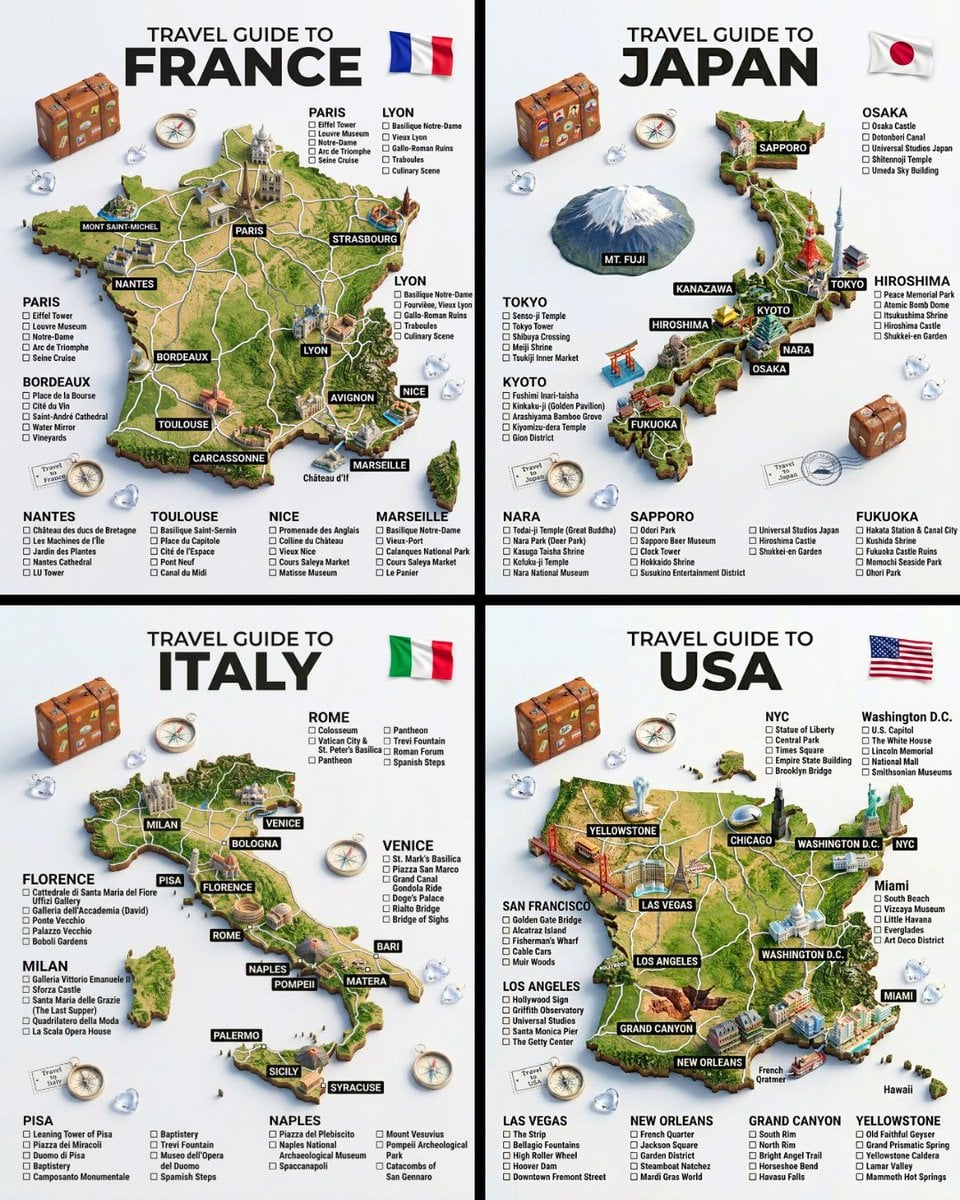
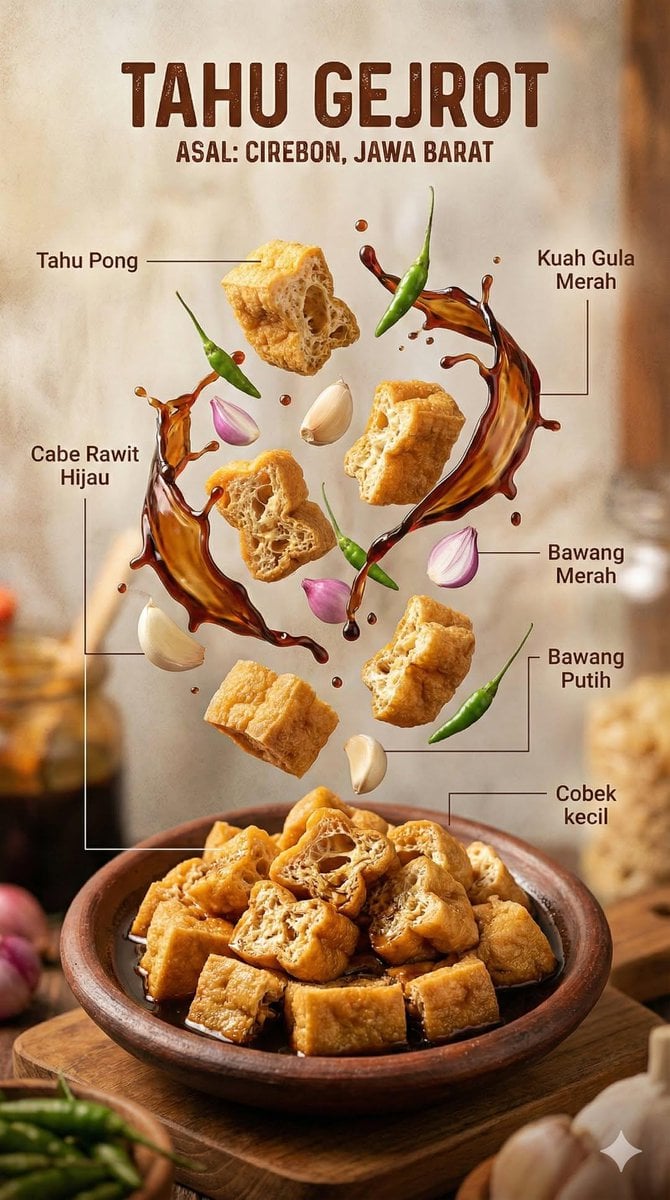
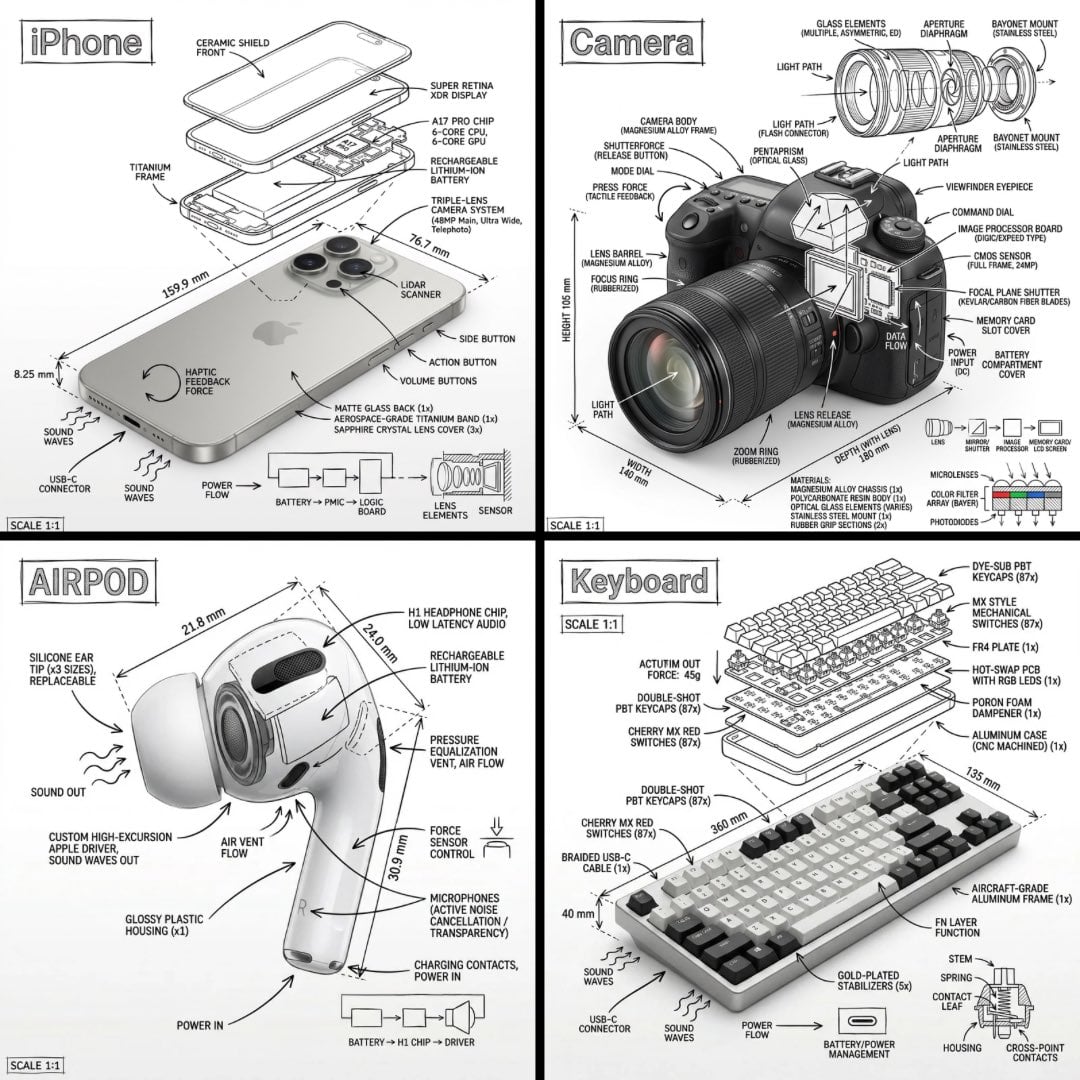
Seedream 5.0 Pro is designed to organize dense copy, charts, diagrams, labels, and visual hierarchy inside one composition. That makes it useful for educational graphics, presentation visuals, explainers, and text-led campaign concepts where the information matters as much as the style.

In Bimg, quote required wording, describe the information hierarchy, and review every label before publishing.
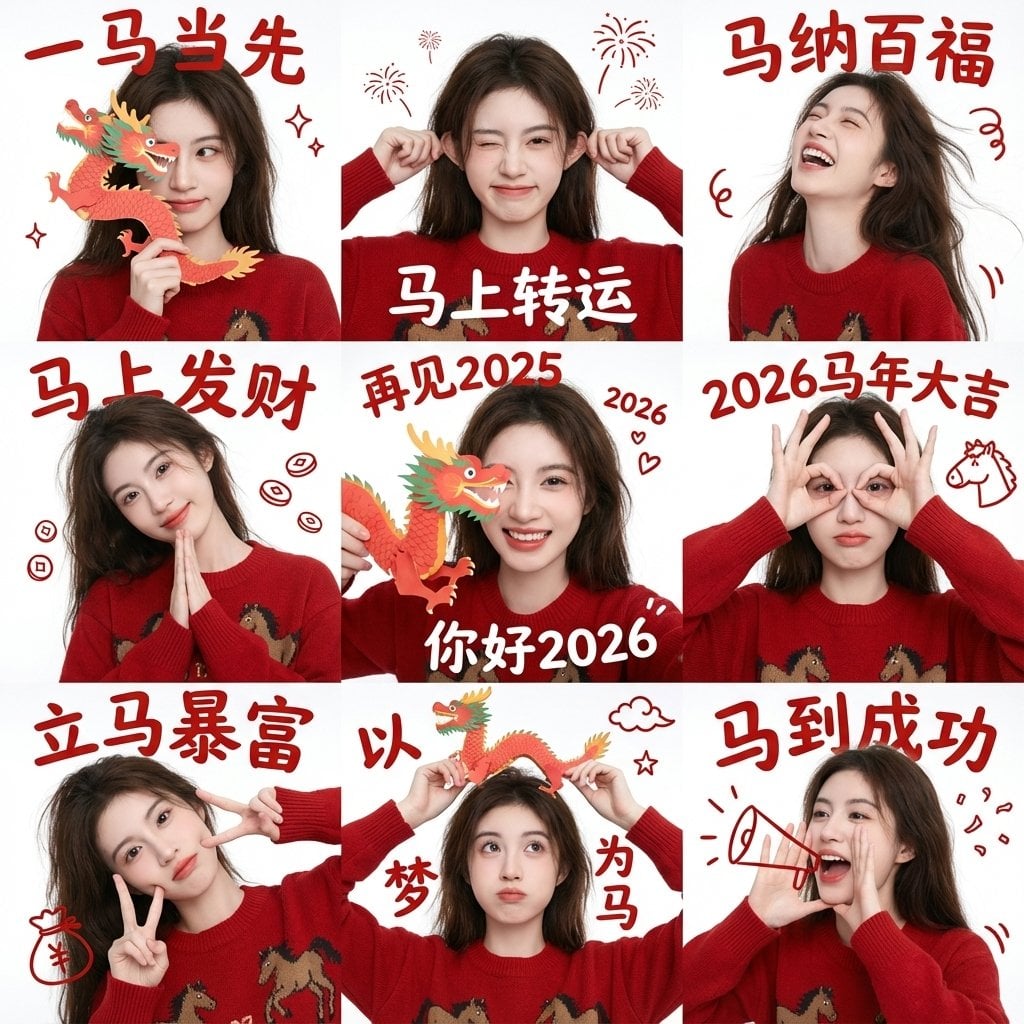
Seedream 5.0 Pro image generation example 1
Reference-led editing

Build edits around visual references

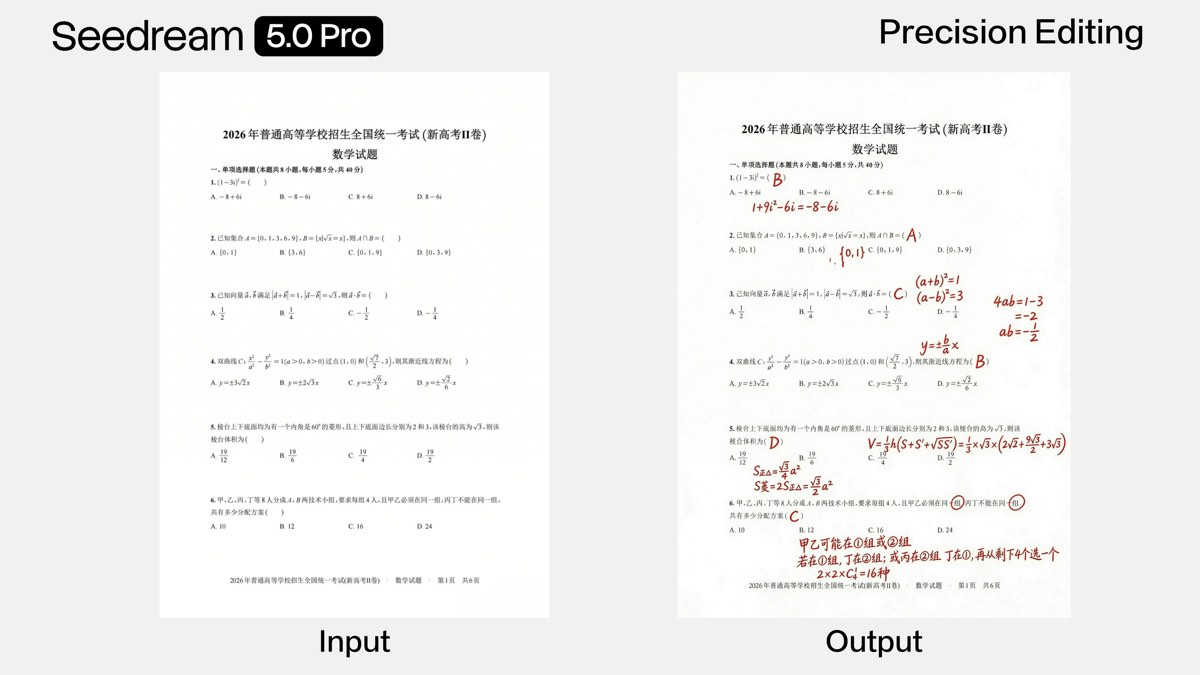
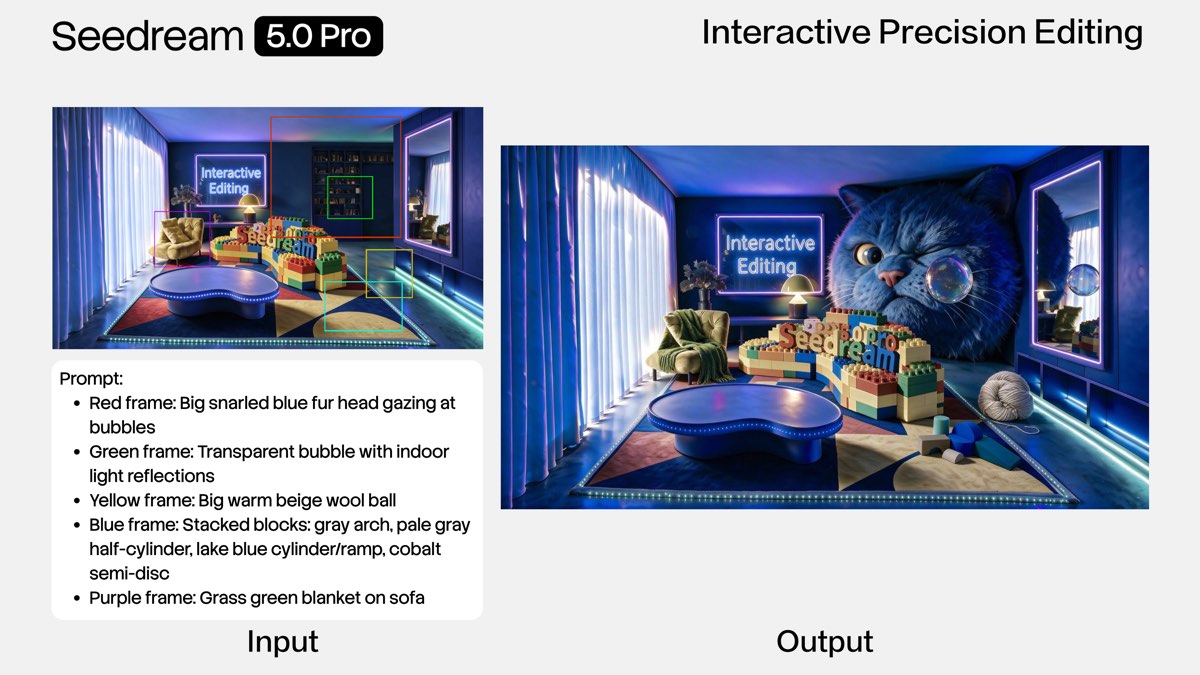
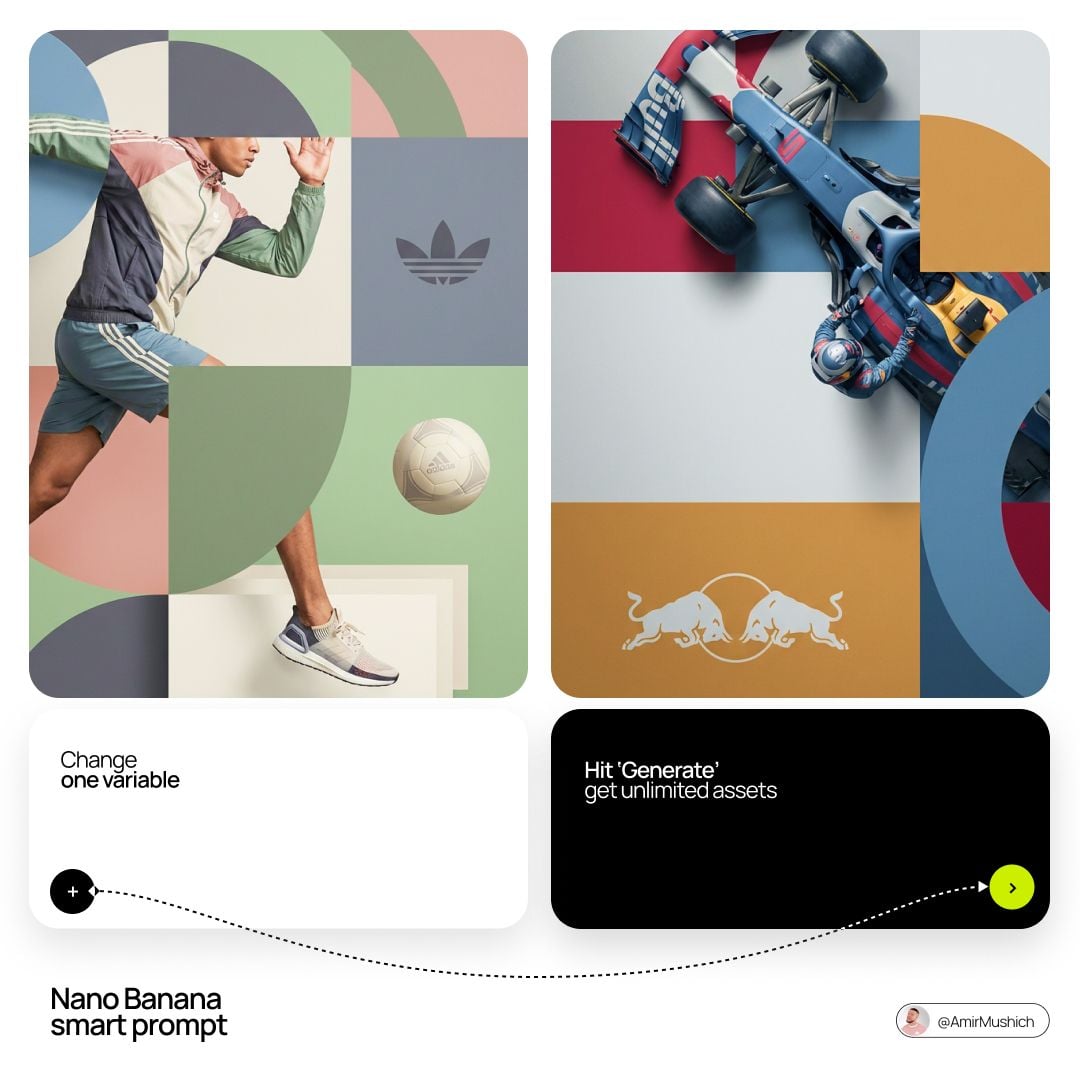
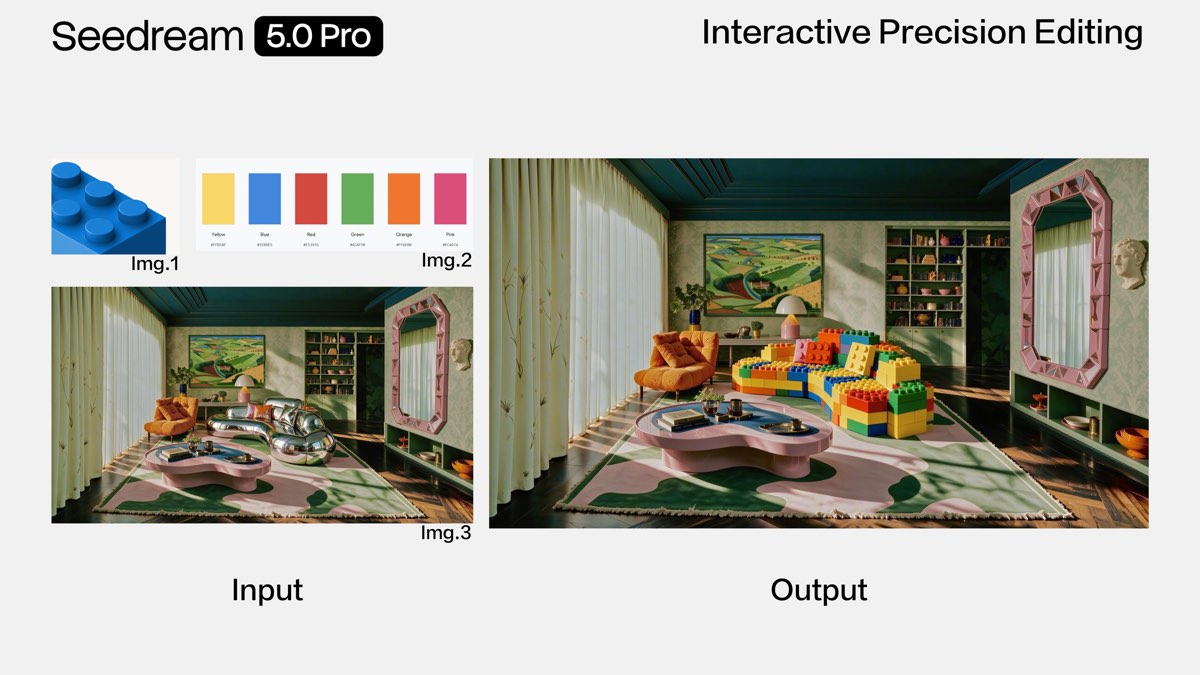
Upload a base image and supporting references, then explain what should change and what must stay consistent. Seedream 5.0 Pro can use those visual inputs to guide subject placement, materials, color direction, scene composition, and controlled creative edits.

Bimg currently supports prompt-based reference workflows with up to five images; specialized lasso and layer-export controls are not exposed in this interface.

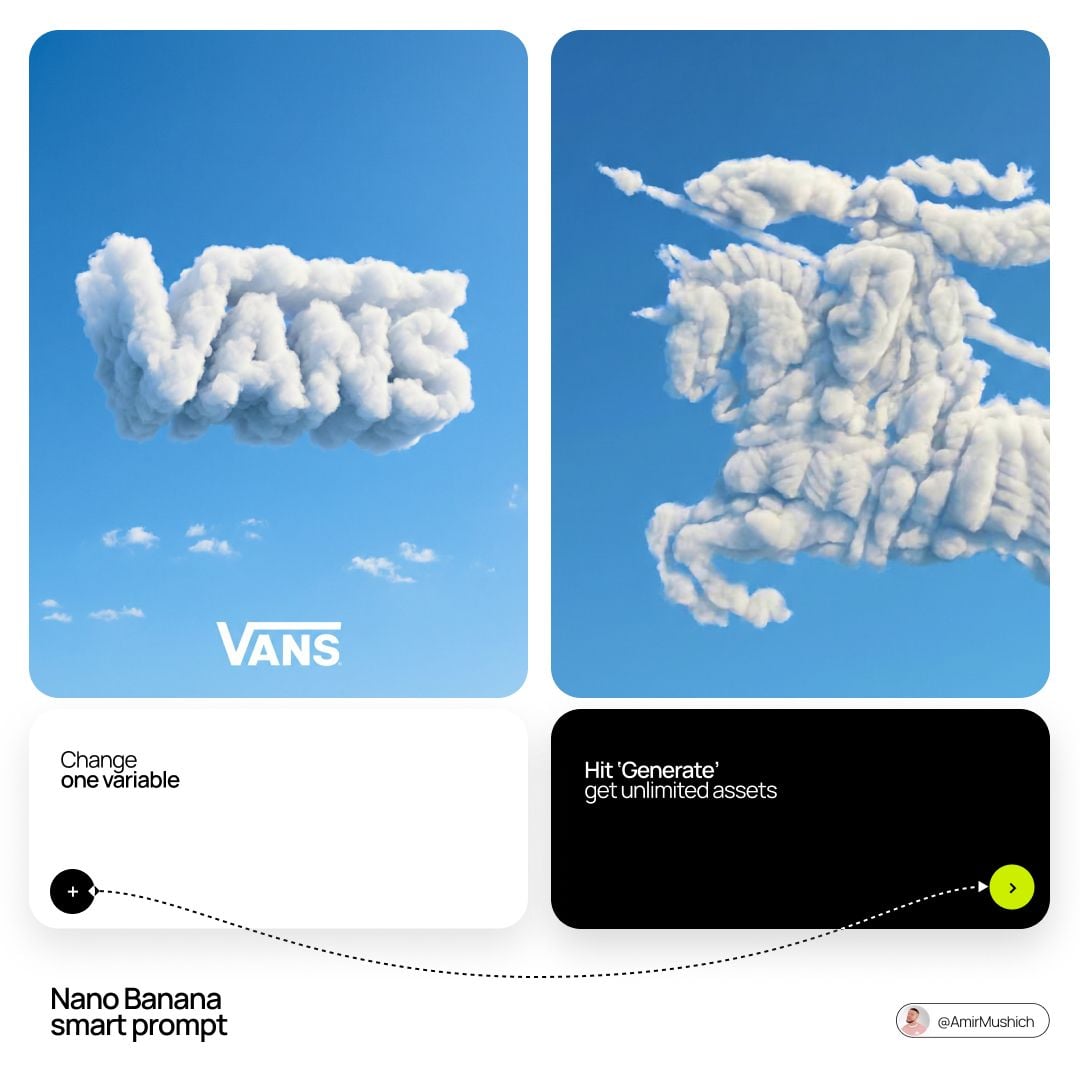
Seedream 5.0 Pro image generation example 2
Commercial visuals

Create polished scenes for real campaigns

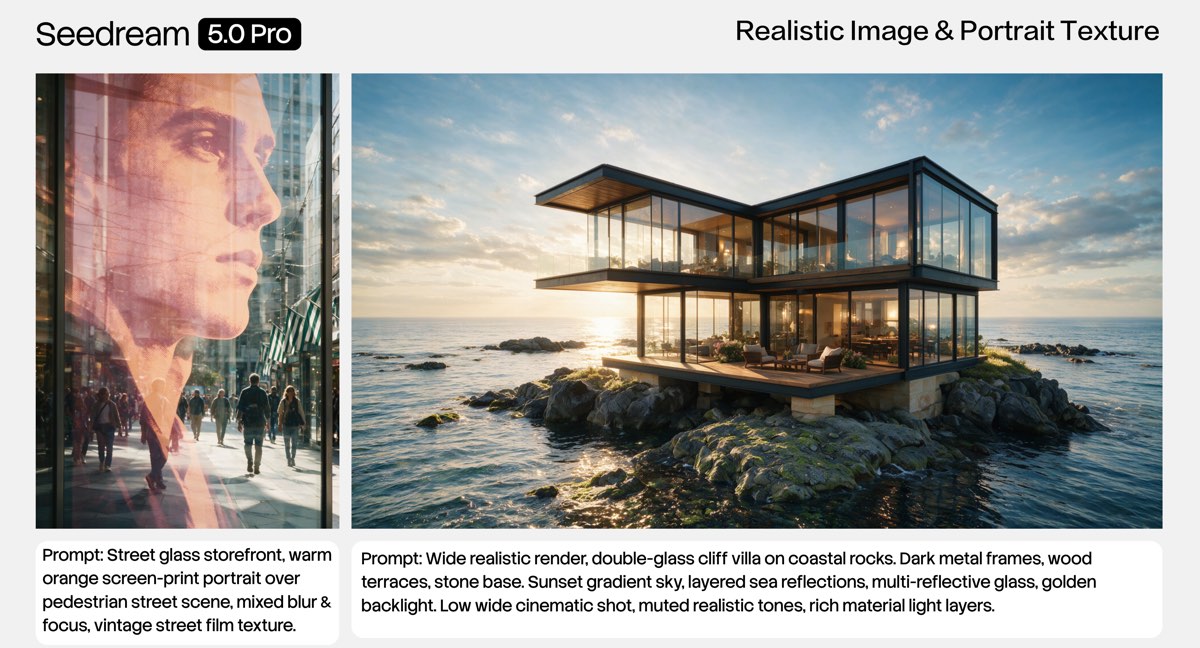
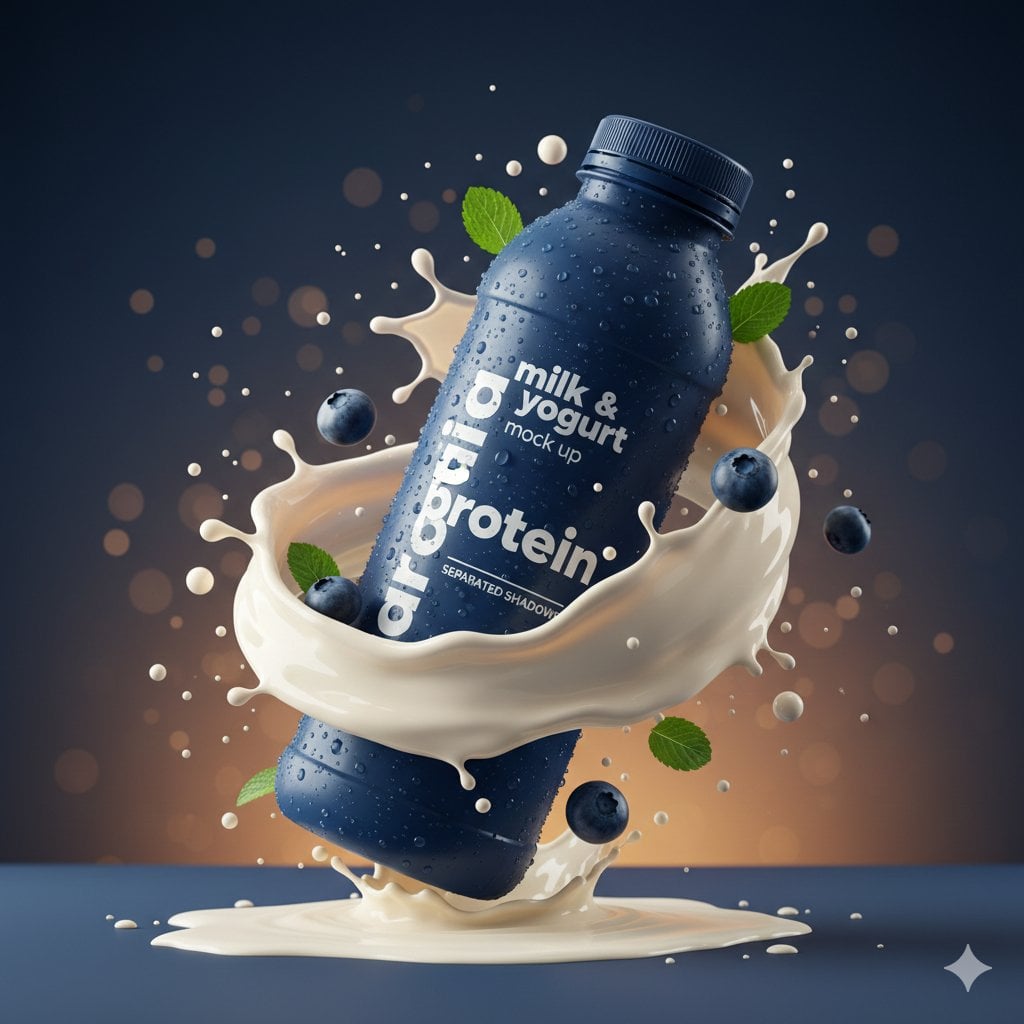
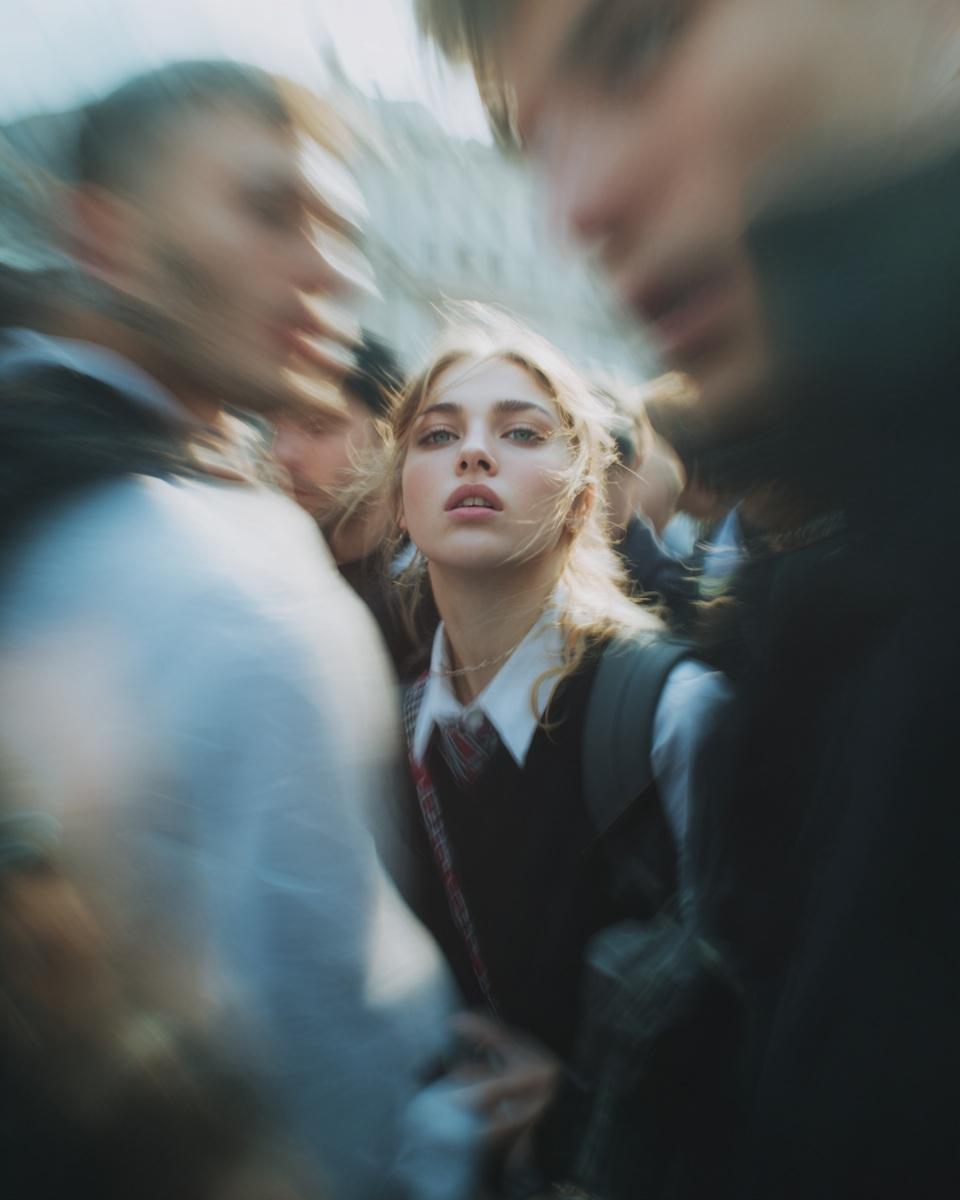
Use the model for product scenes, architectural concepts, editorial imagery, portraits, and campaign compositions where light, material, and spatial detail need careful direction. A clear brief helps the model balance photographic texture with designed visual structure.

Choose the final aspect ratio before generation so subject scale, negative space, and text placement match the delivery channel.

Seedream 5.0 Pro image generation example 3
Generation modes

Text to image and image to image with Seedream 5.0 Pro

Move from a written brief to a new visual, or use references when Seedream 5.0 Pro supports them. Both workflows send a working prompt directly to the generator above.

Seedream 5.0 Pro image generation example 1

Seedream 5.0 Pro text-to-image ideas

Start from a written brief to develop e-commerce concepts, information graphics, architecture, portraits, posters, and campaign directions. Use the examples below as editable starting points.

Seedream 5.0 Pro image generation example 2

Seedream 5.0 Pro image-to-image workflows

Guide a new result with a base image, style references, product materials, color direction, or composition cues. State both the requested change and the details that must stay consistent.

Upload up to five reference images when Seedream 5.0 Pro needs an existing subject, palette, or layout to guide the edit.

Prompt guide

How to write better Seedream 5.0 Pro prompts

A strong prompt reads like a compact creative brief: concrete enough to guide the model, but organized enough to edit.

Subject + purpose + composition + environment + light and materials + exact text + references + constraints

Product campaign brief

Describe the destination, offer, layout, product details, lighting, and space required for copy or interface controls.

Design a warm 16:9 e-commerce hero for a premium pet-care shop. Place concise marketing copy and three product cards on the left, with a golden retriever crossing the image boundary to touch the primary button.

Information design brief

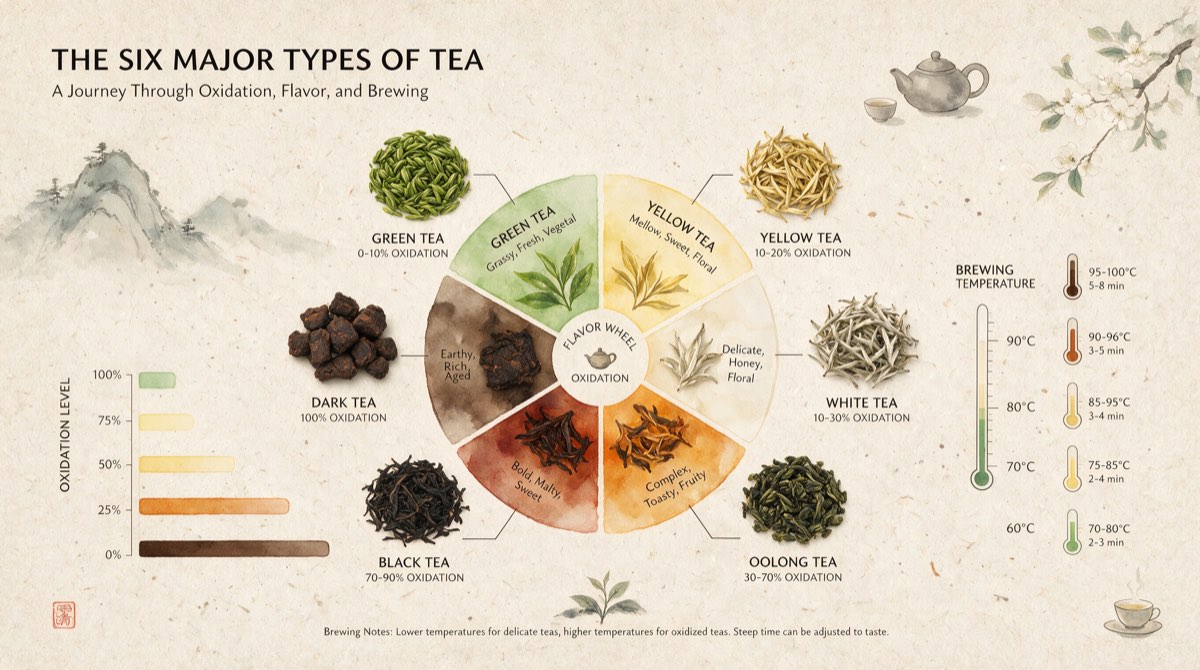
Define the audience, information structure, required labels, chart types, palette, and reading order before adding style.

Create a refined educational infographic about six major tea types. Use a clear flavor wheel, oxidation bars, brewing temperatures, labeled tea leaves, warm rice-paper texture, and a calm editorial hierarchy.

Reference edit brief

Name the base image, requested change, protected details, reference roles, and the level of realism the edit must retain.

Use the uploaded image as the base. Complete the unanswered areas with clear handwritten working while preserving the original paper, typography, alignment, and every existing mark.

How it works

How to use the Seedream 5.0 Pro image generator

The same three-step workflow works for one-off ideas and structured batch production.

1

Start with this model

Seedream 5.0 Pro is selected when the page loads. Write one prompt, add supported reference images when needed, or open the batch workspace for larger jobs.

2

Write the brief and set output controls

Describe the subject, context, composition, style, and constraints. Then choose the supported ratio and resolution for Seedream 5.0 Pro, adding reference images only when the model allows them.

3

Generate, review, and refine

Submit the job, compare the Seedream 5.0 Pro results, and regenerate with targeted prompt changes. Completed work is available in history for later review and download.

Compare

Seedream 5.0 Pro compared with related models

Use credits, output tiers, and creative strengths as practical selection signals. The best model depends on the job, not one universal ranking.

ModelBest-fit strengthOutput tiersCredits / image
Seedream 5.0 Proguided generation and editing1K / 2K22–44
Seedream 5.0 Litefast creative iteration2K / 3K17
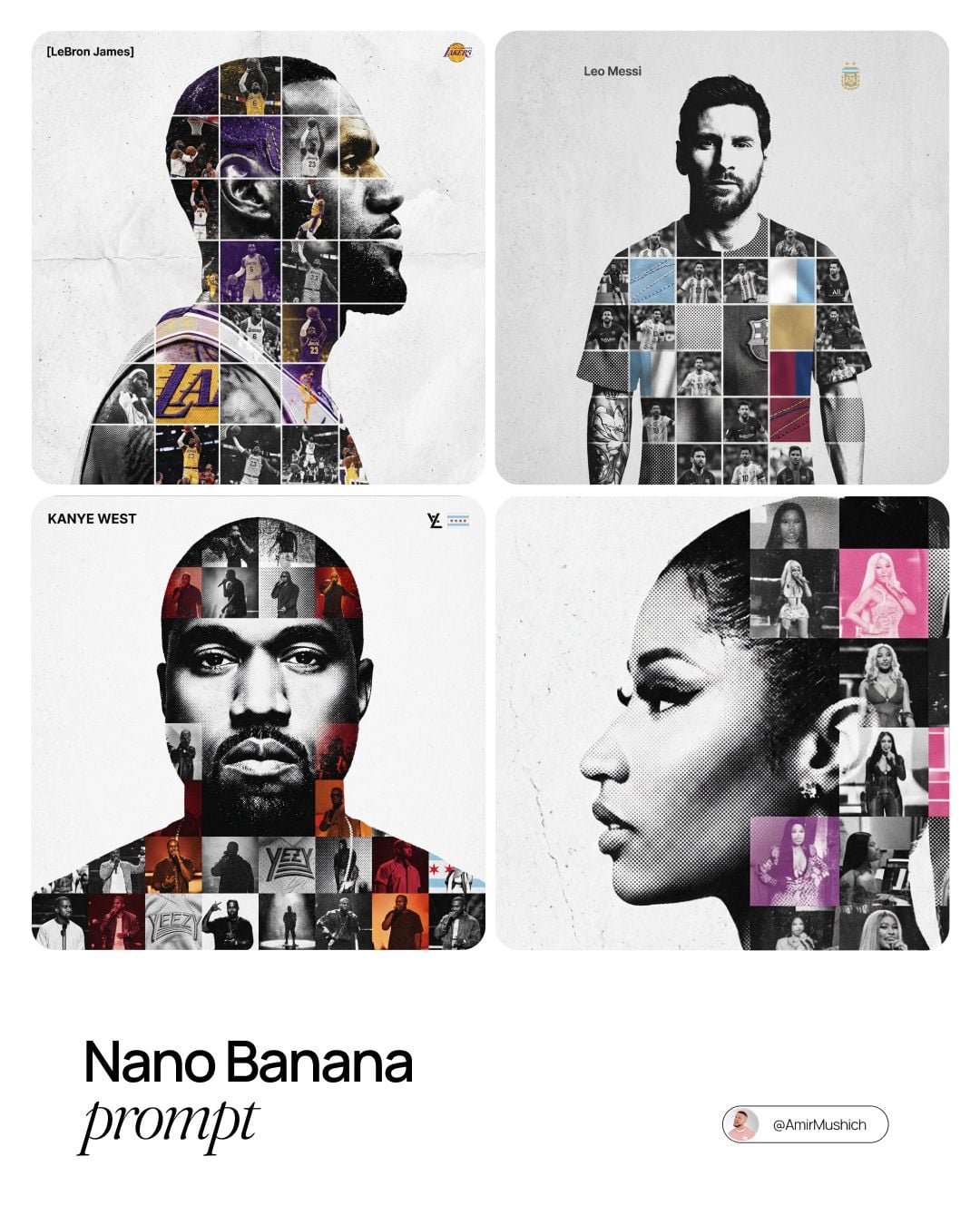
Nano Bananabalanced quality and speed1K8
Nano Banana 2 Litefast creative iteration1K20
FAQ

Seedream 5.0 Pro image generator FAQ

Practical answers about access, credits, inputs, output controls, batch workflows, and responsible review.

What is Seedream 5.0 Pro?

Seedream 5.0 Pro is a multimodal image generation model from ByteDance Seed. It is designed for professional creative work such as high-density infographics, realistic commercial imagery, multilingual layouts, and reference-guided editing. Bimg provides a web generator around the model with prompt input, reference uploads, output controls, history, and batch workflows.

Can I use Seedream 5.0 Pro for text to image?

Yes. Choose Seedream 5.0 Pro in Bimg, write a brief that names the subject, purpose, composition, light, visual treatment, and required wording, then select a supported ratio and output size. You can start from an empty prompt or use one of the recipes on this page.

Does Seedream 5.0 Pro support image to image?

Yes. The current Bimg integration accepts up to five reference images. Upload a base image or visual references, then state what should change, which elements must remain consistent, and how each reference should influence the result. References guide the model but do not guarantee an identical reconstruction.

Which Seedream 5.0 Pro resolutions are available in Bimg?

Bimg currently exposes 1K and 2K output for Seedream 5.0 Pro. The generator is the source of truth for available settings because provider capabilities and integrations can change. Choose 2K when final detail matters and 1K when you want a more economical iteration pass.

How many Bimg credits does Seedream 5.0 Pro use?

A Seedream 5.0 Pro image currently costs 22 Bimg credits at 1K and 44 credits at 2K. The generator calculates the total before submission, including image count and the selected output tier, so you can review the cost before credits are used.

How should I write a Seedream 5.0 Pro prompt?

Start with the primary subject and the job the image must do. Then add composition, camera or viewing angle, environment, light, materials, palette, exact text, hierarchy, and hard constraints. For edits, explain what must change and what must remain untouched. Adjust one major variable per iteration so improvements are easy to evaluate.

How is Seedream 5.0 Pro different from Seedream 5.0 Lite?

Seedream 5.0 Lite is positioned for quicker iteration, while Seedream 5.0 Pro focuses on professional design, detailed imagery, information-dense layouts, and stronger editing workflows. In Bimg the two integrations also differ in output options and credit cost, so select the model around the actual production task.

Should I review Seedream 5.0 Pro images before publishing?

Yes. Review spelling, numbers, charts, anatomy, product details, logos, reference fidelity, cultural context, and brand requirements before release. AI generation is probabilistic, and even a strong result should be treated as a creative draft until a person approves it for commercial or public use.

Start creating with Seedream 5.0 Pro

Open the generator above with Seedream 5.0 Pro already selected, write your brief, choose the delivery format, and move from one idea to a reviewable result in the same workspace.

Generate with this model