


Typography
Build a clear poster hierarchy
Keep wording short and define placement, alignment, scale, and contrast so the layout remains readable.
In Bimg, state the headline, subhead, and body order with exact copy so the poster hierarchy holds.
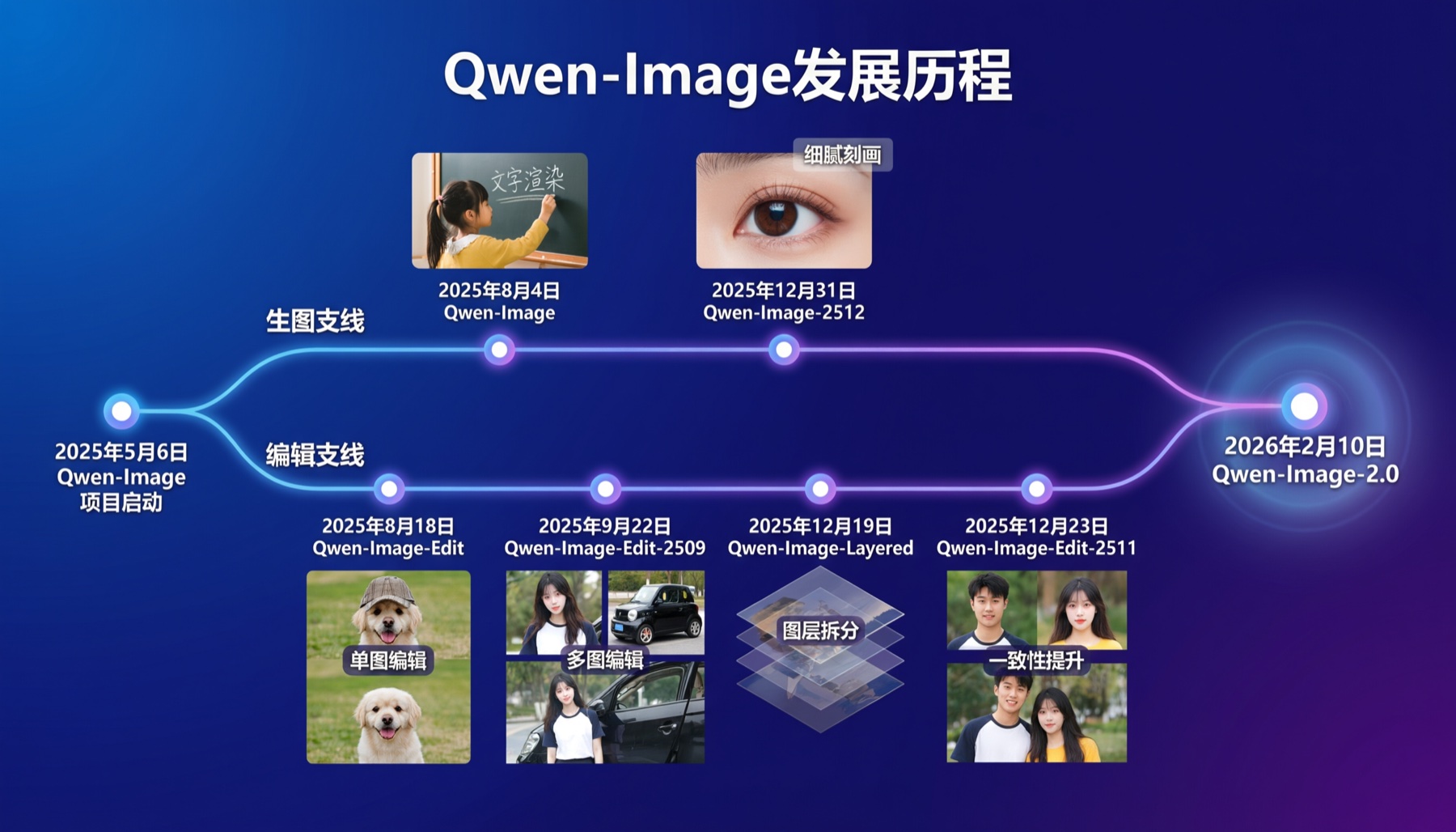
Create balanced 1K and 2K images with Qwen Image 2.0 on Bimg. Use text or up to five references for typography, photoreal scenes, visual design, and everyday generation where quality, editing, and credit cost need to stay practical.
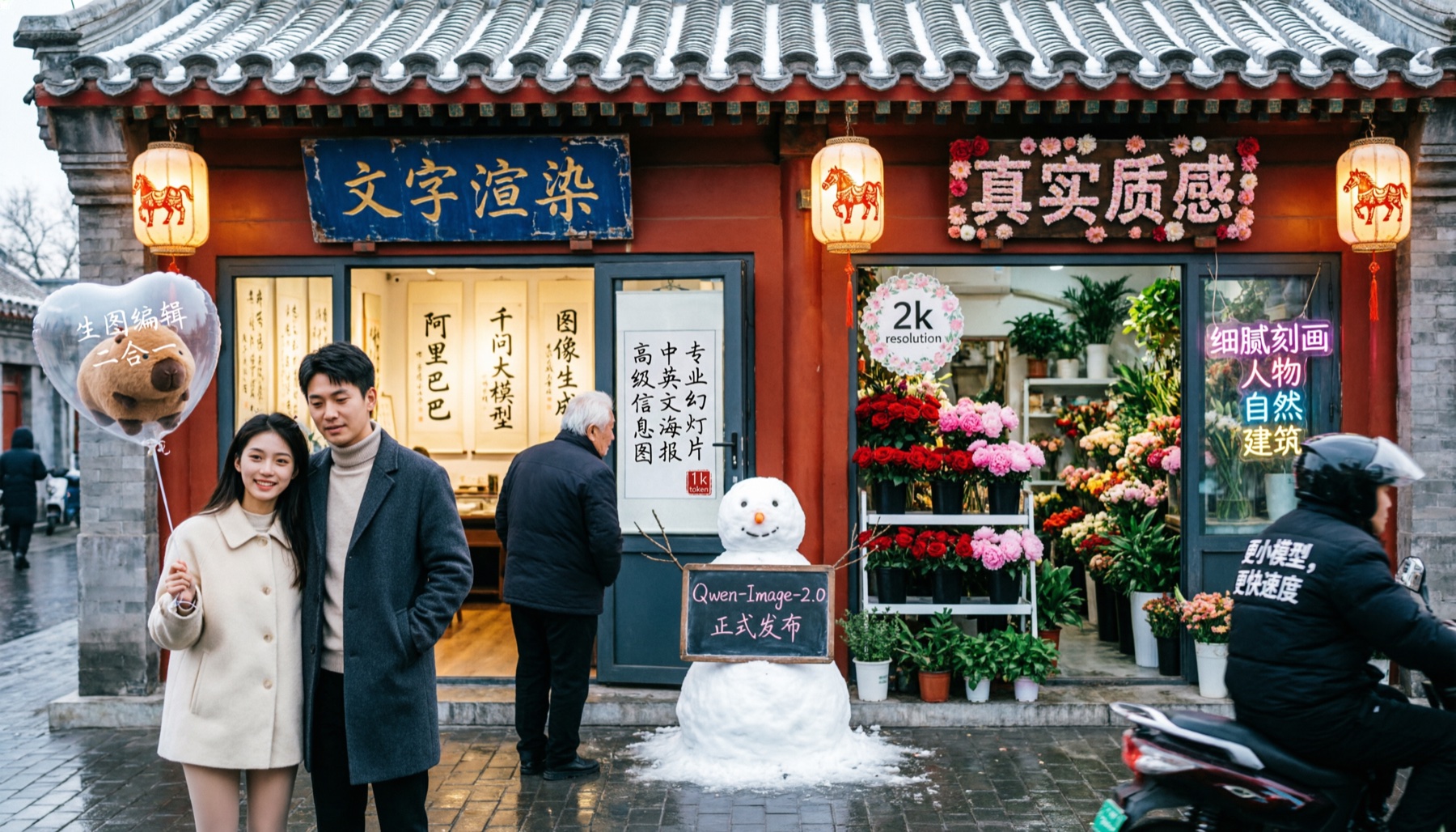
Qwen Image 2.0 is selected by default. Create one image from a prompt and optional references here, or open the batch workspace when you need Variations, CSV, or Products.
Explore a high-quality selection drawn specifically for this page from Bimg’s cross-model prompt library. Copy a prompt or use it as a starting point with Qwen Image 2.0.
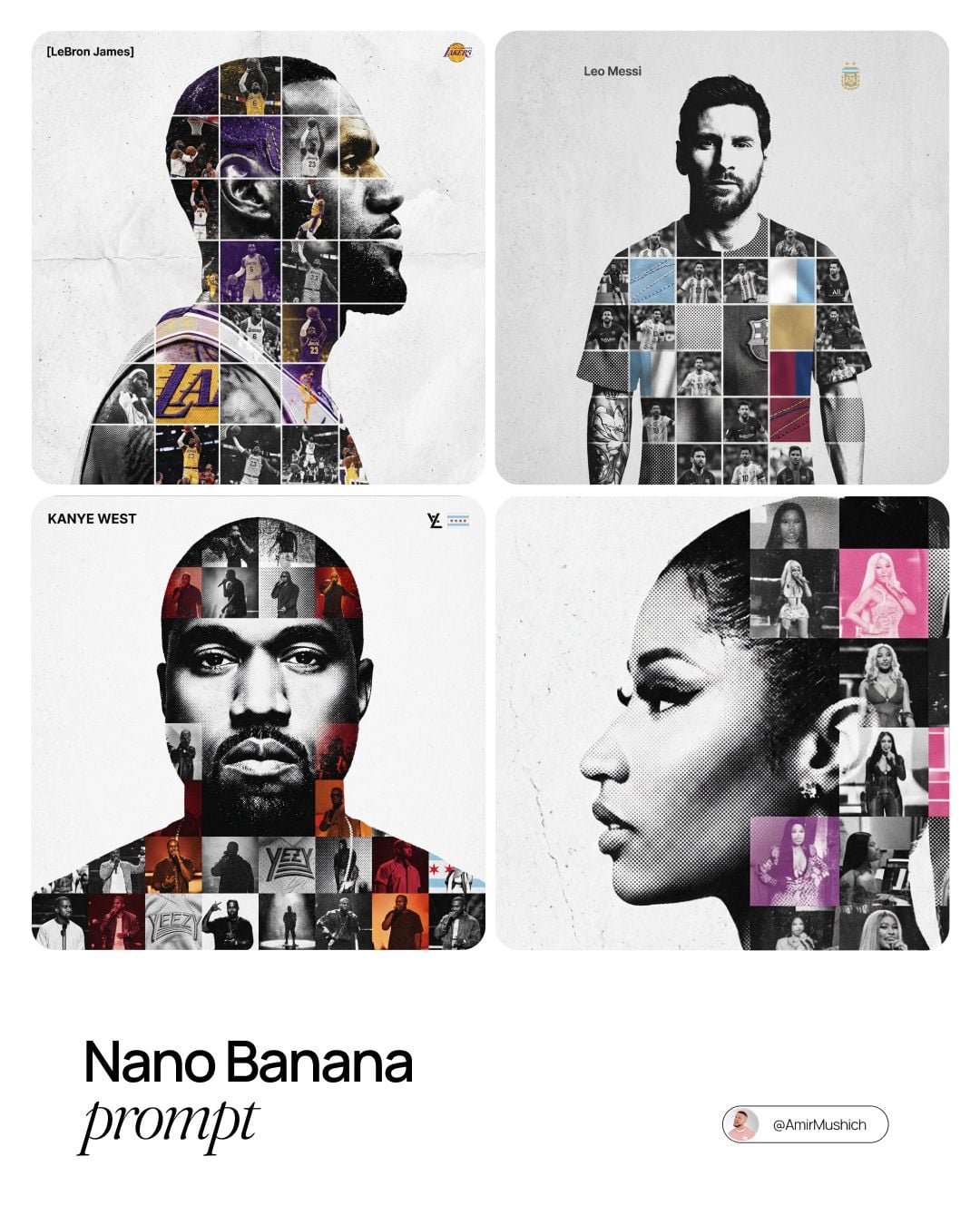
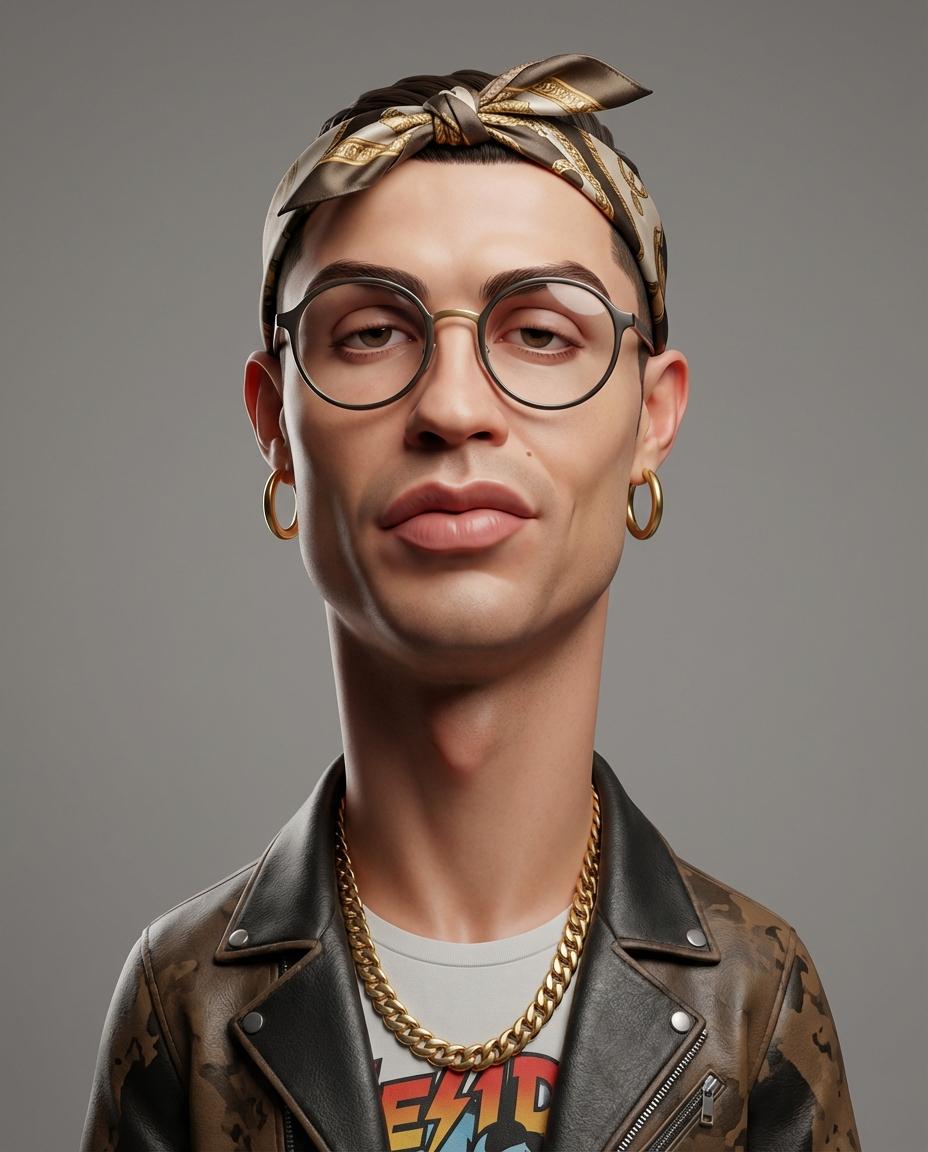
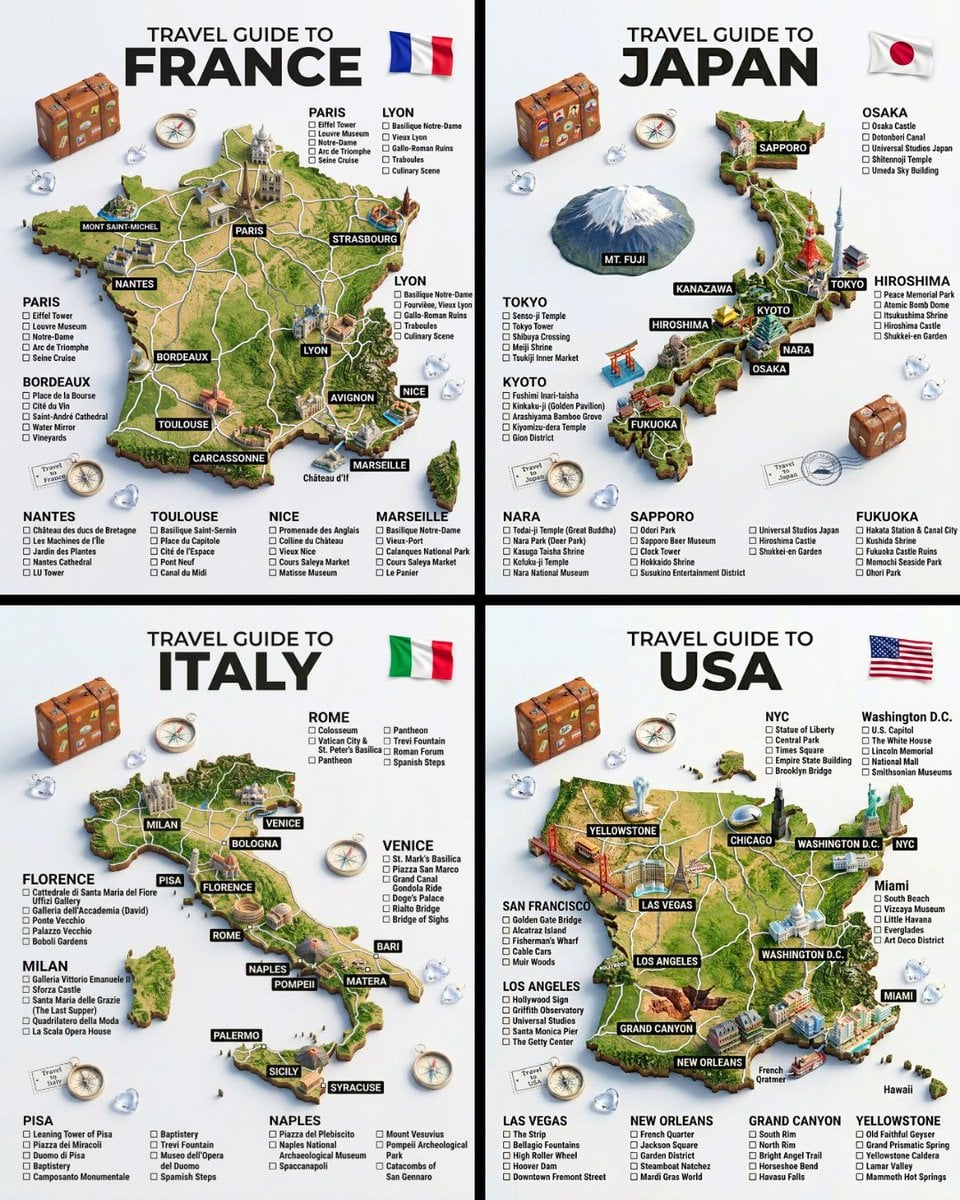
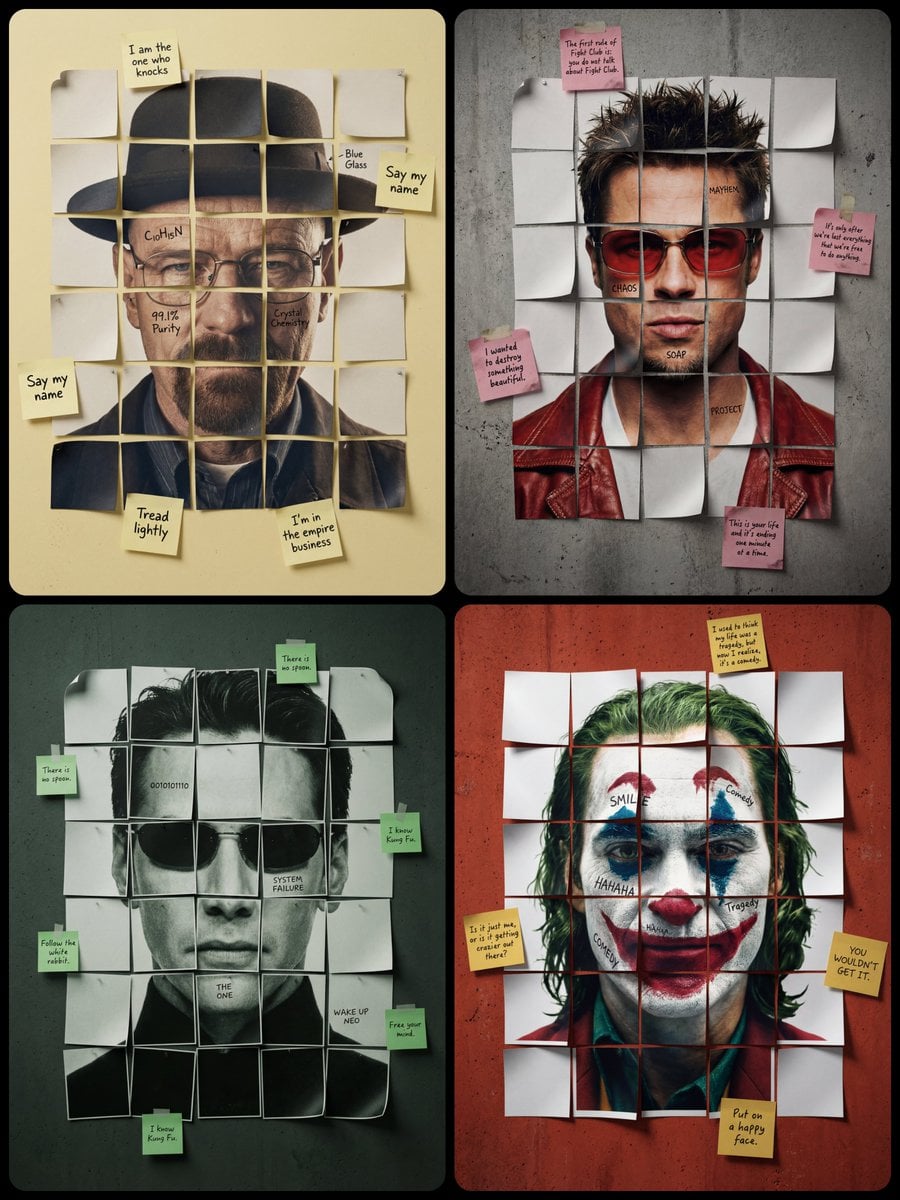
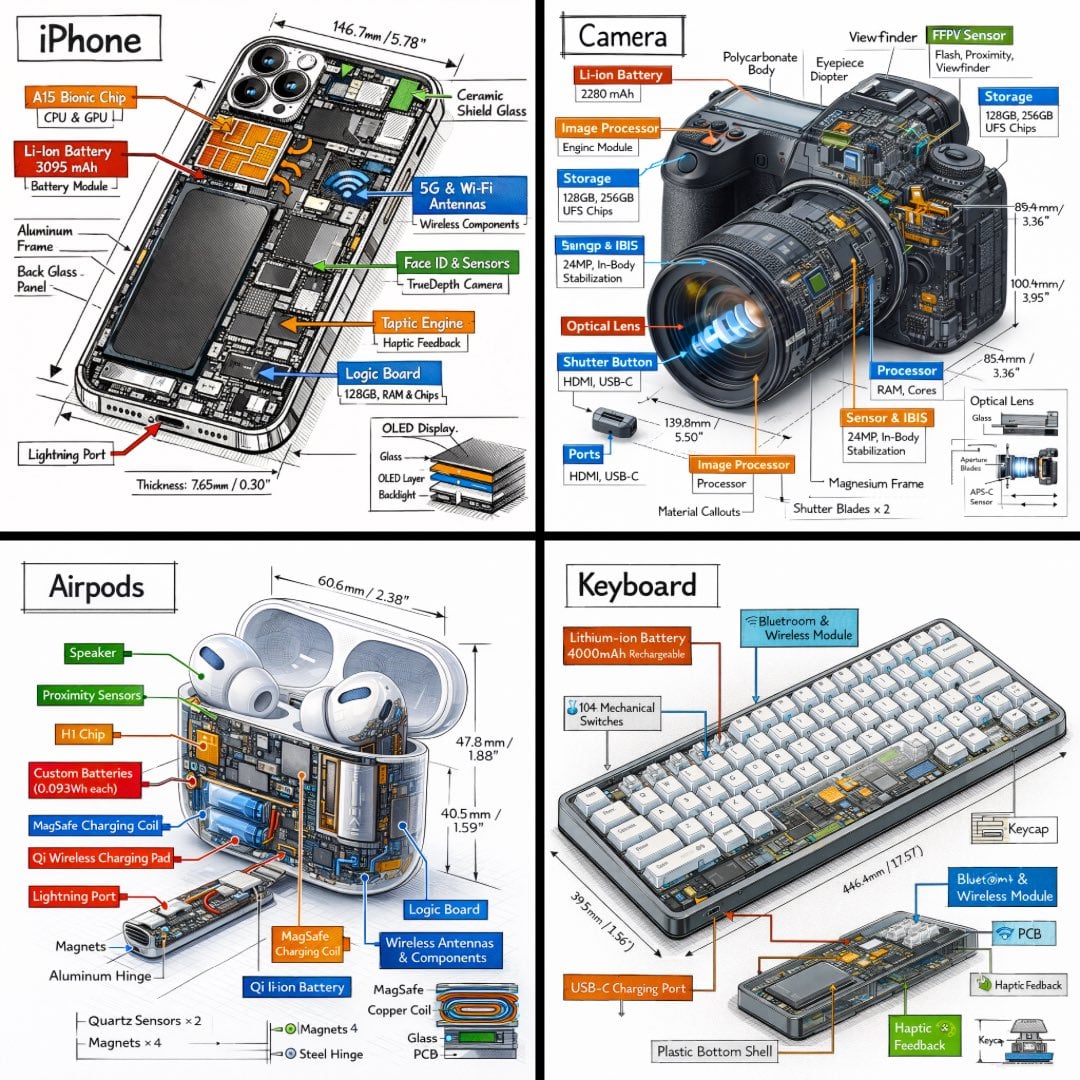
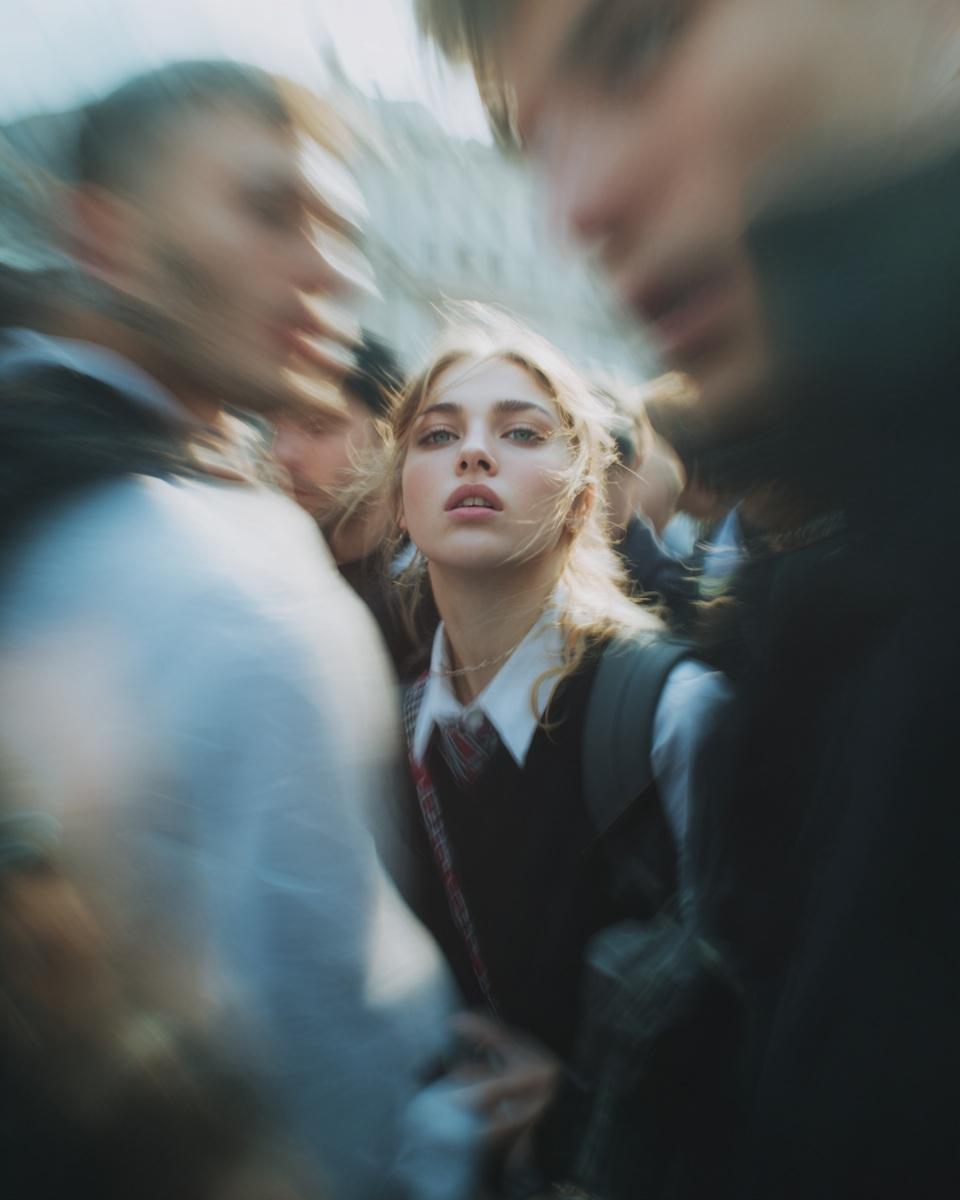
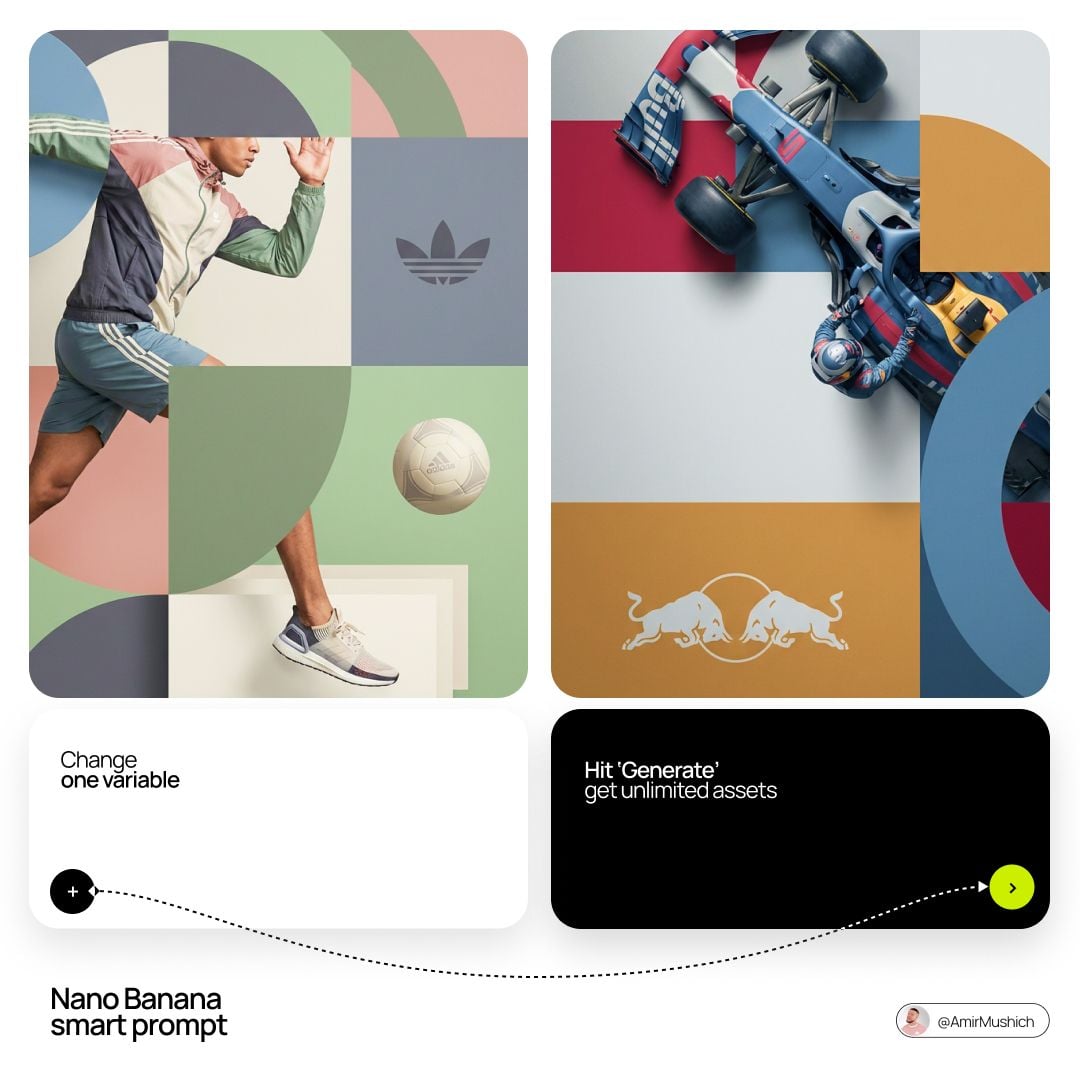
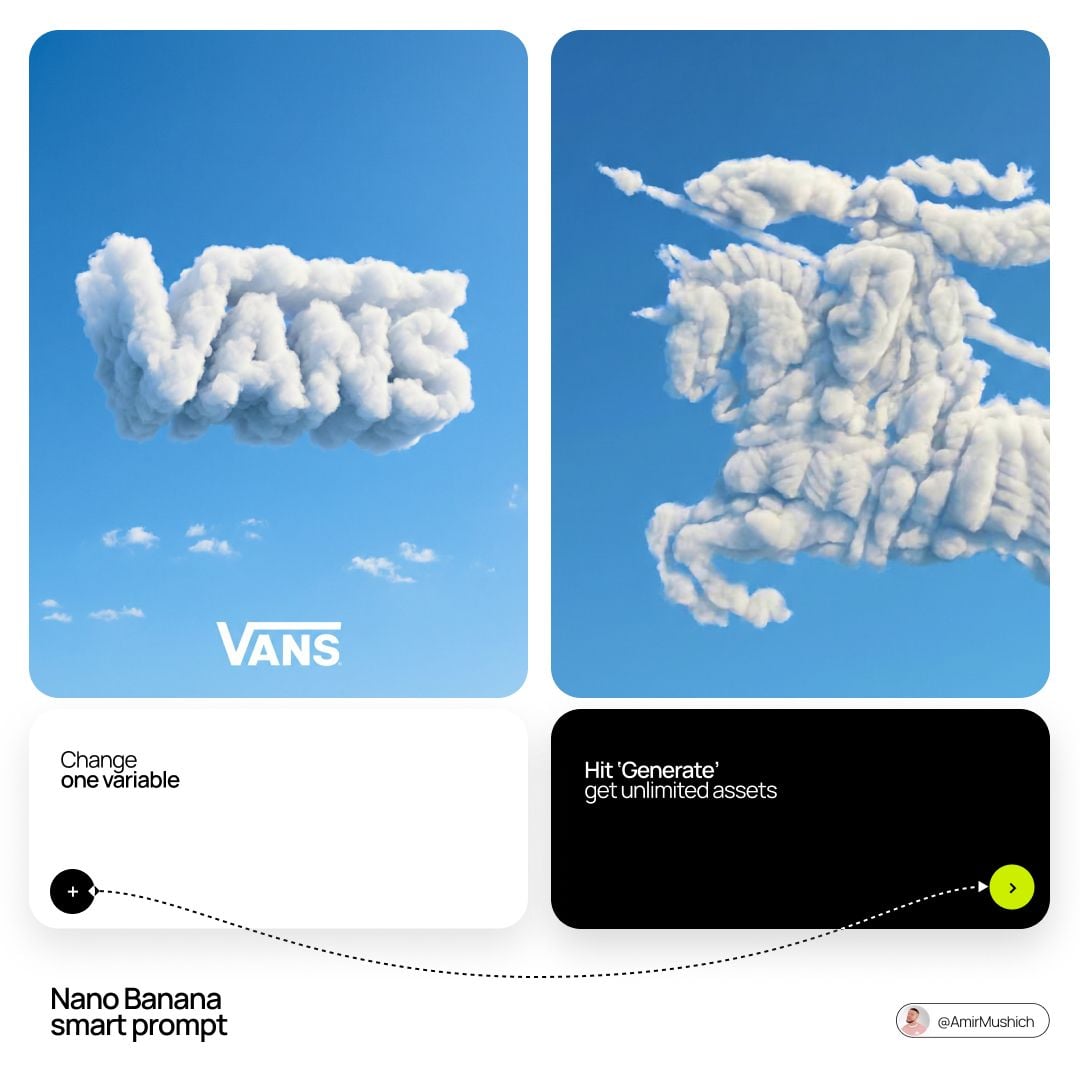
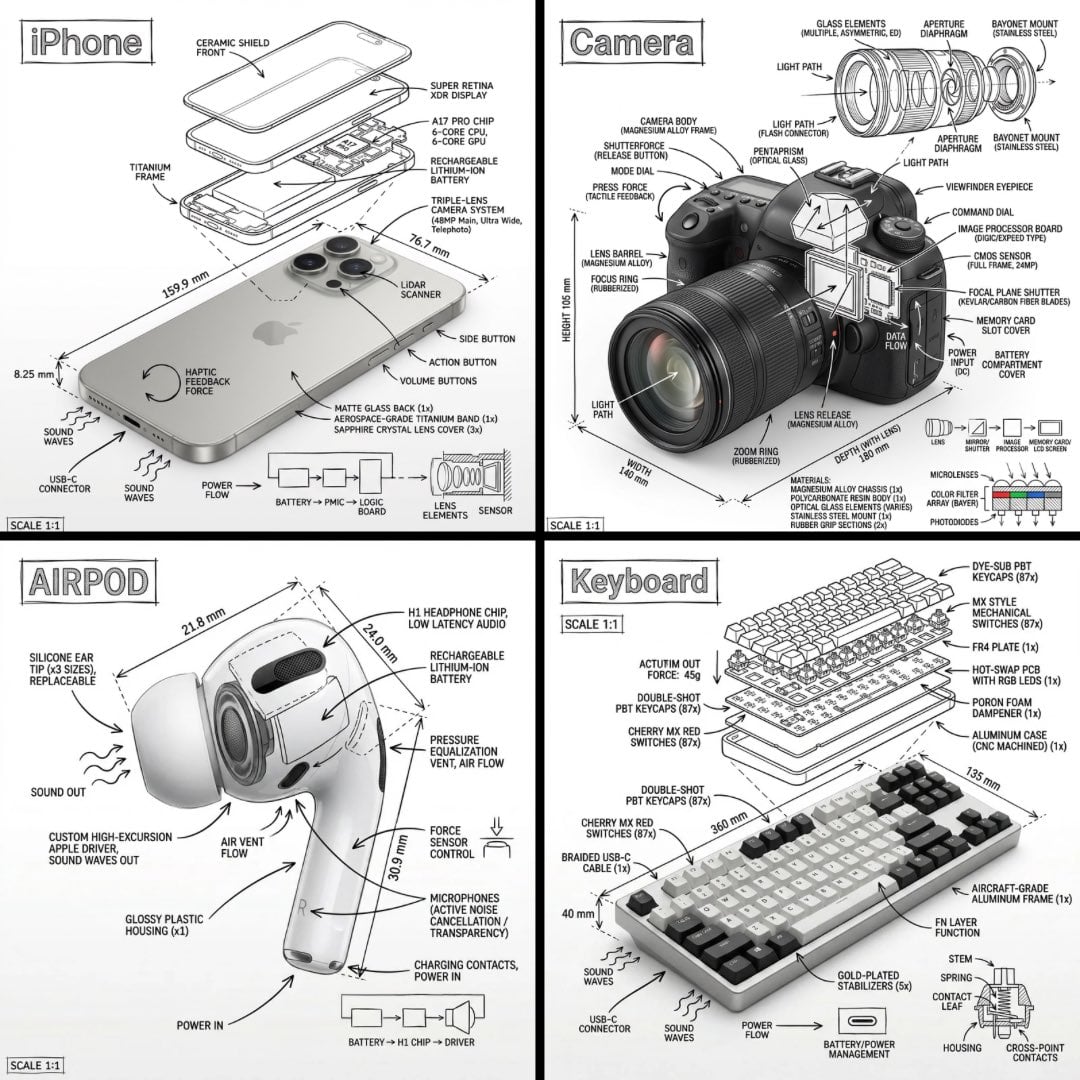
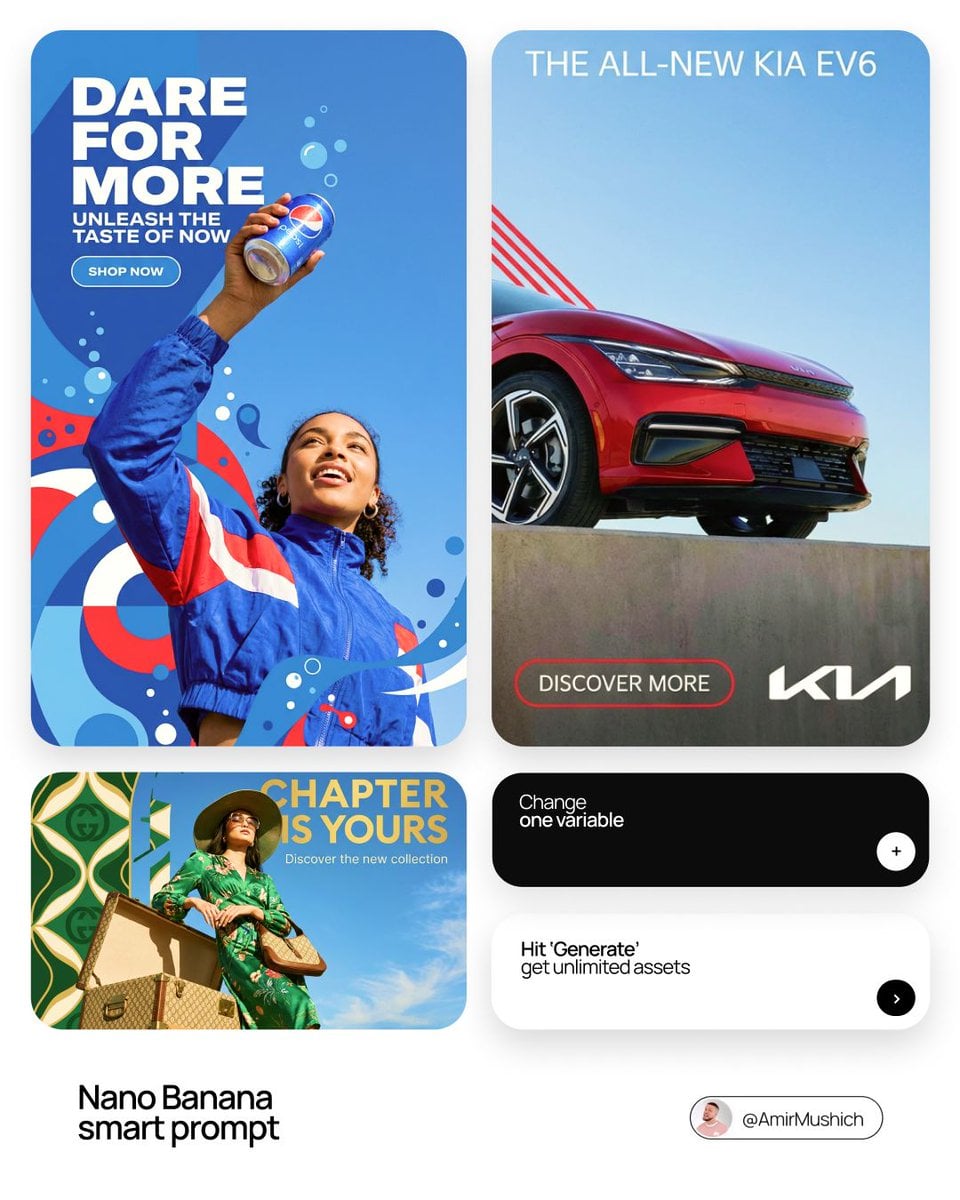
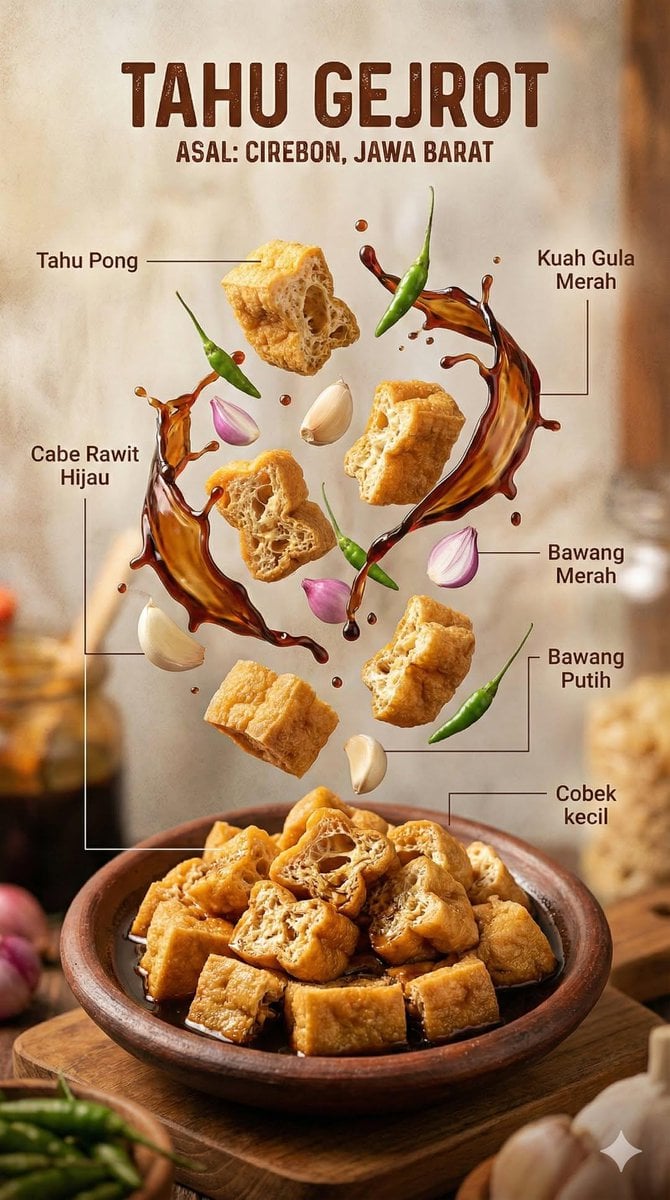
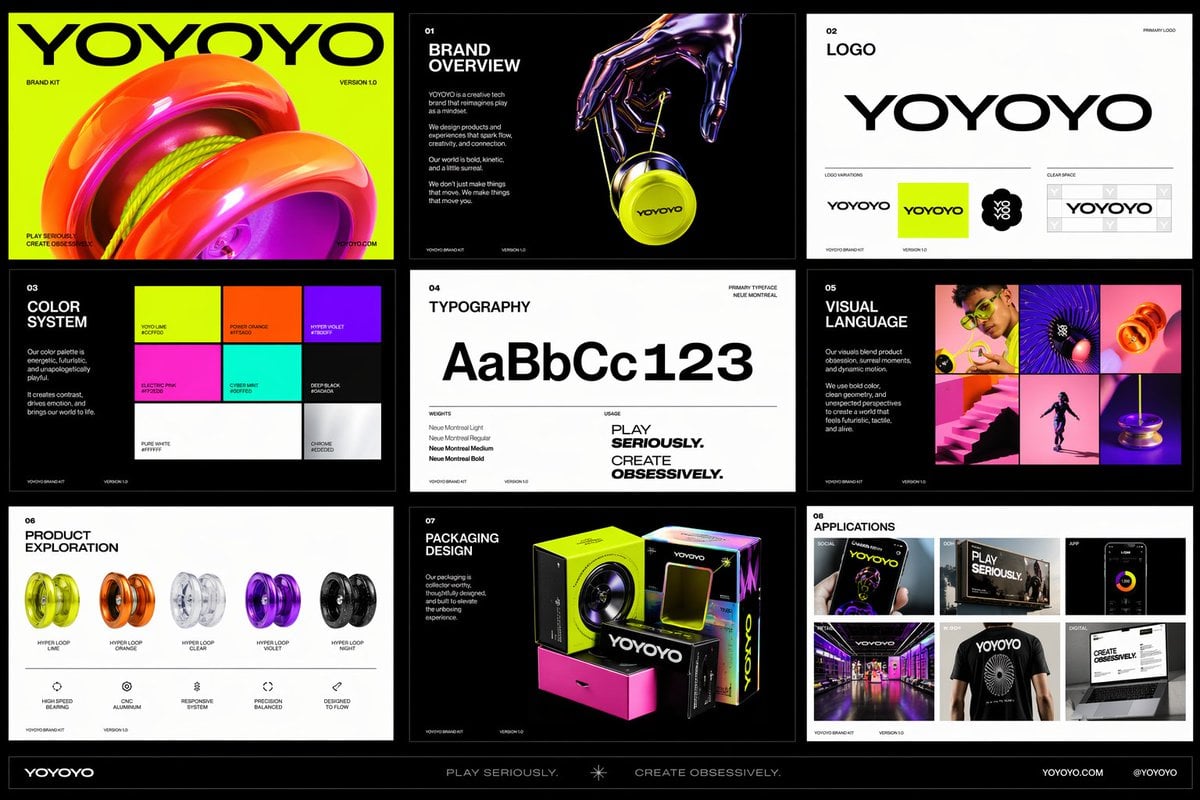
This page uses its own stable random selection from Bimg’s highest-quality cross-model prompts, so model pages do not repeat the same gallery. The examples are inspiration, not verified Qwen Image 2.0 outputs.
Browse the full prompt galleryThe settings below reflect the capabilities currently exposed in Bimg, so the generator and this guide stay aligned.
Bimg is an independent platform and is not affiliated with, sponsored by, or endorsed by Alibaba. Model names are used for identification purposes only.
Bimg exposes the controls needed for repeatable production while keeping model-specific limits visible.
Keep wording short and define placement, alignment, scale, and contrast so the layout remains readable.
In Bimg, state the headline, subhead, and body order with exact copy so the poster hierarchy holds.
A believable scene connects subject, setting, light, materials, and camera rather than treating each as a separate style keyword.
Describe the environment as support for the subject in Bimg, not competing detail.
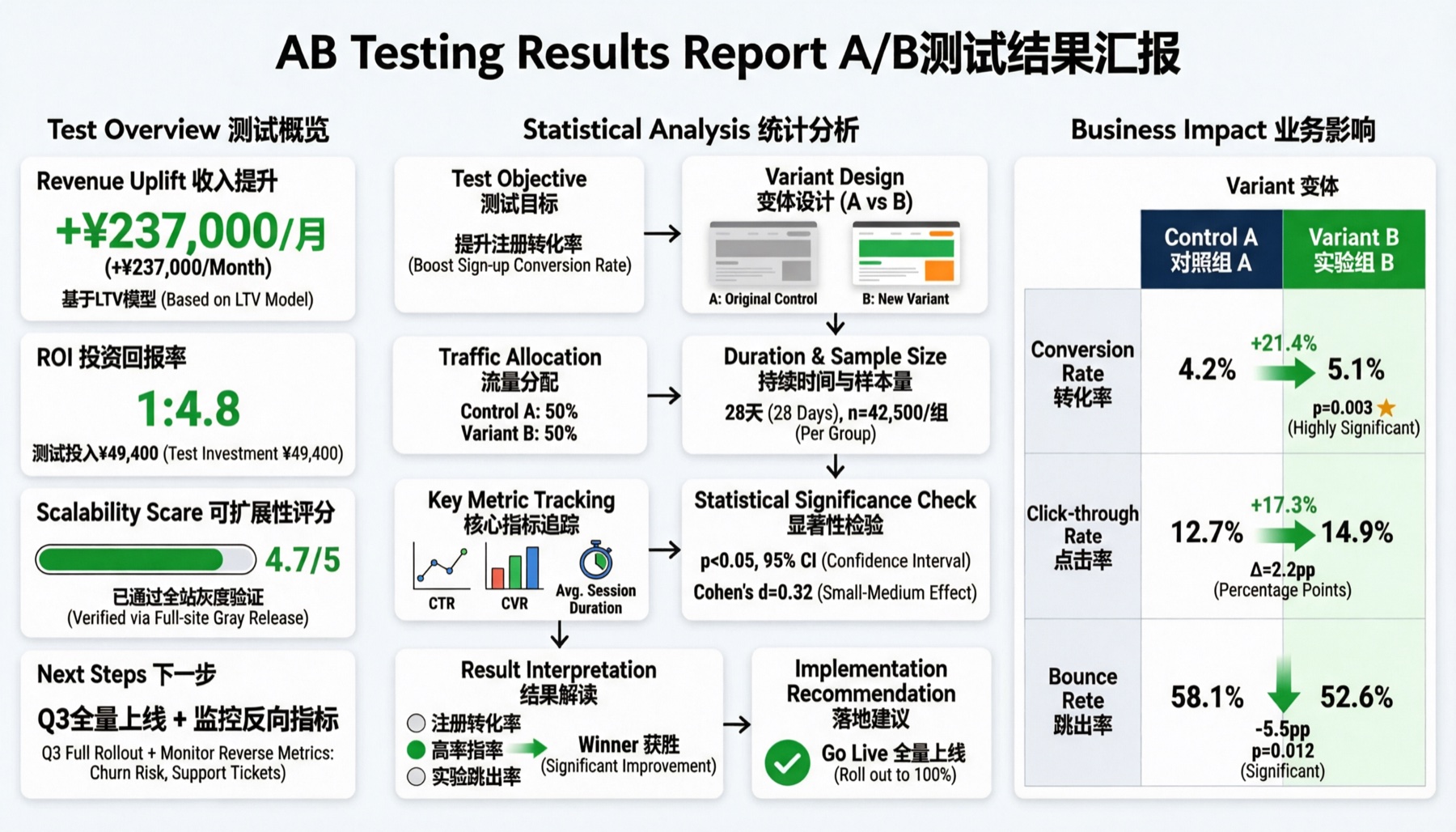
Specify the dominant visual, supporting shapes, negative space, and intended channel for a more practical design result.
Translate the concept into concrete layout elements in Bimg — blocks, spacing, and focal point.
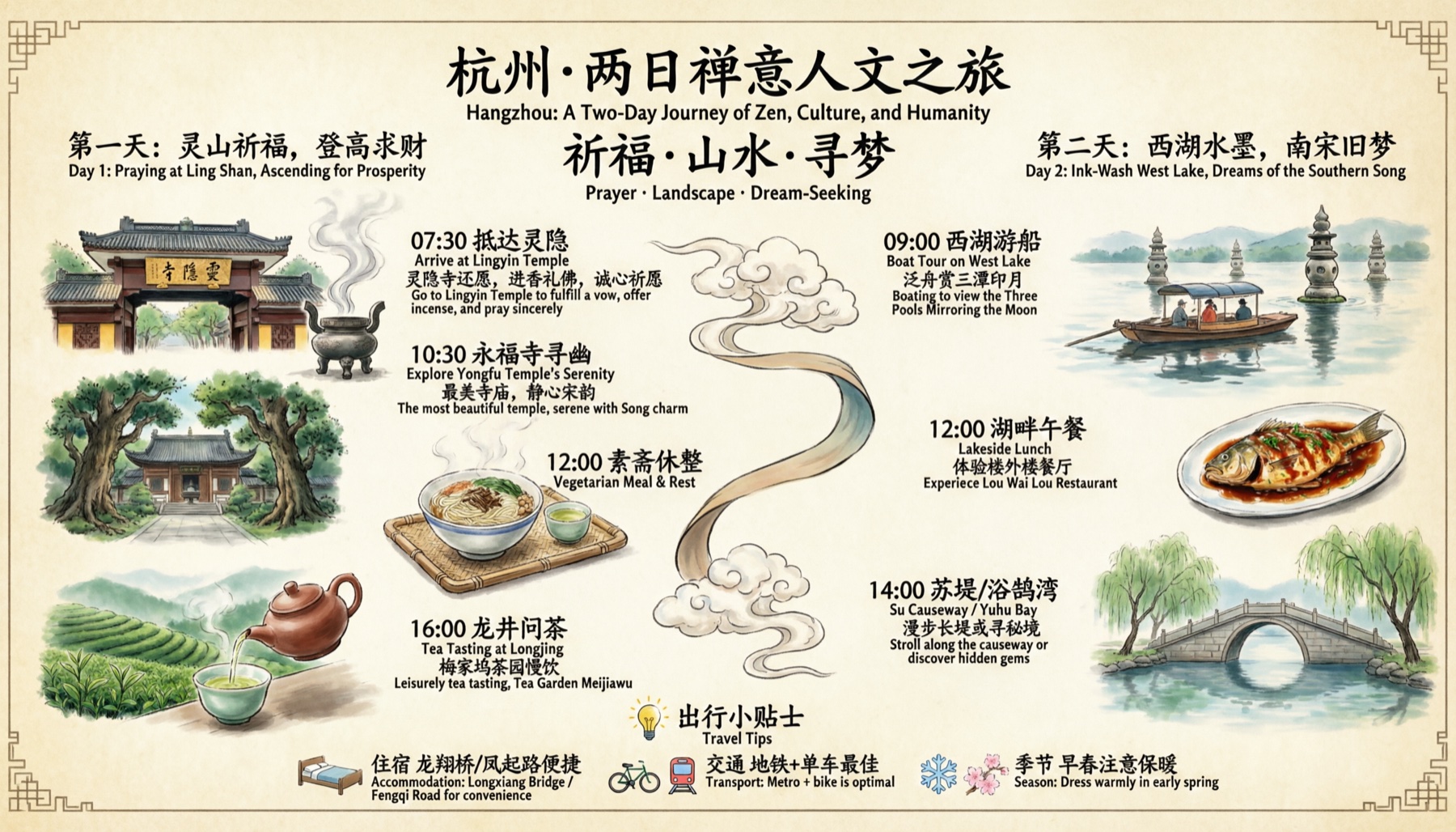
Move from a written brief to a new visual, or use references when Qwen Image 2.0 supports them. Both workflows send a working prompt directly to the generator above.
Write a balanced creative brief: one clear subject, intended channel, composition, lighting, material, palette, and any exact copy.
Use references to hold the recognizable subject or layout while changing environment, style, palette, or supporting objects.
Upload up to five reference images when Qwen Image 2.0 needs an existing subject, palette, or layout to guide the edit.
A strong prompt reads like a compact creative brief: concrete enough to guide the model, but organized enough to edit.
Subject + layout hierarchy + exact copy + palette + reference rolesState whether the output is a poster, product image, cover, social post, or scene so composition follows a real destination.
Contemporary event poster with exact headline “OPEN STUDIO” and exact date “14 SEPT”, oversized cobalt typography, coral square, warm ivory paper, clear hierarchy, clean margin, subtle print texture, 3:4, no other text.
Quote exact wording and describe hierarchy. Short copy is easier to control and review than a dense wall of text.
Quiet neighborhood bakery at sunrise, baker arranging bread behind a large window, warm interior light against cool blue street, realistic glass reflections and timber texture, documentary photography, 16:9.
Approve layout and direction at 1K, then move to 2K when the result is ready for closer inspection or delivery.
Minimal album cover with one translucent cobalt sphere, a coral ribbon passing behind it, warm ivory field, asymmetric composition, tactile paper grain, generous title space but no text, square format.
The same three-step workflow works for one-off ideas and structured batch production.
Qwen Image 2.0 is selected when the page loads. Write one prompt, add supported reference images when needed, or open the batch workspace for larger jobs.
Describe the subject, context, composition, style, and constraints. Then choose the supported ratio and resolution for Qwen Image 2.0, adding reference images only when the model allows them.
Submit the job, compare the Qwen Image 2.0 results, and regenerate with targeted prompt changes. Completed work is available in history for later review and download.
Use credits, output tiers, and creative strengths as practical selection signals. The best model depends on the job, not one universal ranking.
| Model | Best-fit strength | Output tiers | Credits / image |
|---|---|---|---|
| Qwen Image 2.0 | balanced quality and speed | 1K / 2K | 13 |
| Qwen Image 2.0 Pro | text-rich and refined visuals | 1K / 2K | 31 |
| Z-Image-Turbo | fast creative iteration | 1K / 2K | 7 |
| Wan 2.7 Image | balanced quality and speed | 1K / 2K | 13 |
Practical answers about access, credits, inputs, output controls, batch workflows, and responsible review.
It is a balanced choice for visual design, moderate typography, photoreal scenes, product concepts, and reference-guided editing.
The standard model offers a lower-cost balanced workflow. Pro costs more and is positioned for denser typography, complex compositions, and more refined output.
It can be used for text-led concepts. Keep copy concise, quote exact wording, describe hierarchy and placement, and review every character.
Yes. Upload up to five references and describe protected details before asking for a new environment, palette, styling, or composition.
Use 1K for exploration and 2K for approved digital artwork that needs more detail. The generator shows the active cost before submission.
Yes. Define object geometry, material, label area, camera, background, and shadow, then use references when a specific product must remain recognizable.
Qwen Image 2.0 currently uses 13 Bimg credits per image, depending on the available output or quality setting. The generator shows the exact estimate before you submit, and normal Bimg refund handling applies to failed jobs.
The current Bimg integration exposes 1K and 2K output. Available aspect ratios are shown beside the generator and update automatically when you change the model or workflow.
Yes. Bimg accepts up to 5 reference images for Qwen Image 2.0. State what must remain consistent and what should change so the references act as clear constraints rather than vague inspiration.
No. Bimg is an independent image-generation platform and is not affiliated with, sponsored by, or endorsed by Alibaba. The model name is used only to identify the generation option available in the Bimg workspace.
Open the generator above with Qwen Image 2.0 already selected, write your brief, choose the delivery format, and move from one idea to a reviewable result in the same workspace.
Generate with this model